Access Control
Overview
On the Access Control page, administrators can directly grant database access permissions to users or groups.
From 11.5.0, schema (logical DB) level access control functionality has been added.
Viewing the Access Control List
On the Access Control page, you can view the DB privileges and administrator role status granted to users and groups registered in QueryPie.
- Group / Users tab: Displays the list of groups and users and shows their status.
- Locked Accounts: You can check users who are locked due to account lock conditions and unlock them.
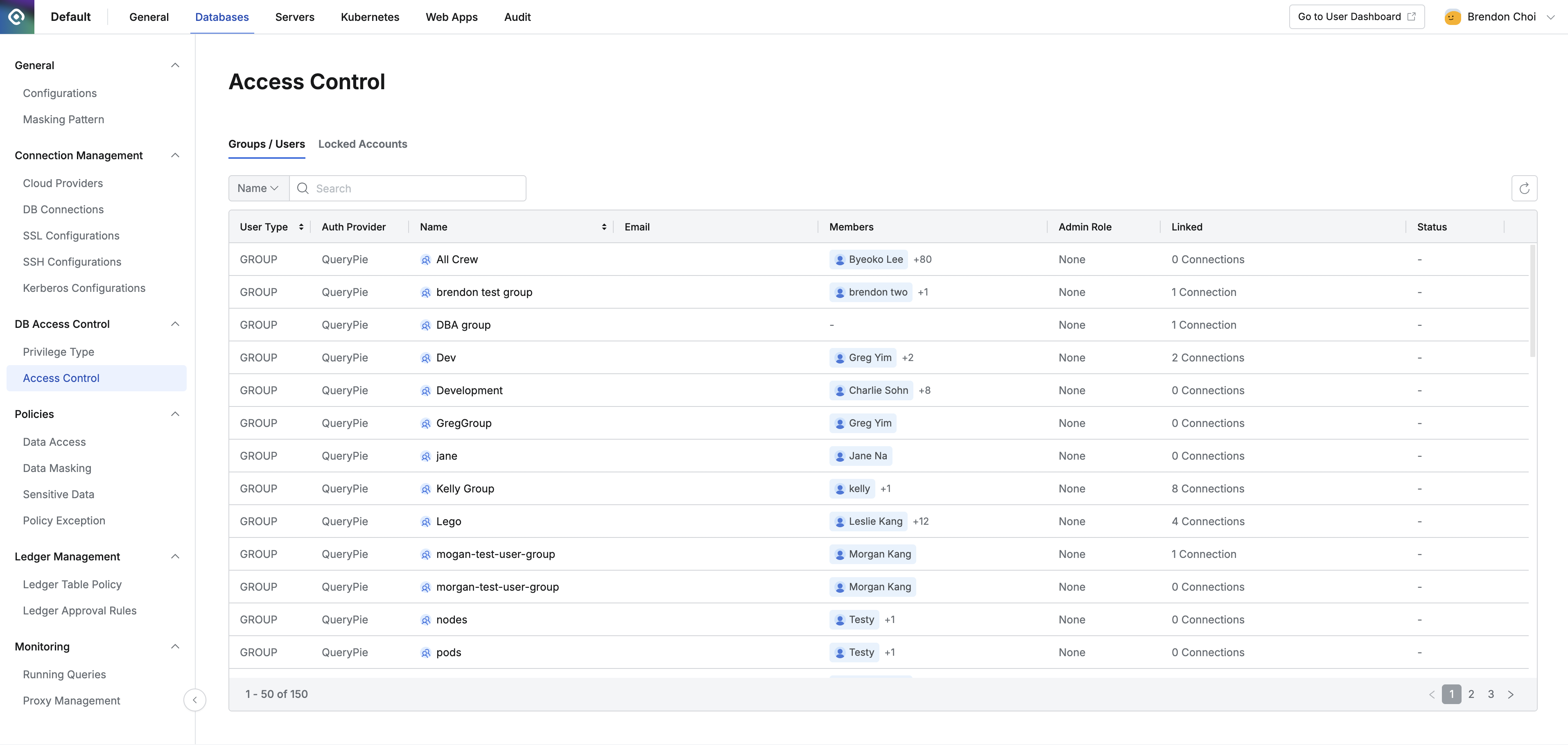
Administrator > Databases > DB Access Control > Access Control
Viewing User/Group Access Control Details
Clicking on a specific user or group row in the Groups / Users tab list on the Access Control page opens a detail screen where you can view information about targets that have been granted privileges.
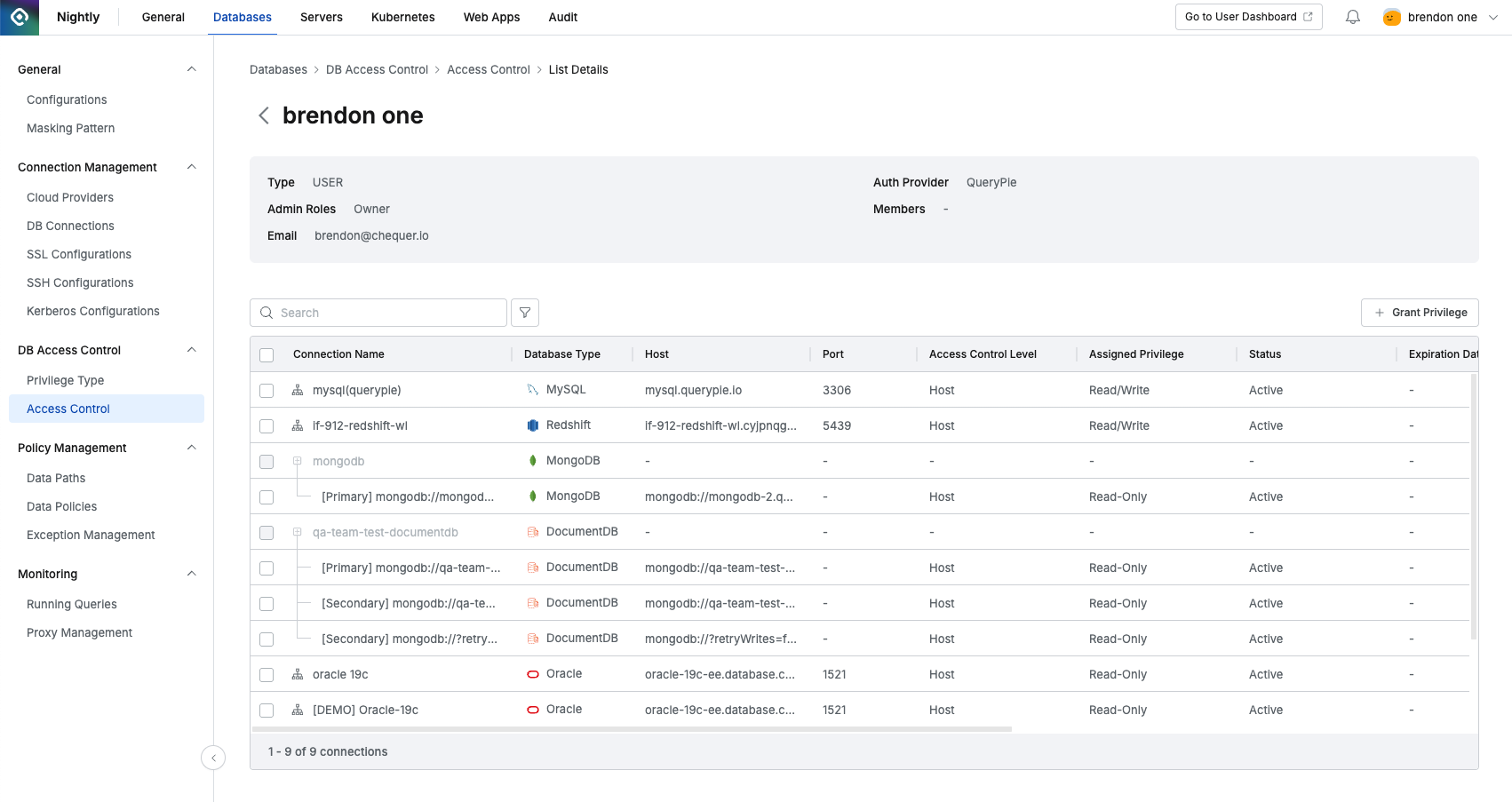
Access control detail page for a specific user
- Search: Can search by Connection Name
- Basic information
- Type: Displays the classification type as USER or Group.
- Auth Provider: Displays which authentication service provider the user uses for authentication.
- Admin Roles: Displays the Admin Role assigned to the user.
- Members: If the selected target is a Group, displays the members of that group.
- Email: The user’s email address.
- List of targets granted privileges: If there are no connections with privileges granted, nothing is displayed in the list.
- Connection Name: The name of the target connection.
- Database Type **** : Database type (e.g. MySQL, MariaDB, PostgreSQL…)
- Host: The Host address registered in the connection.
- Port: The Port address registered in the connection.
- Access Control Level: Indicates the level of access control. From 11.5.0, schema (logical DB) level control is available, so it is displayed as Host or Schema(Logical DB).
- Assigned Privilege: The privilege assigned to the target.
- Status: Displays the status of the privilege.
- Active: The user has normal privileges for the connection.
- Deactivated: The user has privileges for the connection but is in a deactivated state because they have not accessed the connection for a period set by the administrator.
- Expired: The user’s privilege has been revoked because the expiration date has been reached.
- Expiration date: Privilege expiration date
- Renewed At: The time when the status was changed from deactivated to active by the administrator.
- Granted At: The time when the privilege was granted.
- Last Accessed At: The most recent time the user accessed the target.
- Granted By: The administrator or approver who granted the privilege.
Granting Access Control Privileges - Host Level
- Navigate to the Access Control menu from the Database settings menu.
- Select the user or group to grant privileges to from the list and go to the detail page.
- Click the
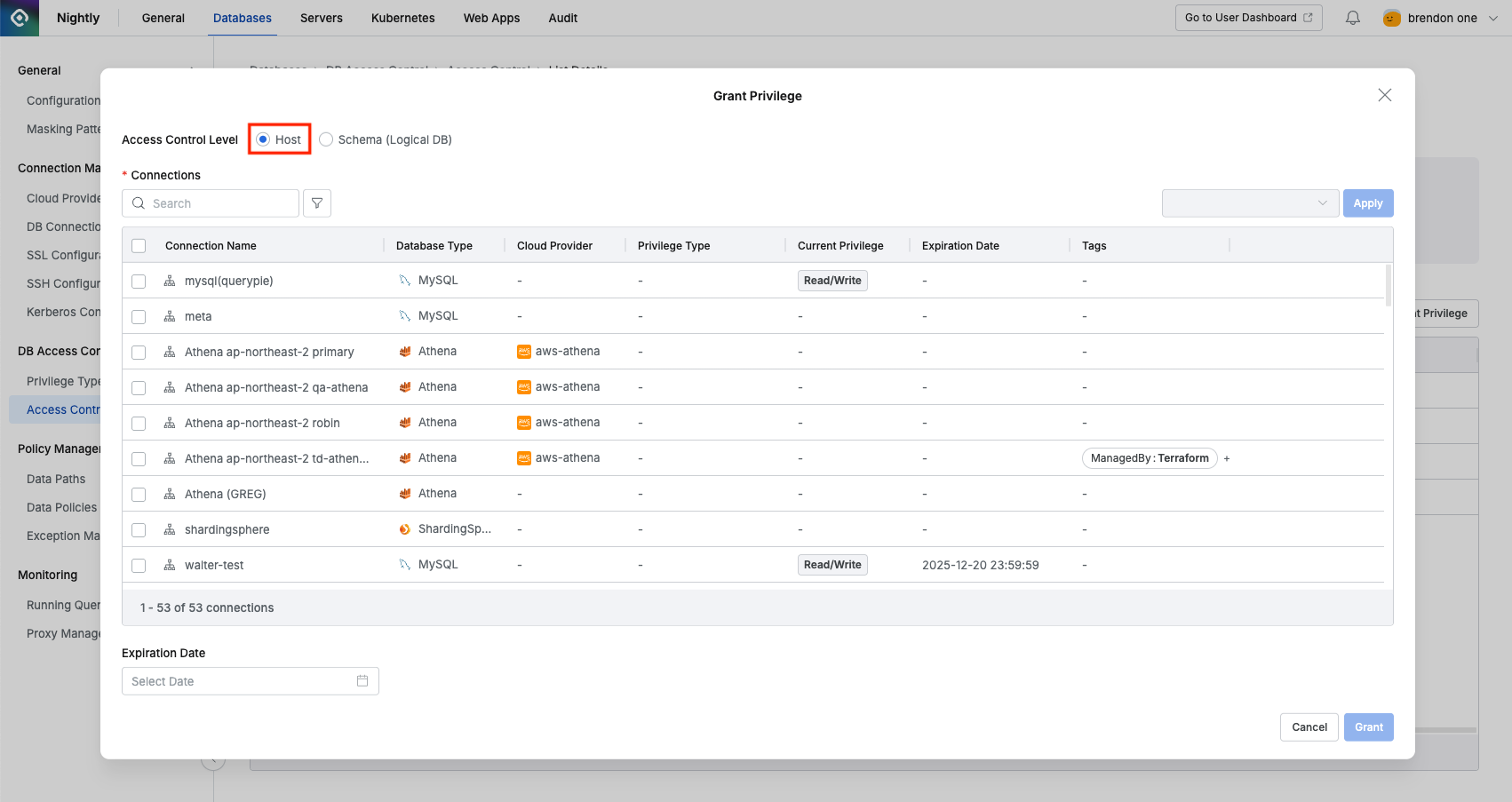
Grant Privilegebutton. - In the popup window, select Host from Access Control Level. (Default: Host)
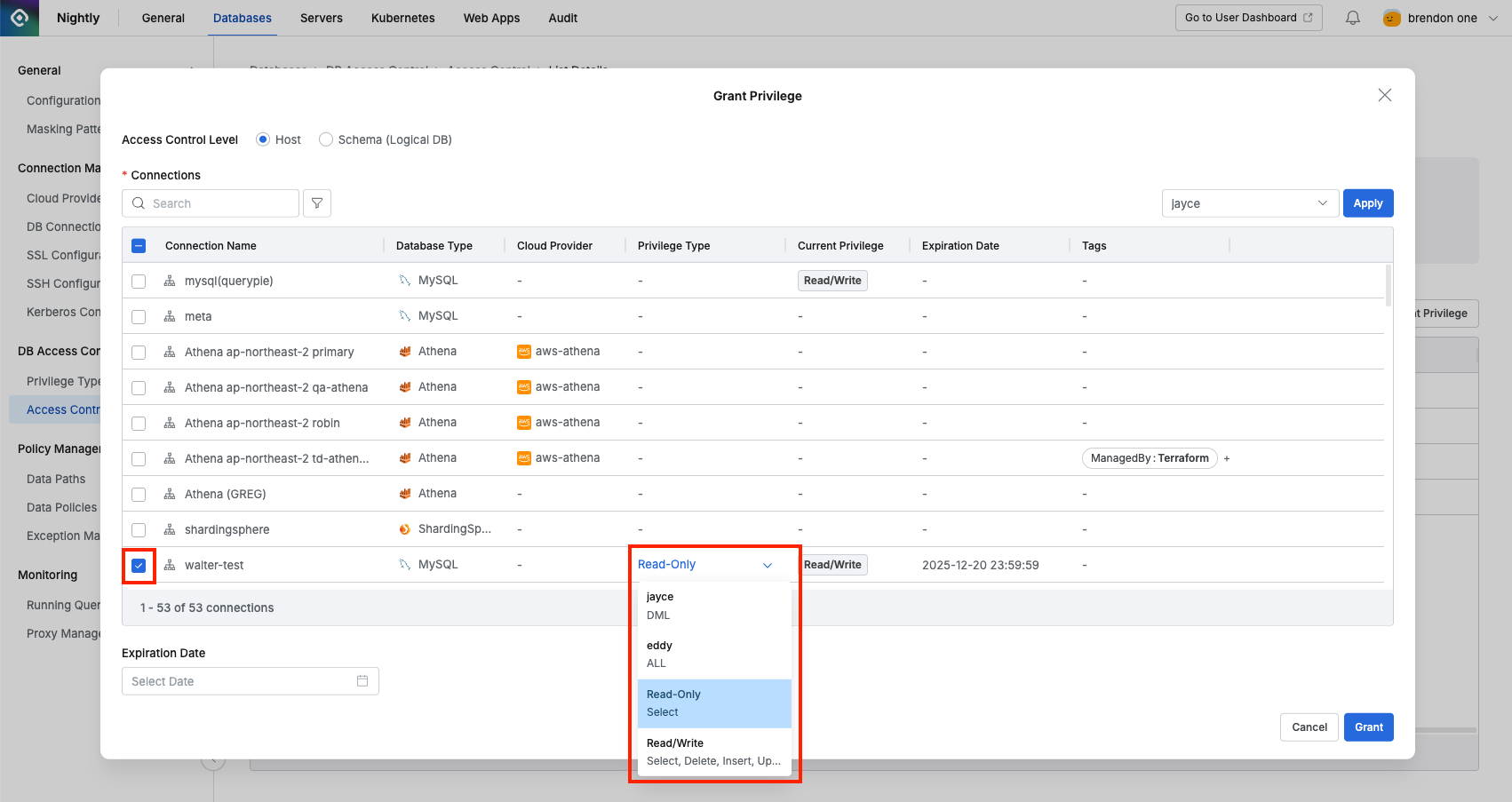
- Select the connection to grant privileges to and choose a specific privilege type.
- If necessary, set the privilege expiration date in Expiration date and click the
Grantbutton. - You can also select multiple connections to grant privileges in bulk.
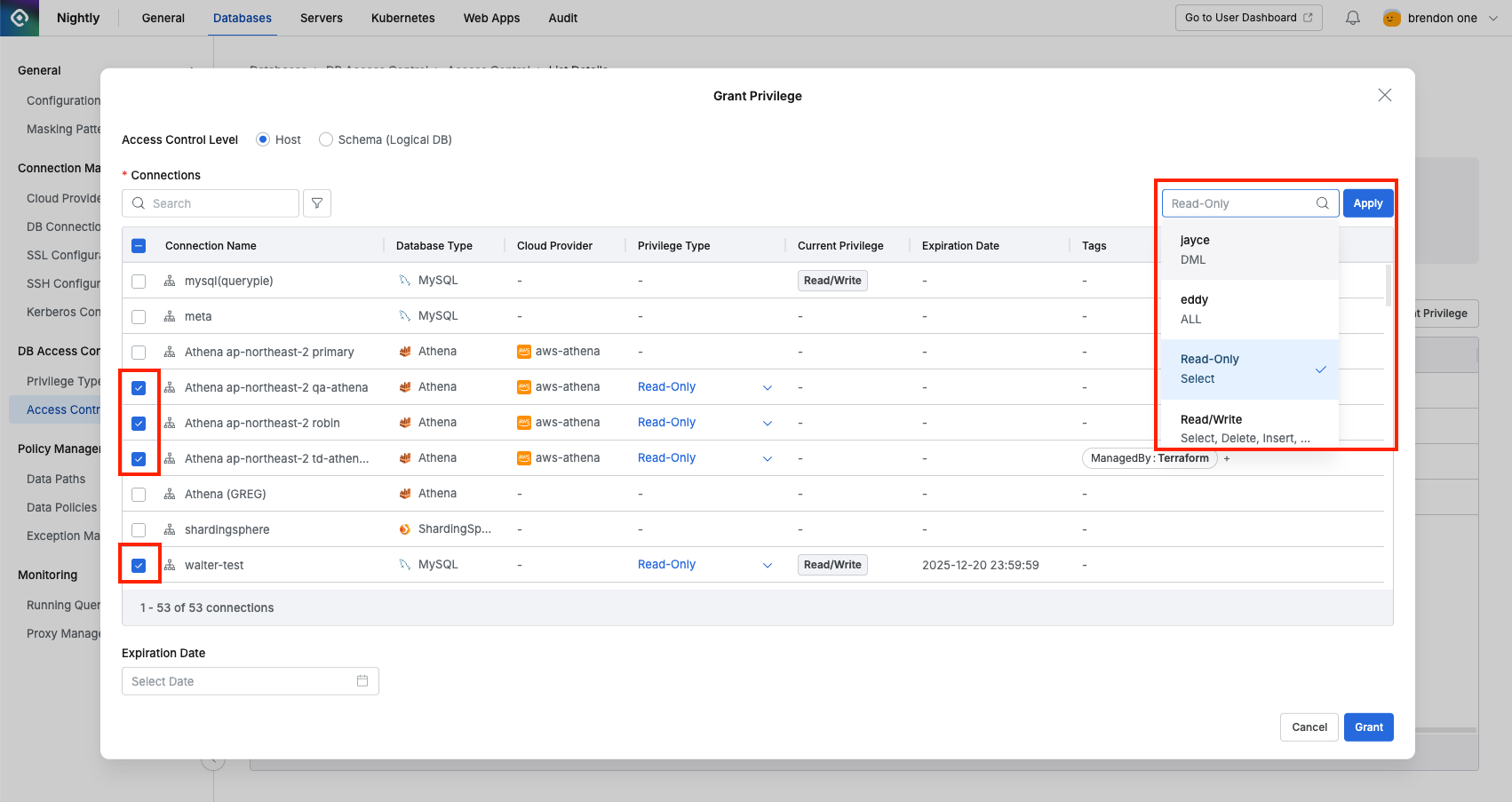
Users who have been granted privileges can now connect to the connection with those privileges, and the privilege grant history is recorded as an Access Control Granted event in the Access Control Logs.
Granting Access Control Privileges - Schema(Logical DB) Level
DBMS that support Schema Level privilege assignment as of version 11.5.0:
Athena, Azure SQL, BigQuery, Cassandra, ClickHouse, DocumentDB, DynamoDB, Hive, Impala, MariaDB, MongoDB, MySQL, Oracle, PostgreSQL, Redshift, SAP Hana, ScyllaDB, ShardingSphere, Single Store, Spanner, SQLServer, Trino, Vertica
- Navigate to the Access Control menu from the Database settings menu.
- Select the user or group to grant privileges to from the list and go to the detail page.
- Click the
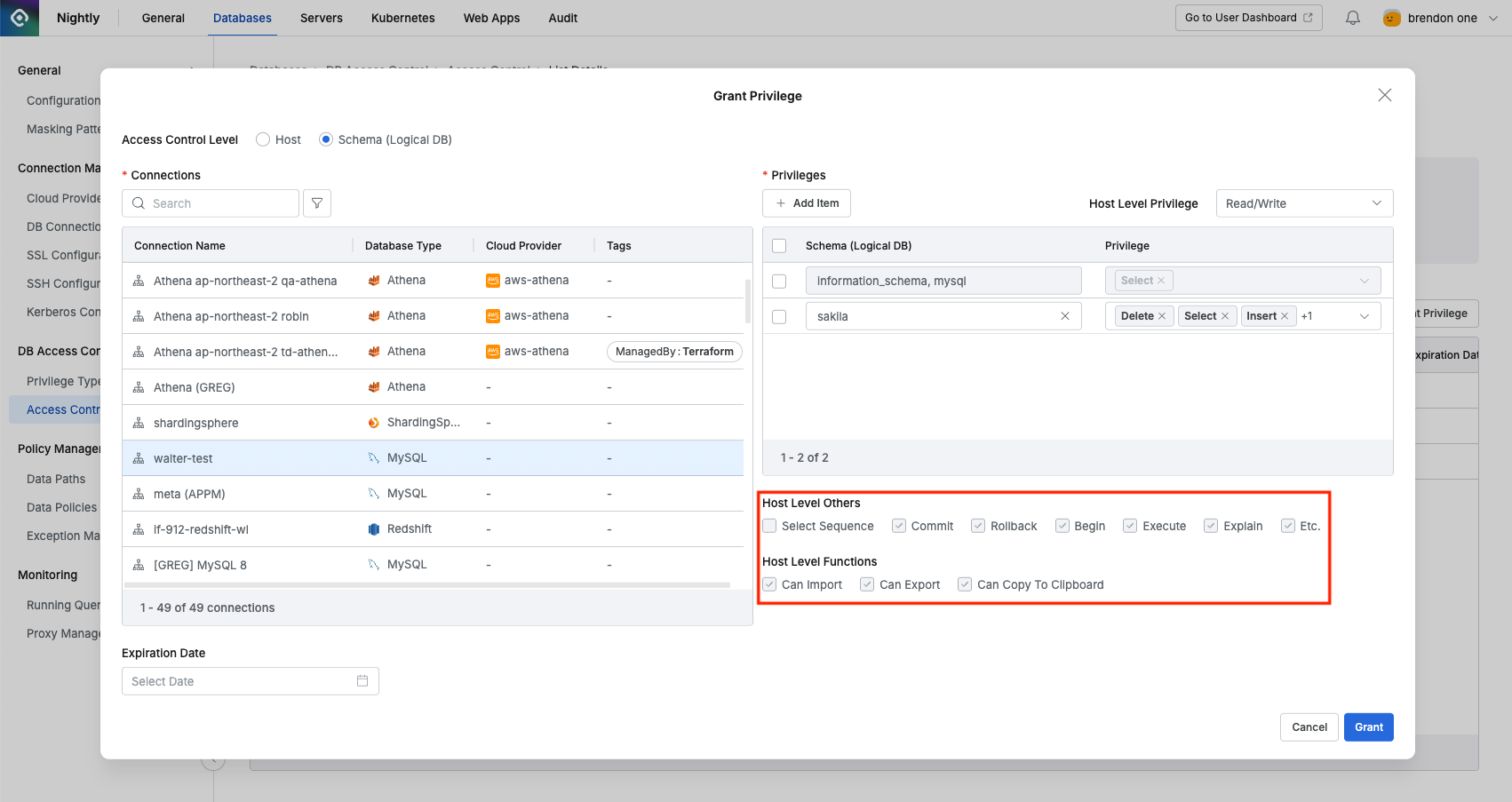
Grant Privilegebutton. - In the popup window, select Schema(Logical DB) from Access Control Level. (Default: Host)
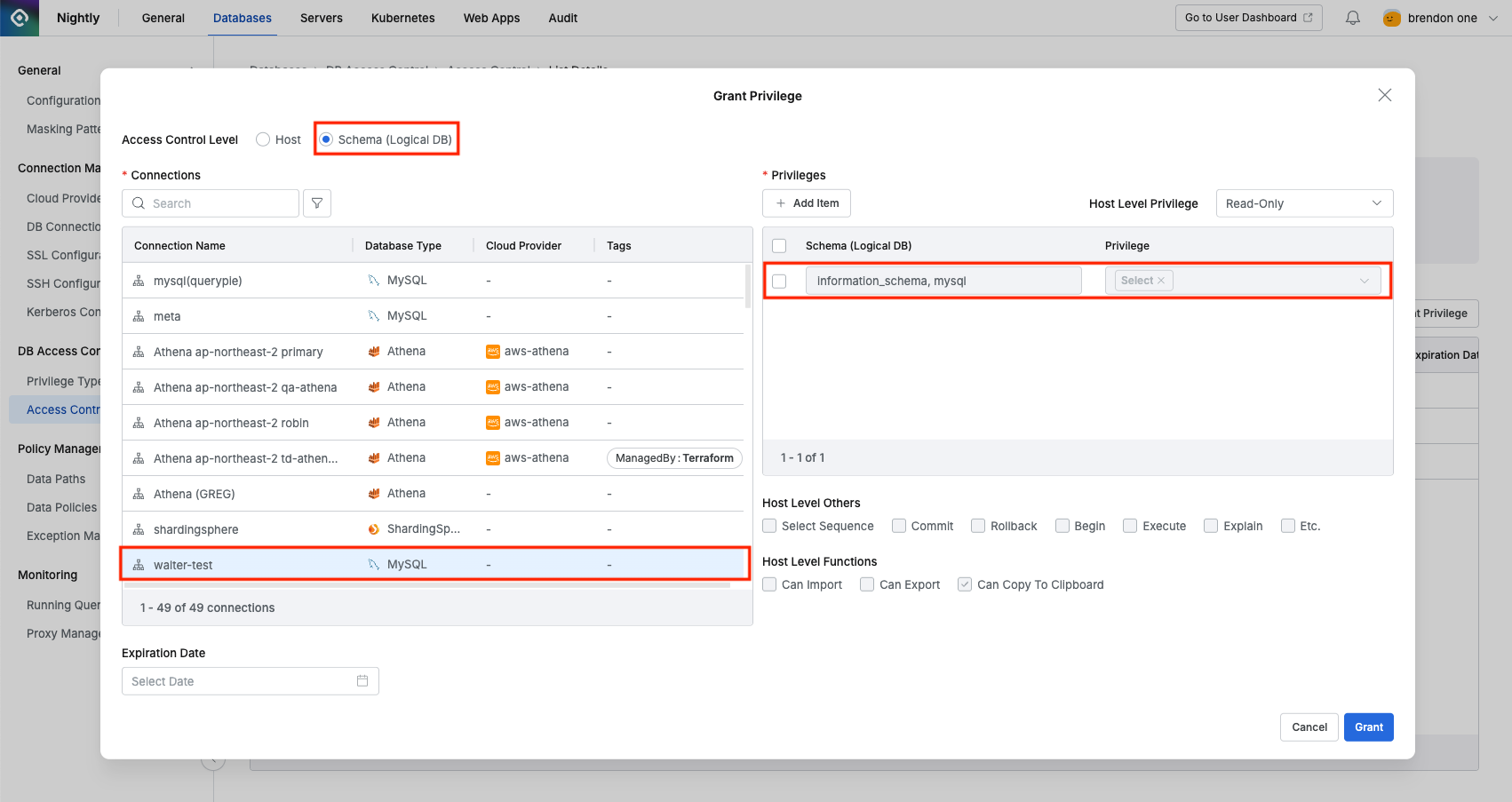
- Select the target connection from the Connections item. Schema level does not support multiple settings for multiple connections at once. When you select a connection, you can see that SELECT privilege is automatically granted to schemas that require select privilege in the privilege item on the right. Administrators can remove this item, but if they do, errors may occur when querying schema structure in Web editor or proxy, so it is recommended not to remove this item if possible.
- Click the
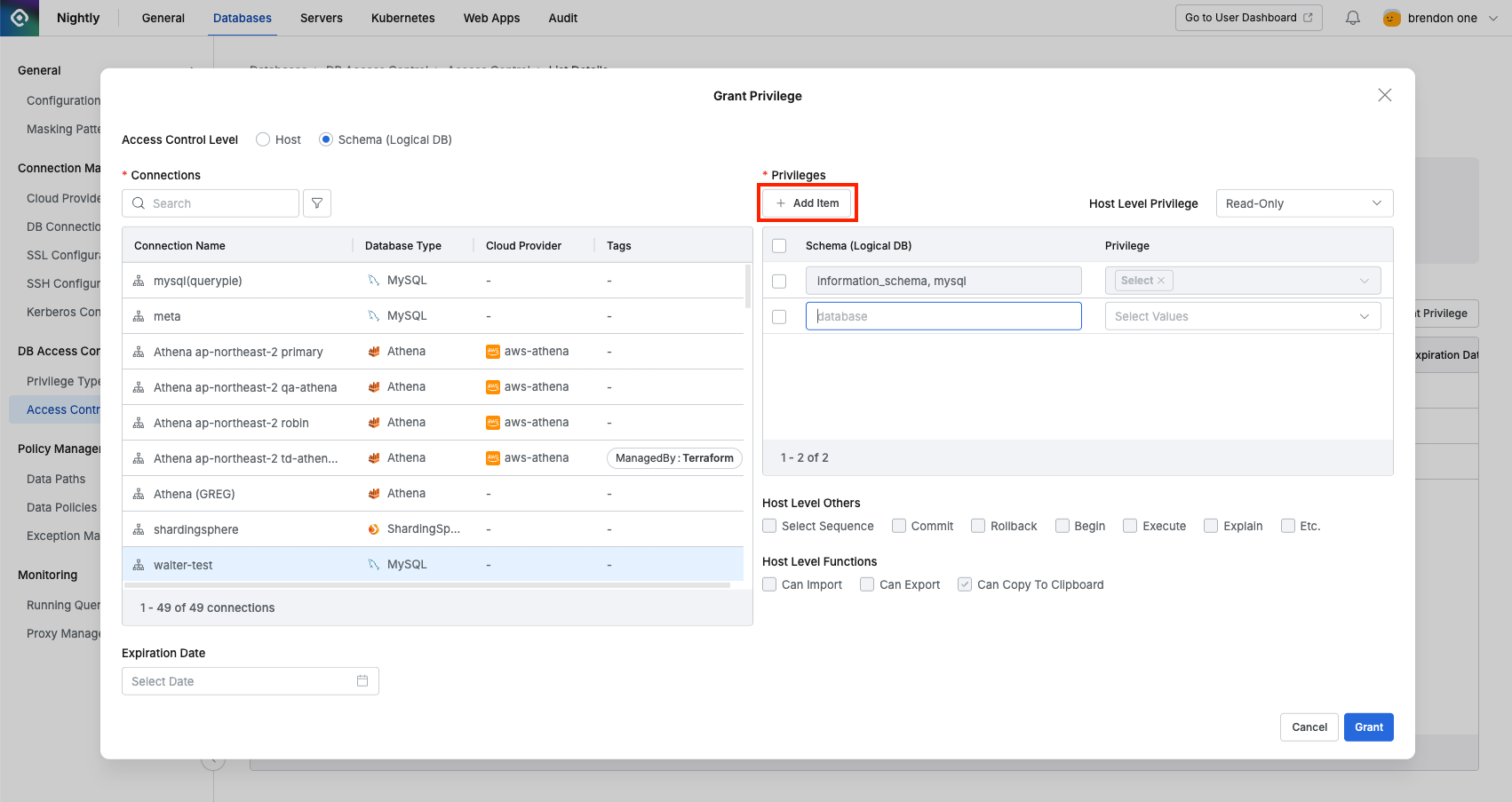
Add Itembutton to specify a specific schema (logical DB) to assign privileges to.
A row is added below where you can add targets. For DBMS with schema structure (Oracle, Postgres, etc.), you must enter the target name in the format{database name}.{schema name}. For DBMS without schema structure like MySQL, enter only the logical DB name.
- Oracle example: ORCLDB.TESTUSER
- PostgreSQL example: testdb.test_schema
- MySQL example: sakila
- To assign privileges, first select the desired privilege type from the Host Level Privilege item at the top right of the popup window. (Schema level privileges can only be granted within the scope of host level privileges. For example, if you select Read/Write as Host Level Privilege, you can grant SELECT, INSERT, etc. within that scope, but if you select Read-Only as Host Level Privilege, you can only specify SELECT.)
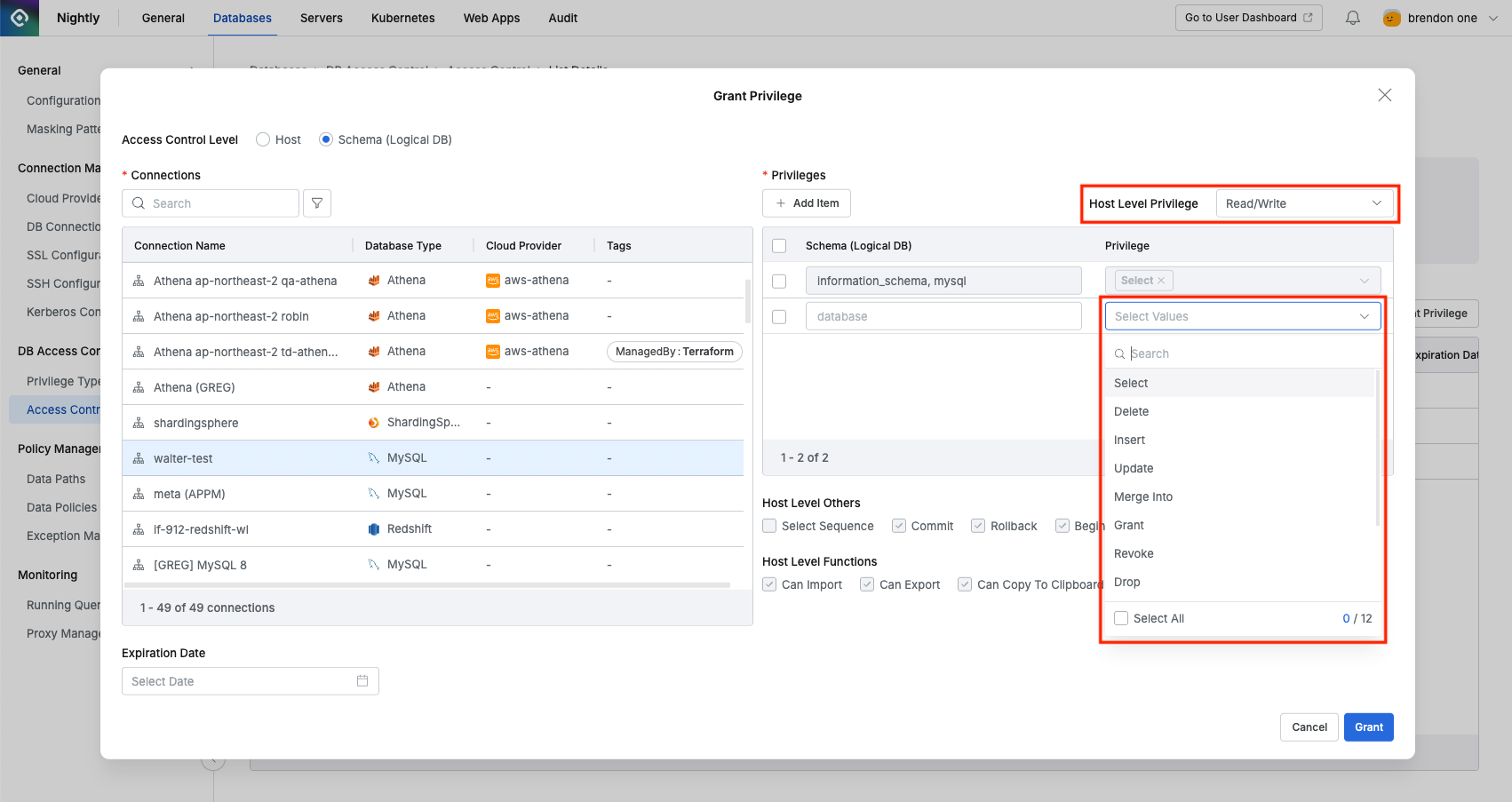
- Host Level Others and Host Level Functions displayed below are read-only. To modify them, you must modify the corresponding Privilege Type in the Databases > DB Access Control > Privilege Type menu. They are used to check upper-level information because Schema Level privileges are dependent on the properties of Host Level Privileges.
- If necessary, set the privilege expiration date in Expiration date and click the
Grantbutton.
Users who have been granted privileges can now connect to the connection with those privileges, and the privilege grant history is recorded as an Access Control Granted event in the Access Control Logs.
- For PostgreSQL, the schema level control target is Database. PostgreSQL has a structure called schema, but this is used for distinction purposes, not as a target for privilege assignment.
- For Oracle, Presto, Trino, and SAP HANA, the schema level control target is Schema.
- You can use regular expressions when entering Schema or Logical DB targets. However, you may not be able to use ^ (start of word) and $ (end of word). Since the system internally recognizes and processes the entire database.schema.table structure, entering only the regular expression for the schema name will cause an error.
What happens when a user is included in a group and different privileges are applied to the same connection for both the group and the user? When a user has multiple privileges granted through both individual user privileges and group privileges, the user can select a Default Privilege when connecting to the connection.
Revoking Access Control Privileges
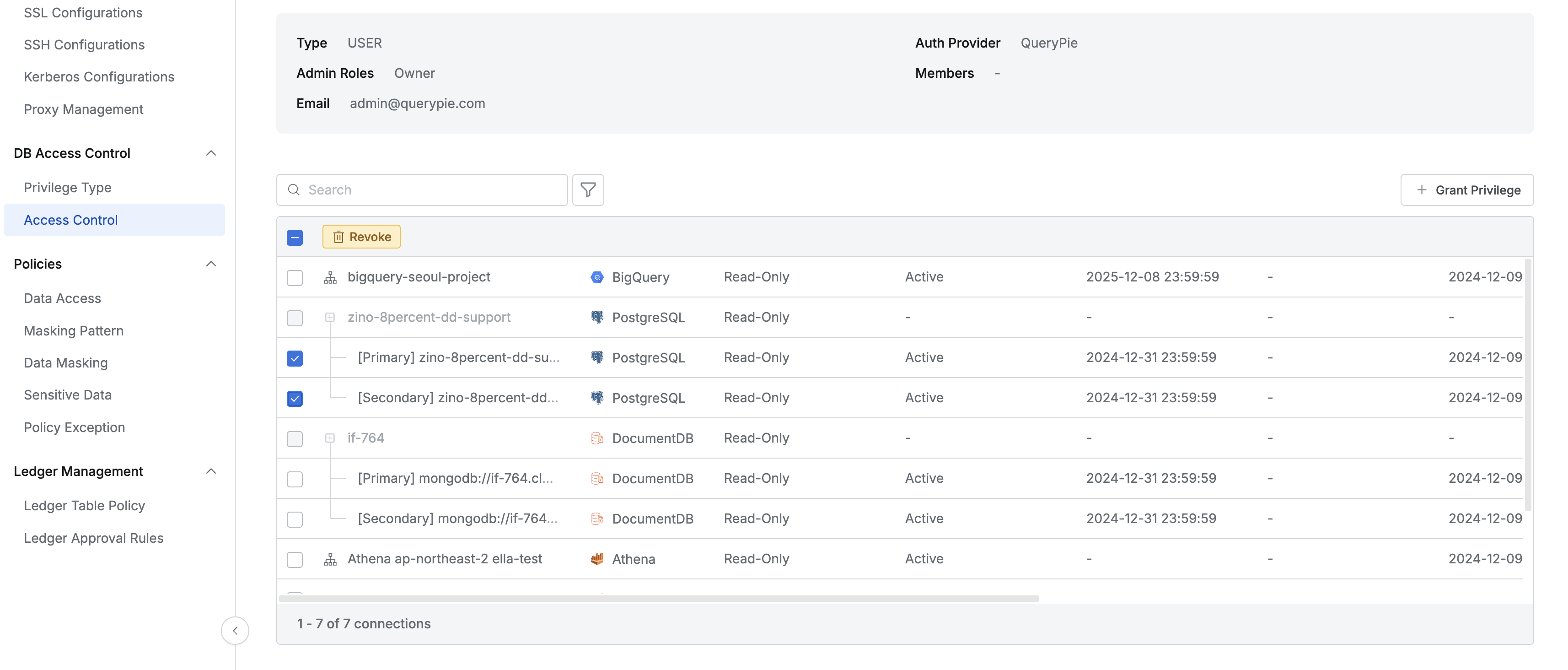
Administrator > Databases > DB Access Control > Access Control > Details
- Navigate to the Access Control menu from the Database settings menu.
- Select the user or group to revoke privileges from in the list and go to the detail page.
- Find the connection to revoke privileges from, select the checkbox, and revoke privileges through the Revoke button.
- You can also select multiple connections to revoke privileges in bulk.
Users whose privileges have been revoked can no longer access the connection, and the privilege revocation history is recorded as an Access Control Revoked event in the Access Control Logs.
Status Descriptions in the Access Control Details Panel
- Active: The user has normal privileges for the connection.
- Deactivated: The user has privileges for the connection but is in a deactivated state because they have not accessed the connection for a period set by the administrator. In this case, the user cannot temporarily access the connection.
- You can renew and reactivate deactivated privileges by clicking the button (
Renew) on the right side of the Deactivated status. - When deactivated privileges are renewed, the renewal time is displayed in the Renewed At column.
Detailed Descriptions of the Access Control Details Panel
- The initial time when the privilege was granted can be checked through the Granted At column.
- The last time the user who was granted the privilege accessed the connection can be checked through the Last Accessed At column.
- The time when the privilege will be revoked can be checked through the Expiration Date column.
- If a privilege is granted but the Expiration Date column shows nothing, the privilege will not be revoked. However, basic management of the connection privilege is affected by the connection long-term inactivity setting (Deactivation Period).
Unlocking Locked Connection Accounts
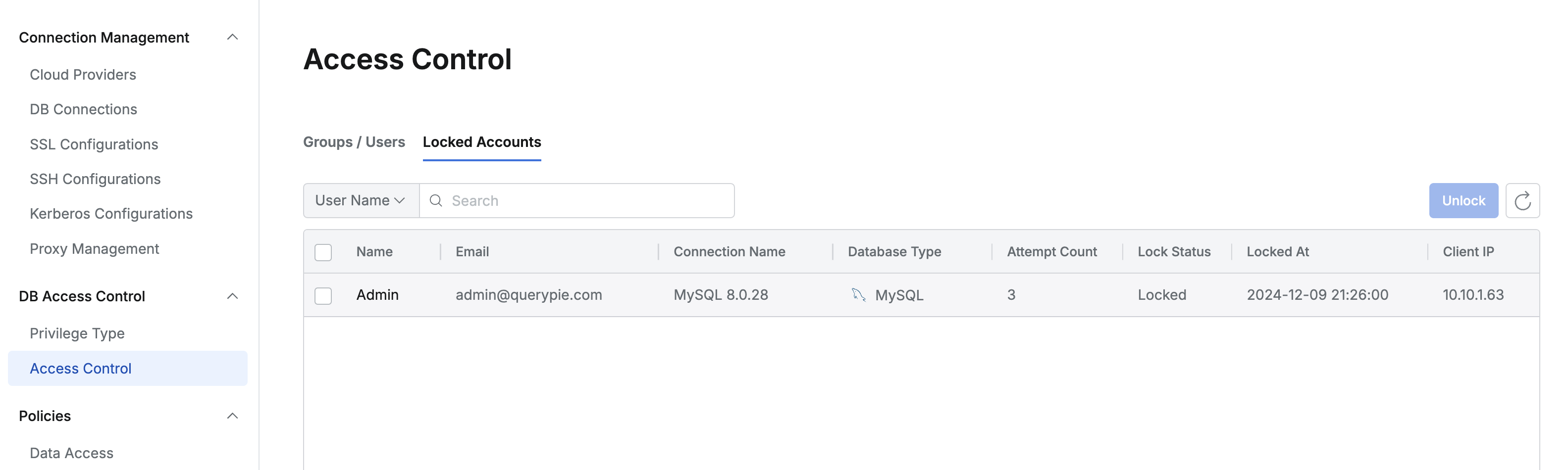
Administrator > Databases > DB Access Control > Access Control > Locked Account
- When a connection is locked due to exceeding the maximum number of DB account authentication failures (Maximum Login Failures) by the database connection security policy, it can be viewed in the Locked Account menu.
- The number of DB account authentication failures and the time when it was locked are displayed together.
- Select the item you want to unlock and click
Unlockon the right to unlock the connection.
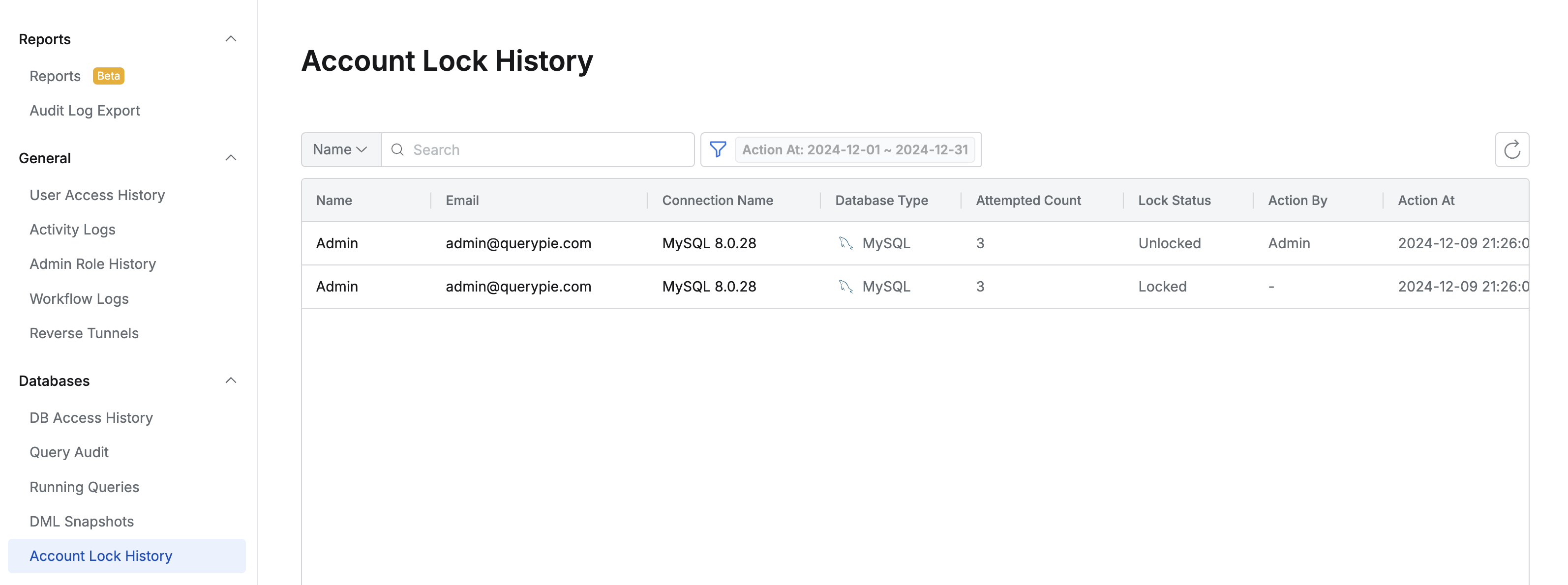
- Connection lock and unlock history can be checked in the Audit > Databases > Account Lock History menu.
Access Control with Table Tags
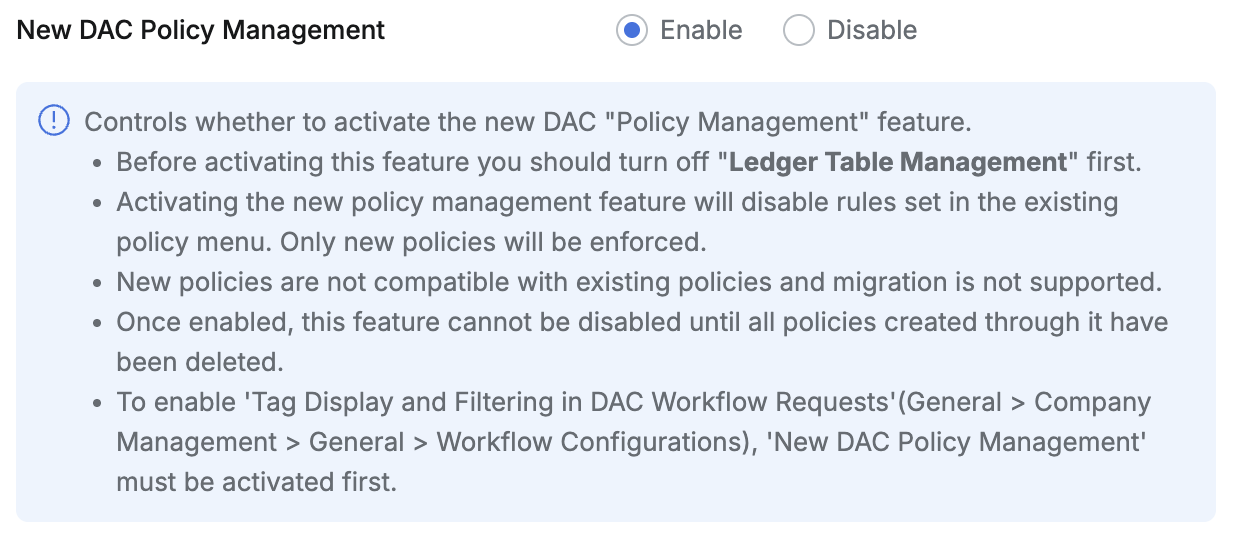
When New DAC Policy Management is enabled in Databases > General > Configurations,
In Access Control, you can control access to only tables with specific tags for connections that specific users are allowed to access. The following conditions must be met to use this feature:
- The New DAC Policy Management feature must be enabled.
- A specific user must have privileges assigned to a specific connection.
- The target table must be registered as a path in Databases > Policy Management > Data Path and have tags assigned.
If the conditions are met, you can set it up as follows:
- Go to the detailed screen of a specific connection with privileges assigned to a specific user in Databases > DB Access Control > Access Control.
- In the detailed screen, select Tag-based table access as the Access Type and add tags. You can only select and use existing tags (tags assigned to tables).
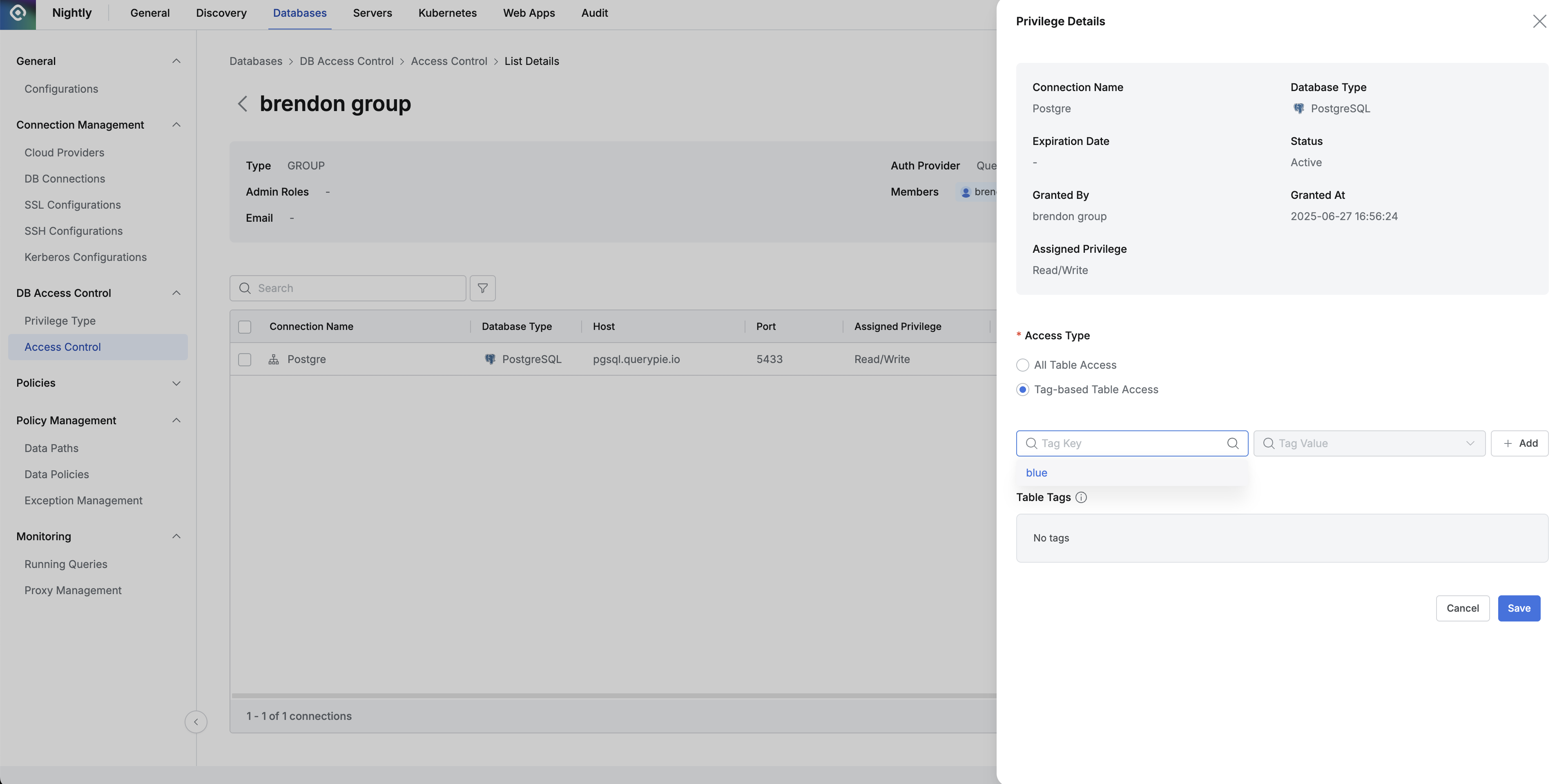
If you enable the Tag-based table access feature but don’t register any tags, you won’t be able to access any tables in that connection.