Servers
Overview
QueryPie supports viewing, creating, modifying, and deleting Server assets. Servers synchronized through Cloud Providers, APIs, or manually registered servers are all managed on the same page.
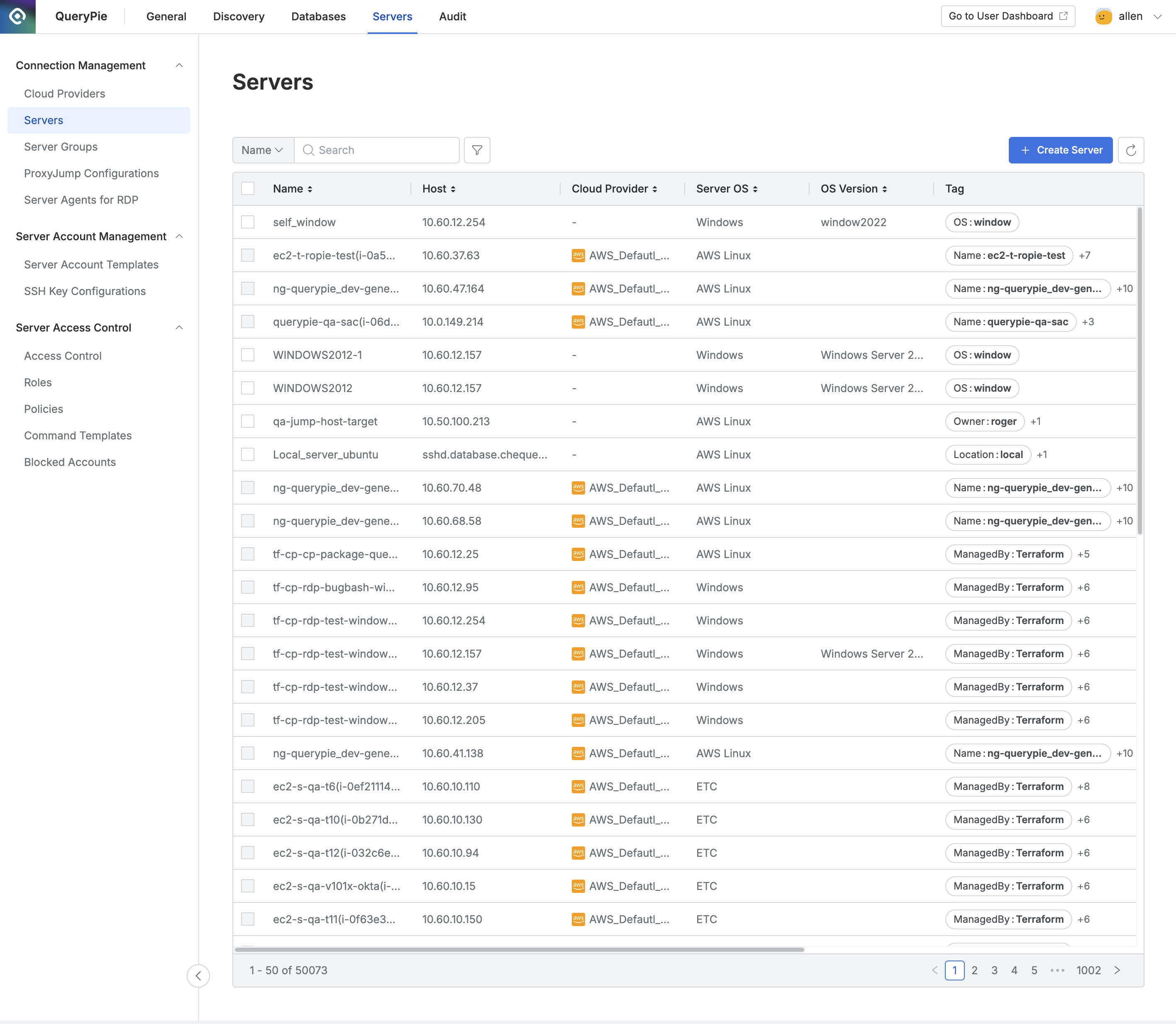
Administrator > Servers > Connection Management > Servers
Viewing Servers
- Navigate to Administrator > Servers > Connection Management > Servers menu.
- You can search by server name using the search box in the top left of the table.
- You can refresh the server list using the refresh button in the top right of the table.
- The table provides the following column information:
- Name: Server name
- Host: Server’s IP or domain
- Cloud Provider: Connected platform (displayed as hyphen for manually registered servers)
- Server OS: Server’s OS
- OS Version: Server OS detailed version
- Tag: List of tags attached to the server
- Server Agent: (Windows Server only) Server Agent Online/Offline status and version information
- Created At: Server creation date and time
- Updated At: Server last modification date and time
- Click on each row to view server detailed information.
Creating Servers
- Navigate to Administrator > Servers > Connection Management > Servers menu.
- Click the
+ Create Serverbutton in the top right. - Refer to the Manually Registering Individual Servers guide to register servers.
Deleting Servers
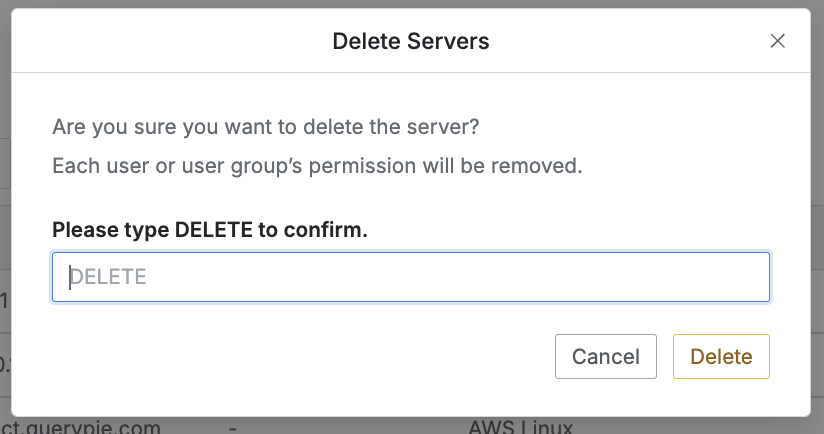
- Navigate to Administrator > Servers > Connection Management > Servers menu.
- Check the checkbox on the left of the target server to delete in the table.
- Click the
Deletebutton that appears in the table column line. - When a popup appears, enter DELETE and click the
Deletebutton to delete.
When deleting a Server, all access permissions for that server granted to users/groups are bulk deleted.
Last updated on