Roles
Overview
This feature supports viewing, creating, editing, and deleting Roles based on access permissions for Kubernetes clusters managed by your organization. A Role is the step after Policy for implementing and applying Kubernetes access permissions. It represents a collection of Policies and serves as the link between users/groups and policies.
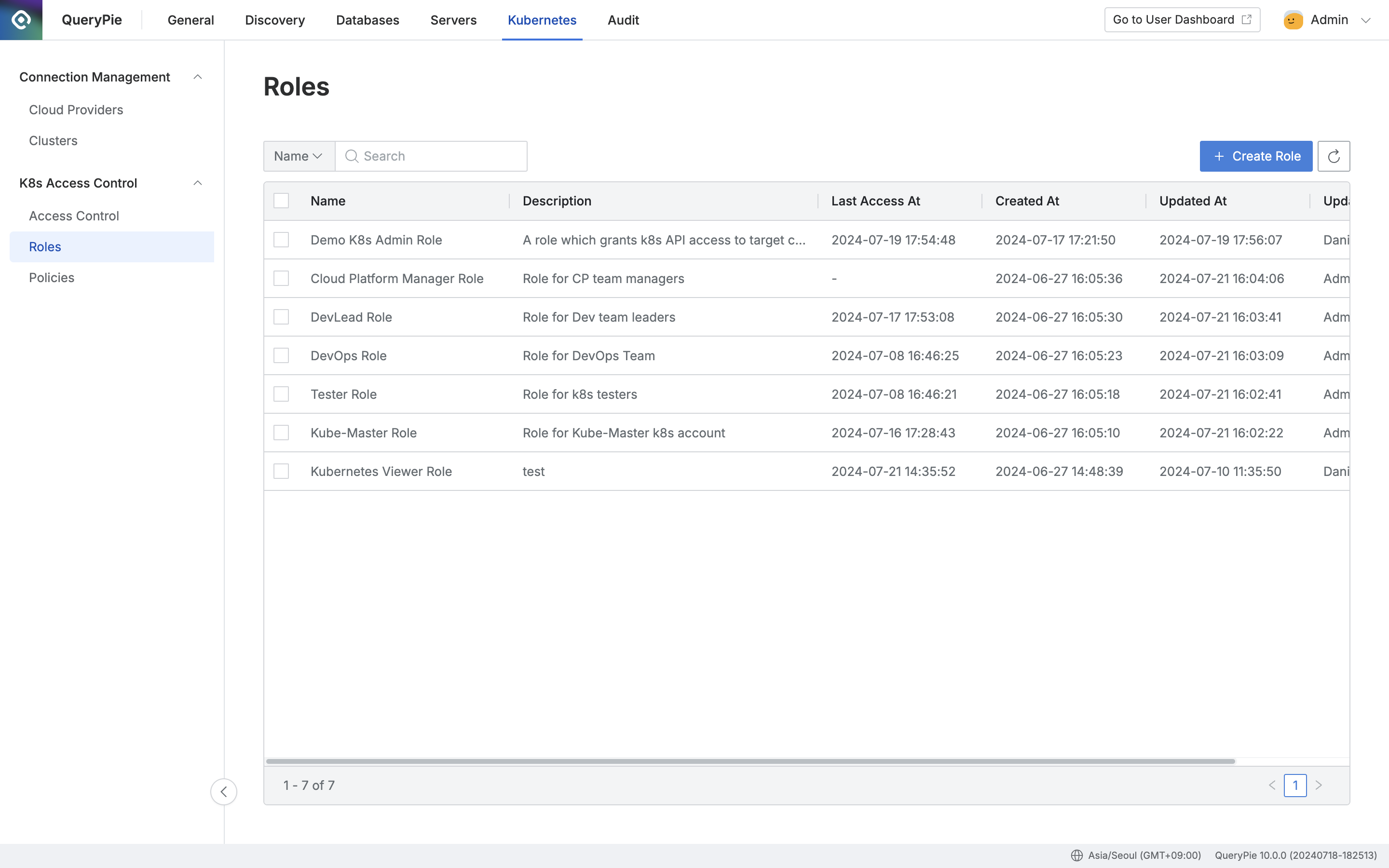
Administrator > Kubernetes > K8s Access Control > Roles
Viewing Roles
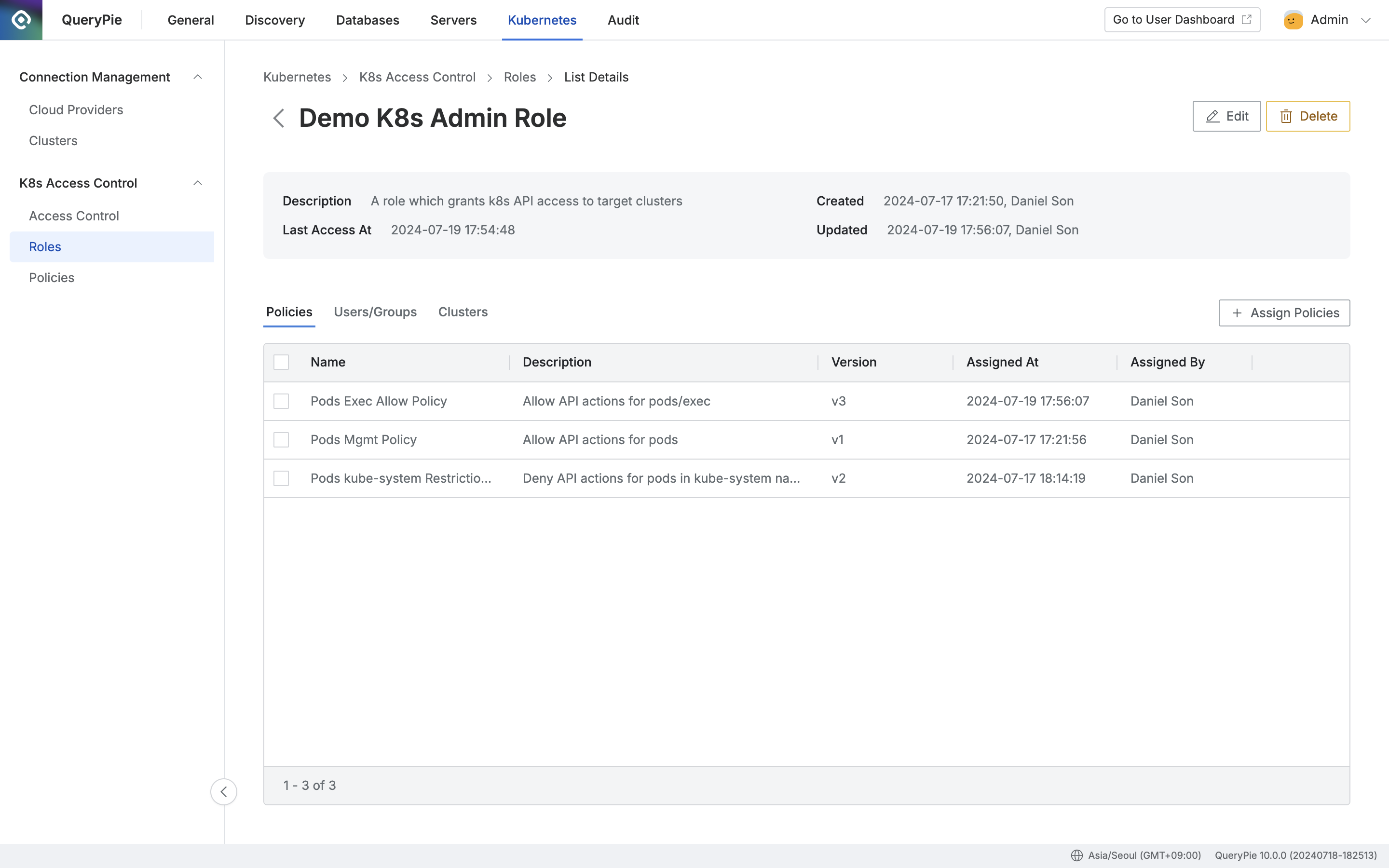
Administrator > Kubernetes > K8s Access Control > Roles > List Details
- Navigate to Administrator > Kubernetes > K8s Access Control > Roles.
- You can search by role name using the search field in the upper left of the table.
- You can refresh the Role list using the refresh button in the upper right of the table.
- The table provides the following column information:
- Name: Role name
- Description: Detailed description of the Role
- Last Access At: Date and time of the last access for the role
- Created At: Date and time the role was initially created
- Updated At: Date and time of the last modification
- Updated By: Name of the administrator who performed the last update
- Click on each row to view the role’s detailed information.
- Policies
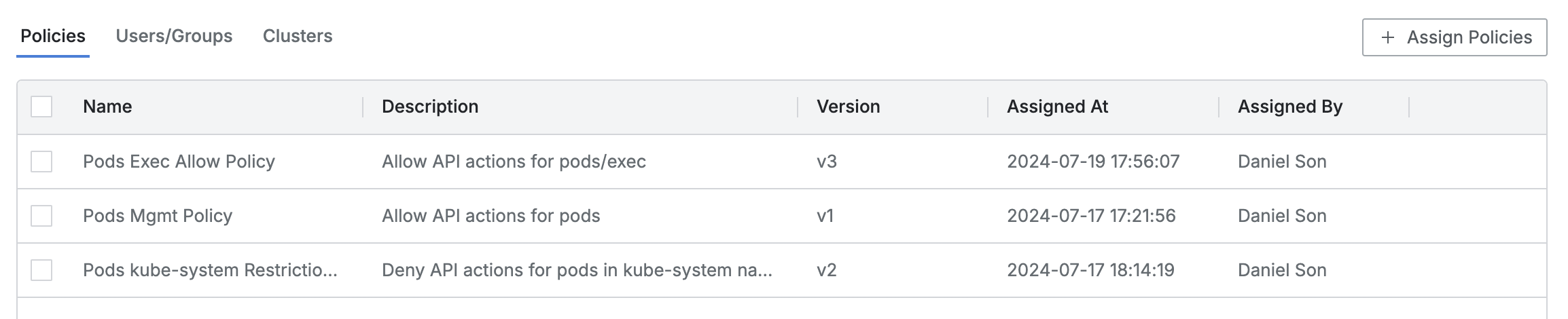
- This is the default tab where you can view the list of assigned policies.
- The table displays the following information for each policy:
- Name: Policy name
- Description: Detailed description of the Policy
- Version: Policy version
- Assigned At: Date and time of assignment
- Assigned By: Name of the administrator who assigned the policy
- Clicking on each policy row displays detailed information about the policy in a drawer format.
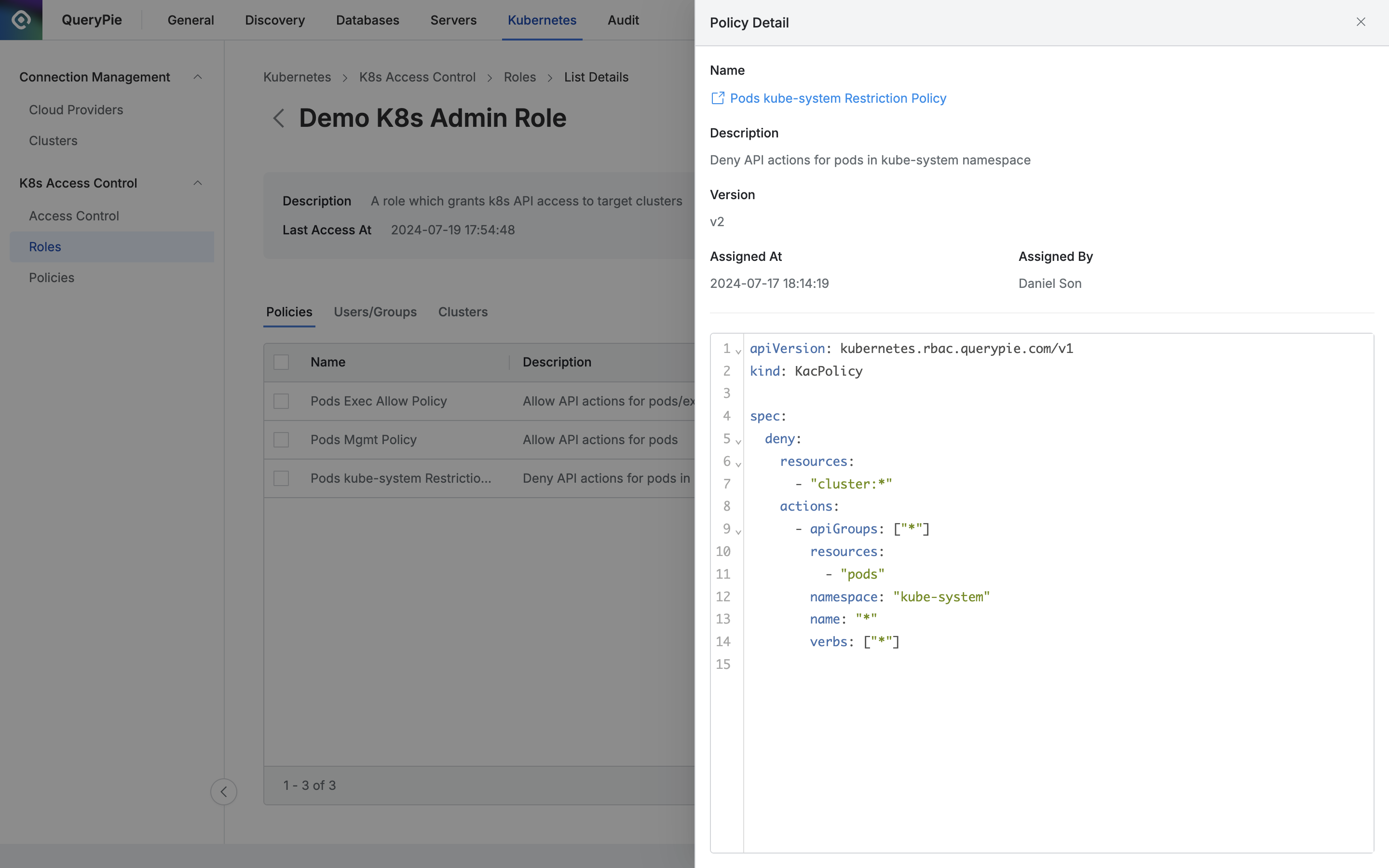
- Basic information is displayed at the top as follows:
- Name: Policy name
- You can open the policy detail page link in a new window.
- Description: Detailed description of the Policy
- Version: Policy version
- Assigned At: Date and time of assignment
- Assigned By: Name of the administrator who assigned the policy
- Name: Policy name
- The policy is displayed as code at the bottom.
- Users/Groups
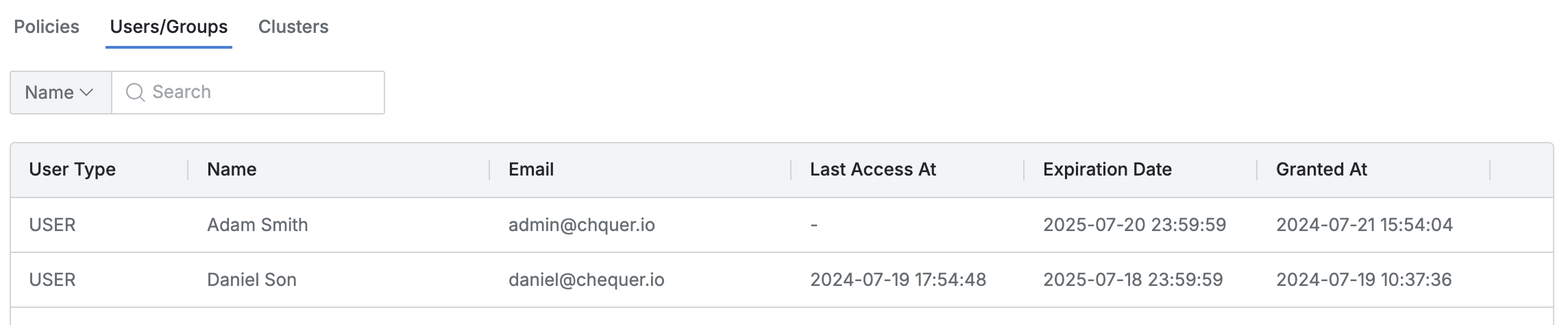
- Lists the users/groups to which the Role has been granted.
- You can search by user/group name.
- The list displays the following information for each user/group:
- User Type: User/group type
- Name: User/group name
- Last Access At: Date and time of the last access for the user/group
- Expiration Date: Expiration date
- Granted At: Date and time the Role was granted to the user/group
- Clusters
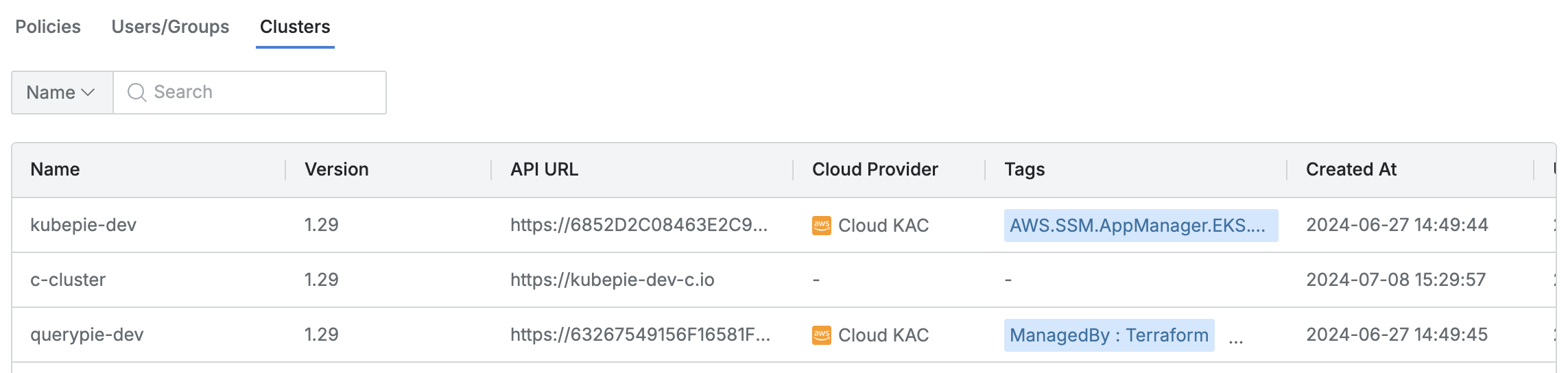
- Lists the Kubernetes clusters accessible through the Role.
- You can search by cluster name.
- The list displays the following information for each cluster:
- Name: Cluster name
- Version: Kubernetes version
- API URL: Cluster API URL
- Cloud Provider: Connected platform (displayed as a hyphen for manual clusters)
- Tags: List of tags attached to the cluster
- Created At: Date and time the cluster was initially created
- Updated At: Date and time of the last cluster modification
Creating a Role
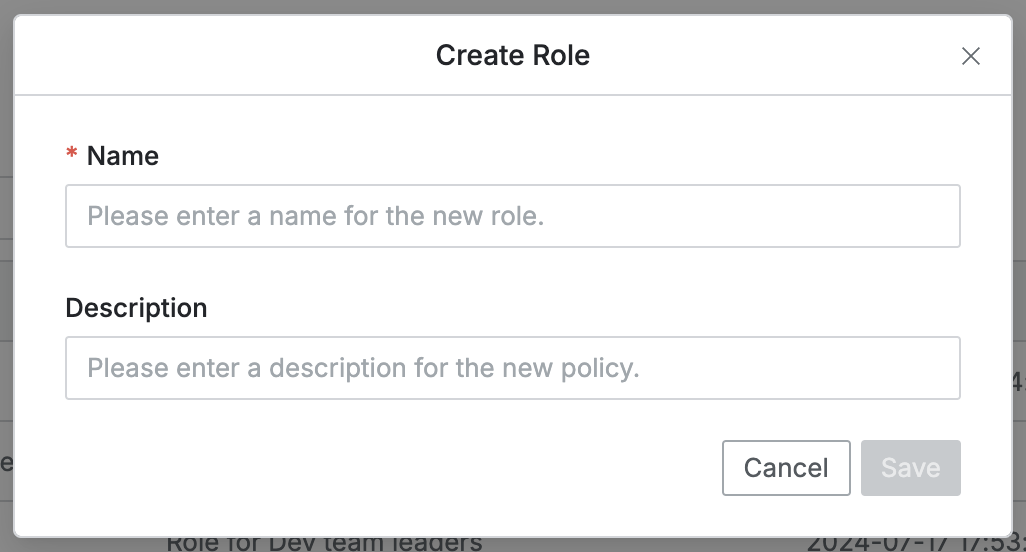
- Navigate to Administrator > Kubernetes > K8s Access Control > Roles.
- Click the
+ Create Rolebutton in the upper right. - Enter the following information to create a role. (All information below is visible to users.)
- Name: Identifiable role name (required)
- Description: Additional description of the role
- Click the
Savebutton to create the role. - Click the newly created role at the top of the role list.
- Configure policies by referring to the Kubernetes role configuration guide.
Editing a Role
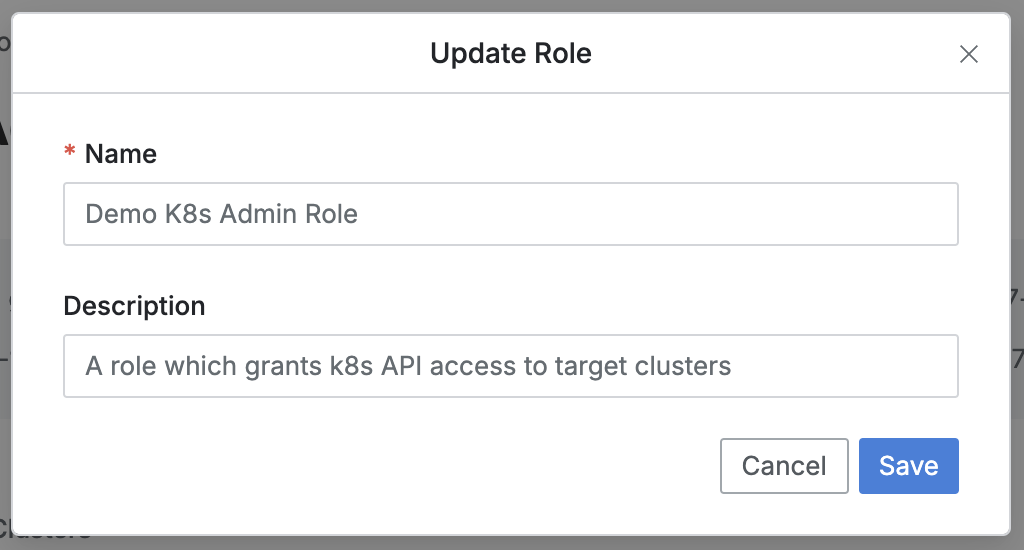
- Navigate to Administrator > Kubernetes > K8s Access Control > Roles.
- Click the Role you want to edit from the list to navigate to the detail page.
- Click the
Editbutton in the upper right of the screen to edit the following information.- Name: Identifiable role name (required)
- Description: Additional description of the role
- Click the
Savebutton to apply the changes.
Deleting a Role
- Navigate to Administrator > Kubernetes > K8s Access Control > Roles.
- You can proceed with deletion in two ways:
- Delete from the list
- Check the checkbox to the left of the target policy to delete in the table.
- Click the
Deletebutton that appears in the table column row.
- Delete from the detail page
- Click the
Deletebutton in the upper right of the screen.
- Click the
- Delete from the list
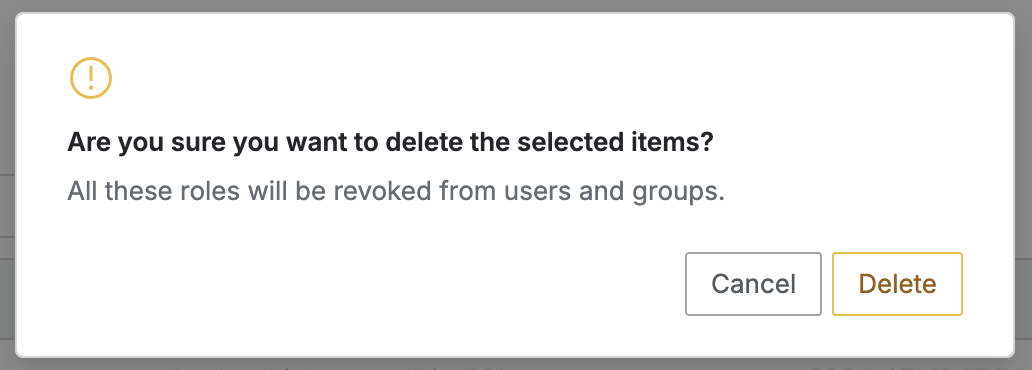
- When a popup appears, click the
Deletebutton to confirm the deletion.
When a Role is deleted, permissions are revoked from the users and groups to which the role was previously granted.
Last updated on