MCP Configuration Guide
Overview
QueryPie ACP (Access Control Platform) Community Edition 11.5.0 has added Remote MCP (Model Context Protocol) Server functionality. You can now safely perform various tasks using LLMs in various AI coding assistants under QueryPie ACP’s access control.
Supported AI Coding Assistants
Prerequisites
- Running QueryPie ACP Community Edition 11.5.0 or higher
- Valid user account created in QueryPie ACP Community Edition
Integration
MCP Server URL
To configure AI coding assistants, you need to enter the URL of QueryPie ACP that acts as an MCP Server. Setting this MCP Server URL is a common step required across multiple AI coding assistants.
{QueryPie_URL}/api/mcp
{QueryPie_URL} is the address of the running QueryPie ACP Community Edition.
Example: https://querypie.example.com/api/mcp
Claude Code
1. Add MCP server address.
claude mcp add querypie --transport http {QuerPie_URL}/api/mcpExample: claude mcp add querypie --transport http https://querypie.example.com/api/mcp

Add MCP server
2. Perform OAuth login.
First, enter /mcp to check the status of the currently configured MCP Server.
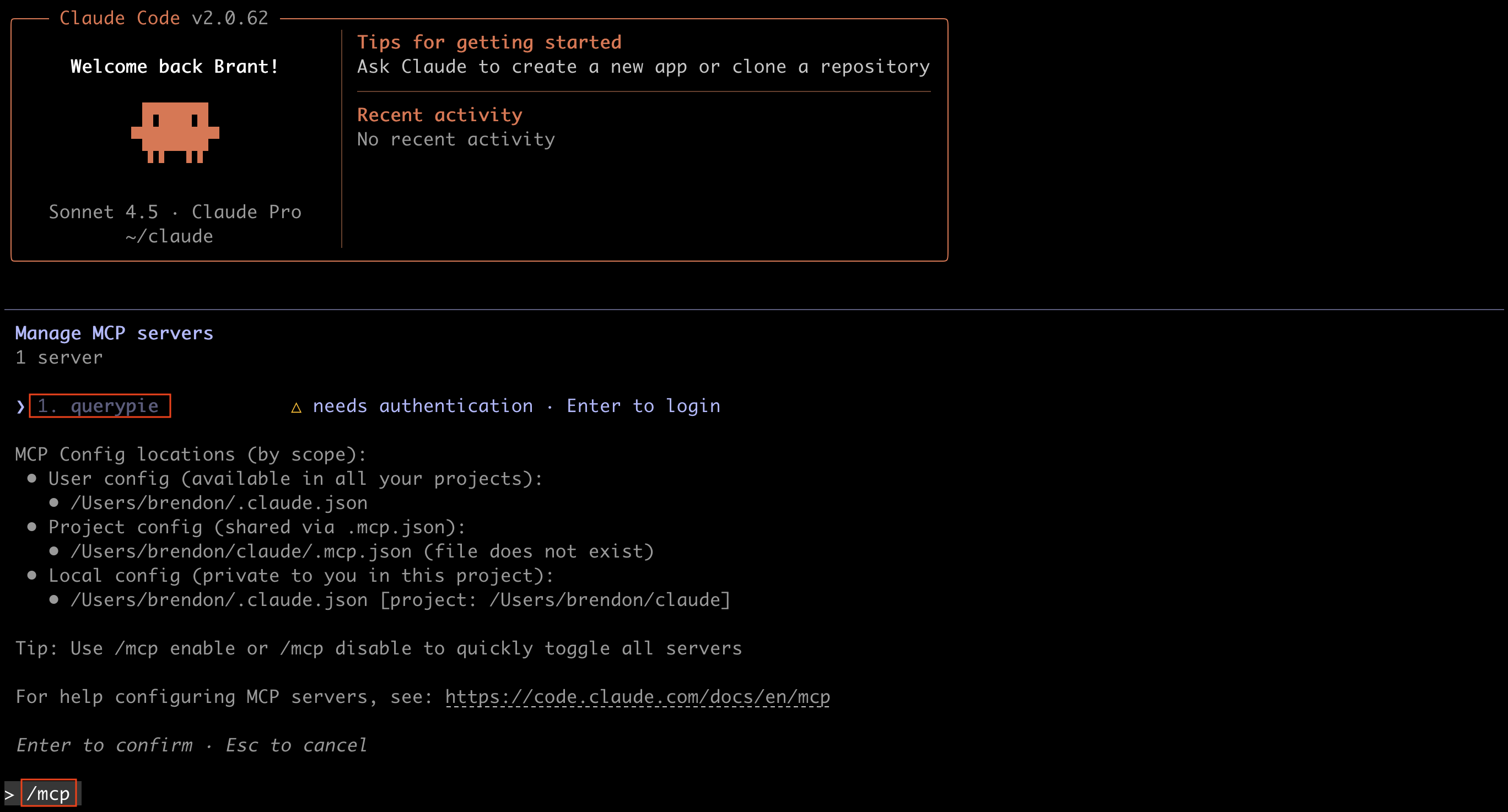
Select querypie from the list.
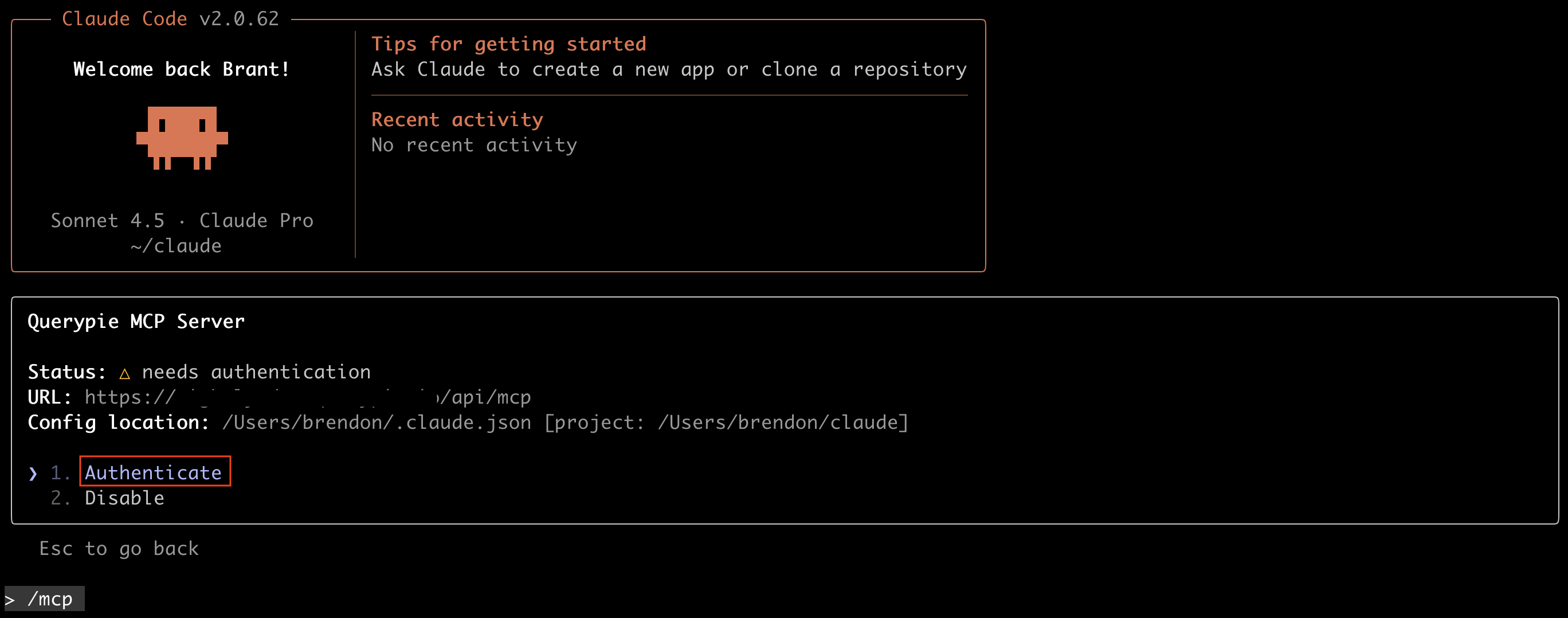
Then, select Authenticate.
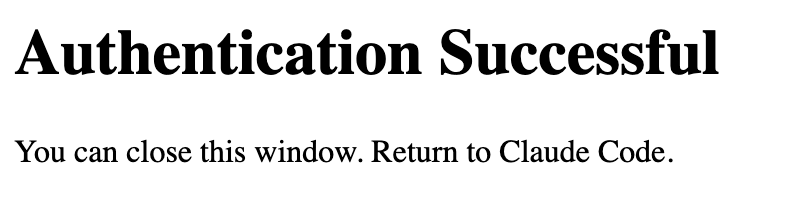
When the browser opens, log in on the QueryPie login page. If login is successful, the browser will display “Authentication Successful”.
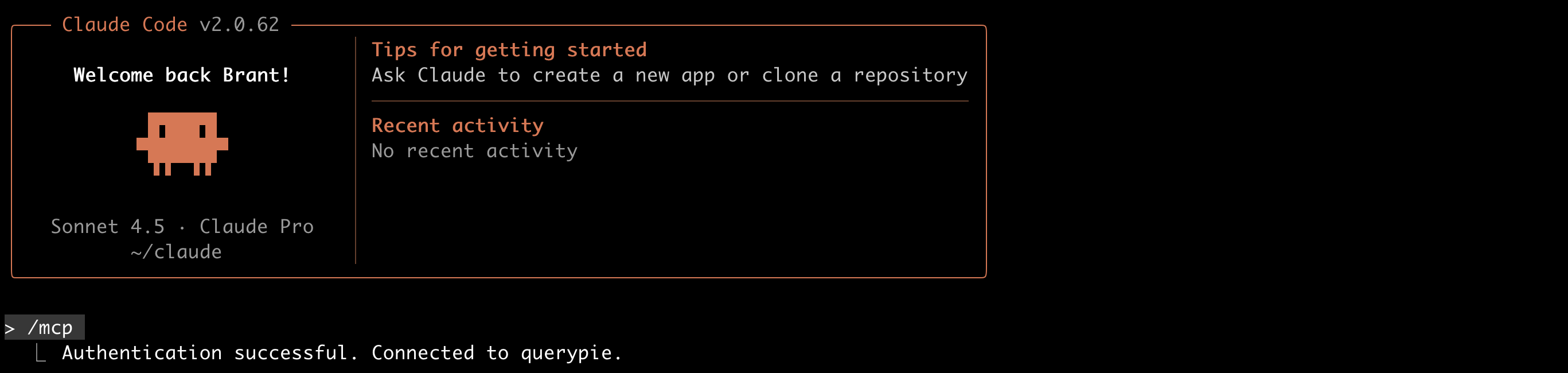
Claude Code will also display “Authentication successful. Connect to querypie.” message.
3. Verify MCP connection.
If Claude Code is not running, you can verify the MCP connection with the claude mcp list command.

Result of executing claude mcp list command
Try performing tasks through queries.
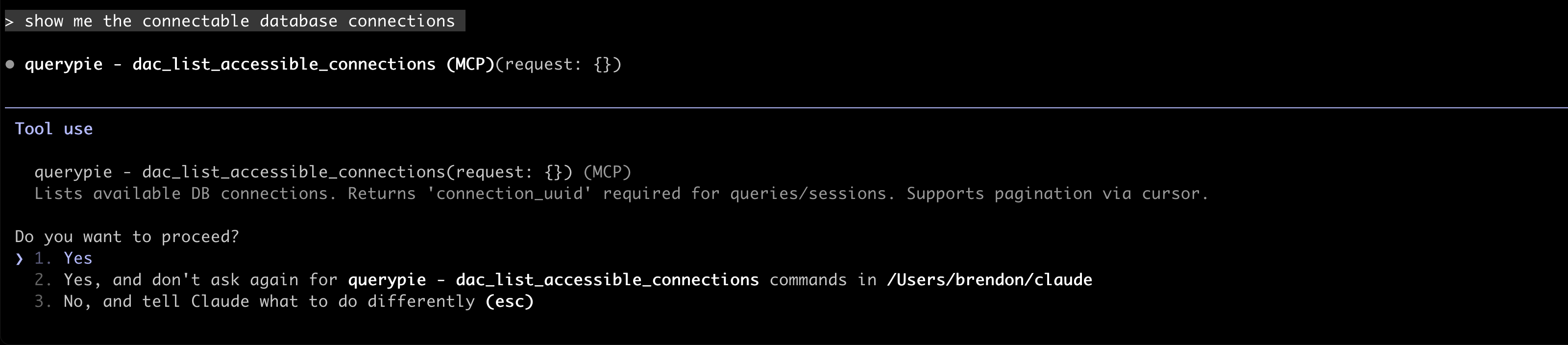
Query example
When available tools are confirmed, a query about proceeding will be displayed. Select ‘yes’ or ‘yes, and don’t ask again for querypie -…’.
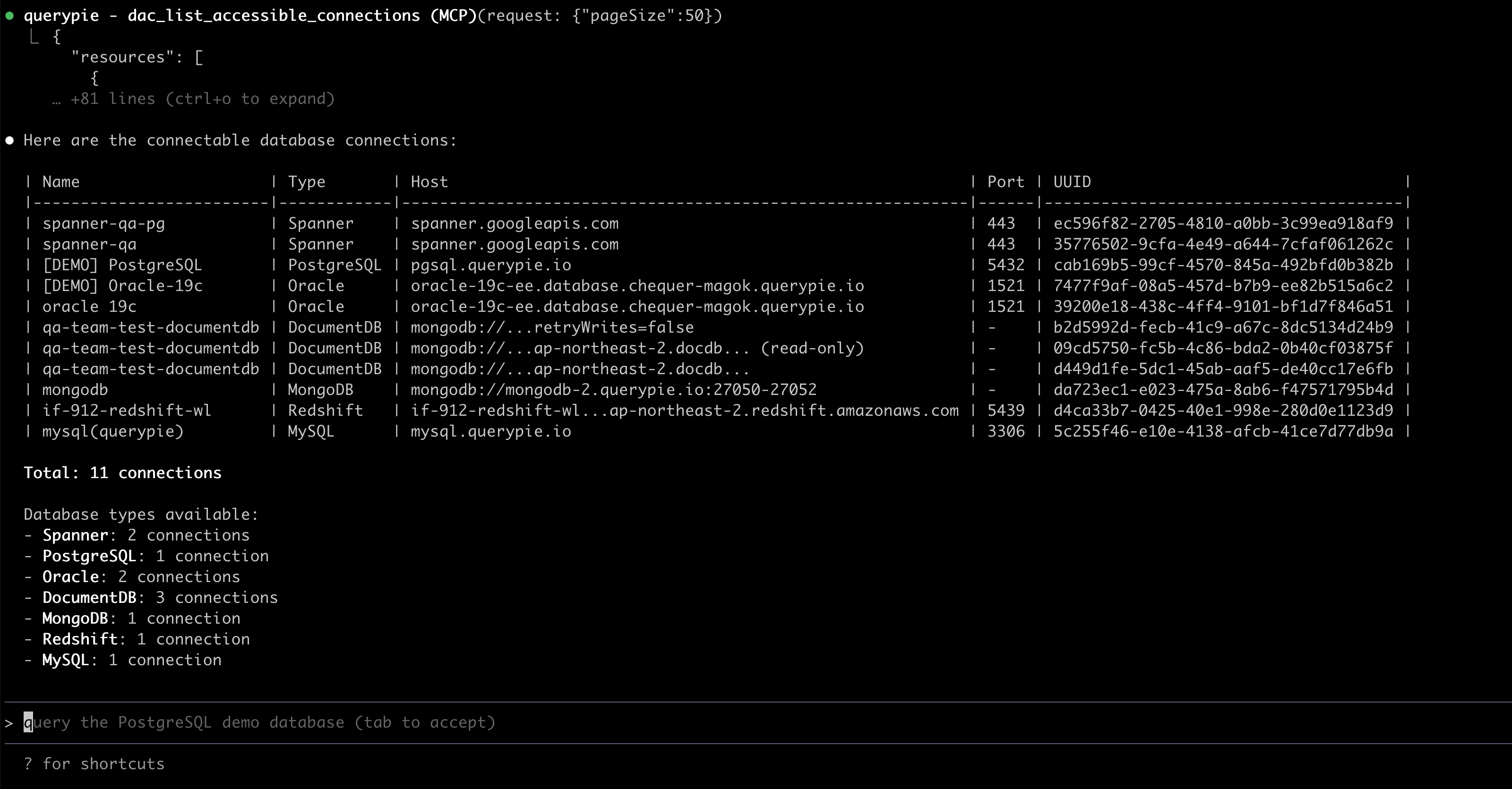
Response example
Authentication management: You can manage authentication status by running the /mcp command in Claude Code.
Authentication tokens are automatically renewed.
You can clear authentication using the “Clear authentication” option.
gemini-cli
1. Edit configuration file to add MCP server address.
Edit configuration file: Edit the ~/.gemini/settings.json file.
{
  "mcpServers": {
    "acp": {
      "httpUrl": "https://acp.example.com/api/mcp"
    }
  }
}
Servers that support OAuth are automatically detected.
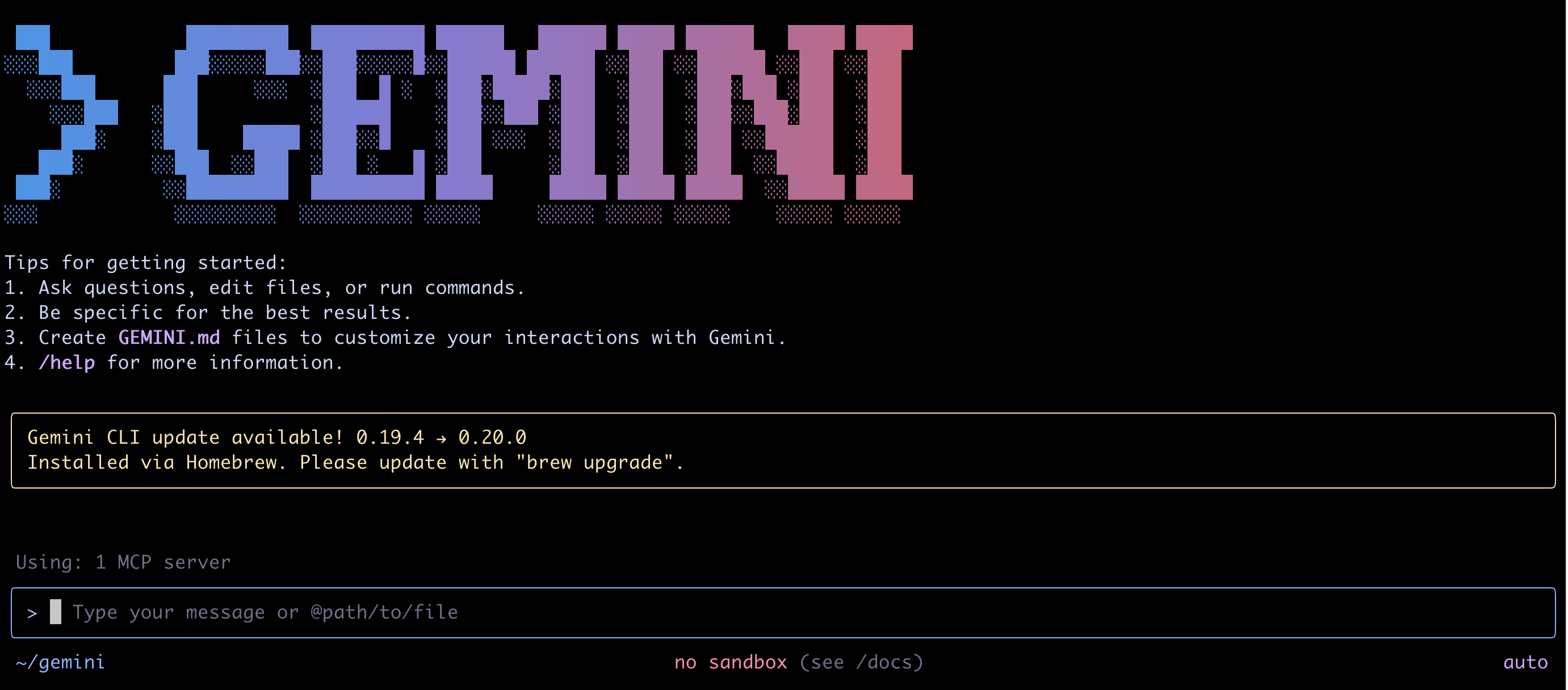
2. Perform OAuth login.
Use the /mcp auth command in Gemini CLI to authenticate.
/mcp auth acpWhen the browser opens, log in on the QueryPie login page. If login is successful, the browser will display “Authentication Successful”.
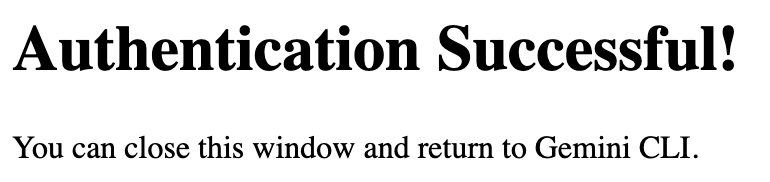
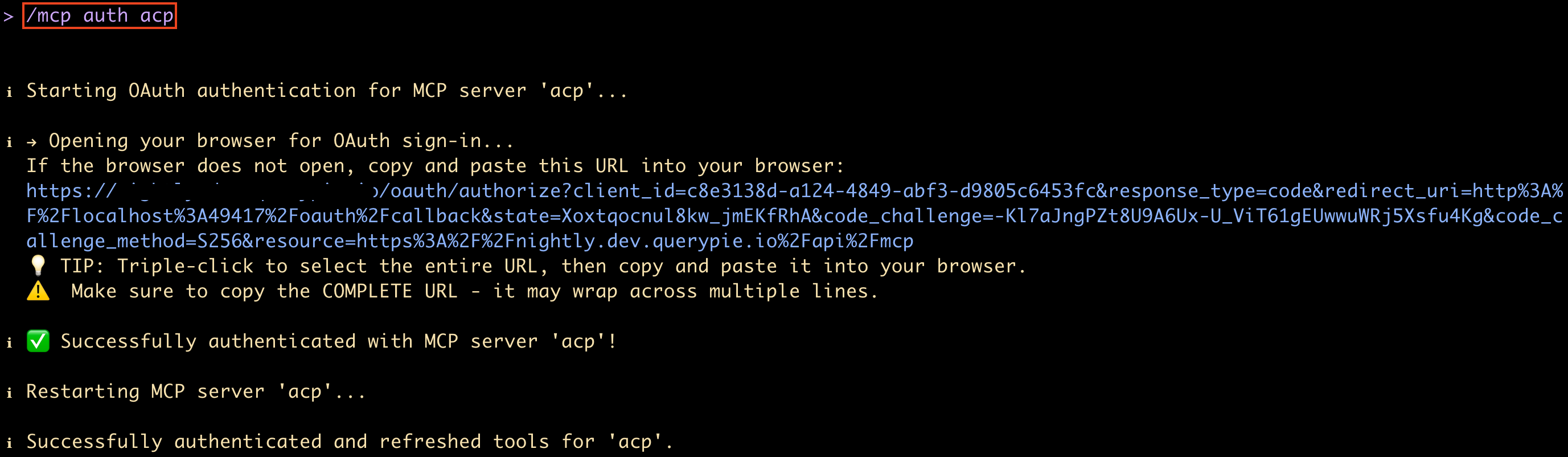
If the browser does not open automatically, you can also proceed by copying and pasting the address displayed on the screen into your browser, as shown in the figure above.
Cursor
1. Edit configuration file to add MCP server address.
Edit configuration file: Create or edit the ~/.cursor/mcp.json file:
{
  "mcpServers": {
    "acp": {
      "url": "https://querypie.example.com/api/mcp"
    }
  }
}
2. Perform OAuth login.
- Restart Cursor or refresh the MCP server list.
- Click the authentication button for the acp server in the MCP server list.
- A web browser opens and displays the ACP login page.
- After completing authentication in ACP, you can use MCP features in Cursor.
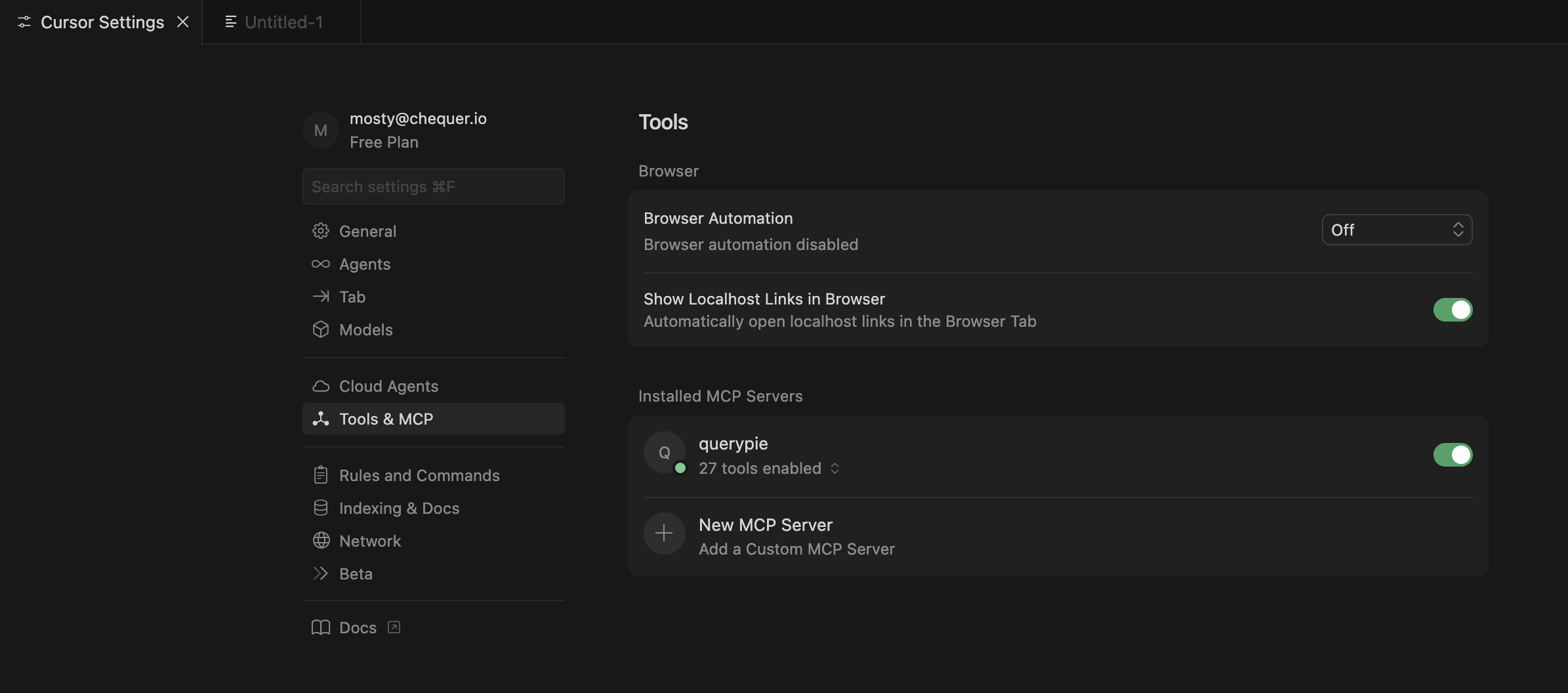
3. Verify MCP connection.
Check in Cursor Settings that MCP tools are properly integrated.
Windsurf
1. Edit configuration file to add MCP server address.
Create or edit configuration file: ~/.codeium/windsurf/mcp_config.json
{
  "mcpServers": {
    "acp": {
      "serverUrl": "https://querypie.example.com/api/mcp"
    }
  }
}
2. Perform OAuth login.
- Restart Windsurf or refresh the MCP server list.
- Click the authentication button for the acp server in the MCP server list.
- A web browser opens and displays the ACP login page.
- After completing authentication in ACP, you can use MCP features in Windsurf.
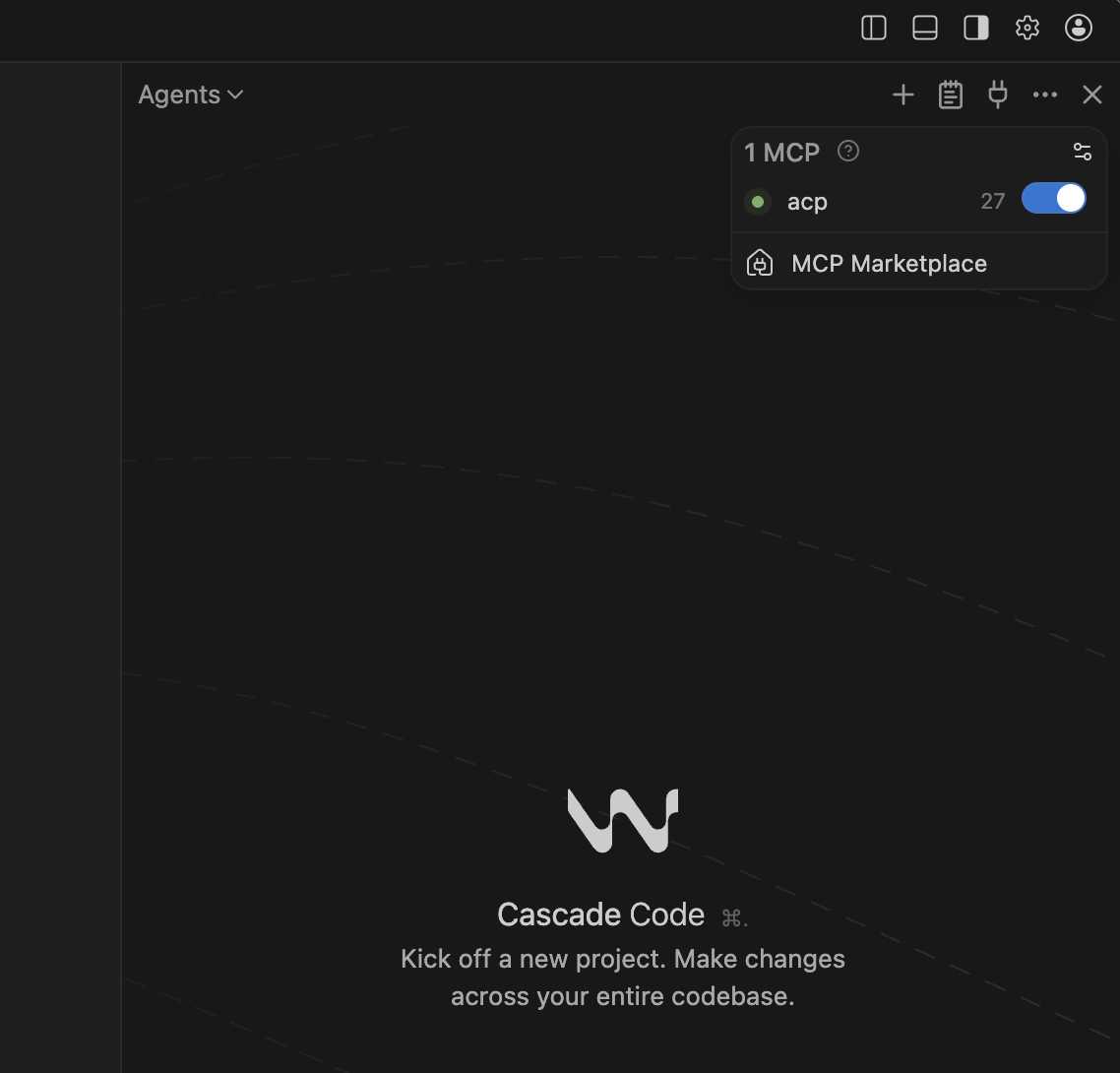
3. Verify MCP connection.
Check in the Windsurf Agents screen that MCP tools are properly integrated.
QueryPie ACP Community Edition MCP server Supported Tool List
DAC (Database Access Control)
Tools for database access and query execution.
| Tool | Description |
|---|---|
dac_list_accessible_connections | List accessible DB connections for the current user (pagination supported) |
dac_execute_query | Execute SQL query on specified DB connection. SELECT returns CSV results |
SAC (Server Access Control)
Tools for server access and SSH shell sessions.
| Tool | Description |
|---|---|
sac_list_assigned_roles | List roles assigned to the current user |
sac_select_role | Select/apply role |
sac_list_accessible_servers | List servers accessible with selected role |
sac_start_shell | Start SSH shell session on server |
sac_list_running_shell | List running shell sessions |
sac_execute_command | Execute command in shell session |
sac_get_shell_output | Retrieve output from previous command |
sac_stop_shell | Stop shell session |
KAC (Kubernetes Access Control)
Tools for Kubernetes cluster management and resource manipulation.
User Tools
Tools that general users can use within their assigned permissions.
| Tool | Description |
|---|---|
kac_list_accessible_clusters | List accessible K8s clusters |
kac_analyze_kube_cluster | Analyze cluster status and generate problem report |
kac_execute_list_resources | List K8s resources |
kac_execute_get_resource | Retrieve detailed information of K8s resource |
kac_execute_create_resource | Create K8s resource |
kac_execute_update_resource | Update K8s resource |
kac_execute_delete_resource | Delete K8s resource |
kac_execute_list_node_metrics | Retrieve node metrics |
kac_execute_list_events | List cluster events |
Admin Tools
Tools that require administrator privileges.
| Tool | Description |
|---|---|
kac_create_cloud_provider | Add cloud provider (AWS supported) |
kac_synchronize_cloud_provider | Synchronize clusters from cloud provider |
kac_create_policy | Create K8s access control policy (YAML format) |
kac_create_role | Create role (policy group) |
kac_assign_role_me | Assign role to current user |
Permissions and Security
- Each Tool follows the ACP permission system.
- Based on the DAC DB connections, access control policies according to Privilege Type, SAC server access control policies, and KAC access control policies provided to each user in ACP, users can only use Tools within the scope of permissions granted to them.
- All Tool calls are recorded in ACP audit logs.
- ACP IP access control policies are applied.
Troubleshooting
Connection Failure
- Verify that the ACP API server is running
- Check network/firewall settings
Permission Errors
- Verify that you have the required permissions for the Tool
- Verify that roles are correctly assigned
- Verify that your current IP is included in the IP allowlist