Access Control
Overview
Supports granting and revoking access permissions to Kubernetes clusters managed by the organization for QueryPie users and groups. Access Control represents the final step in implementing and applying Kubernetes access permissions.
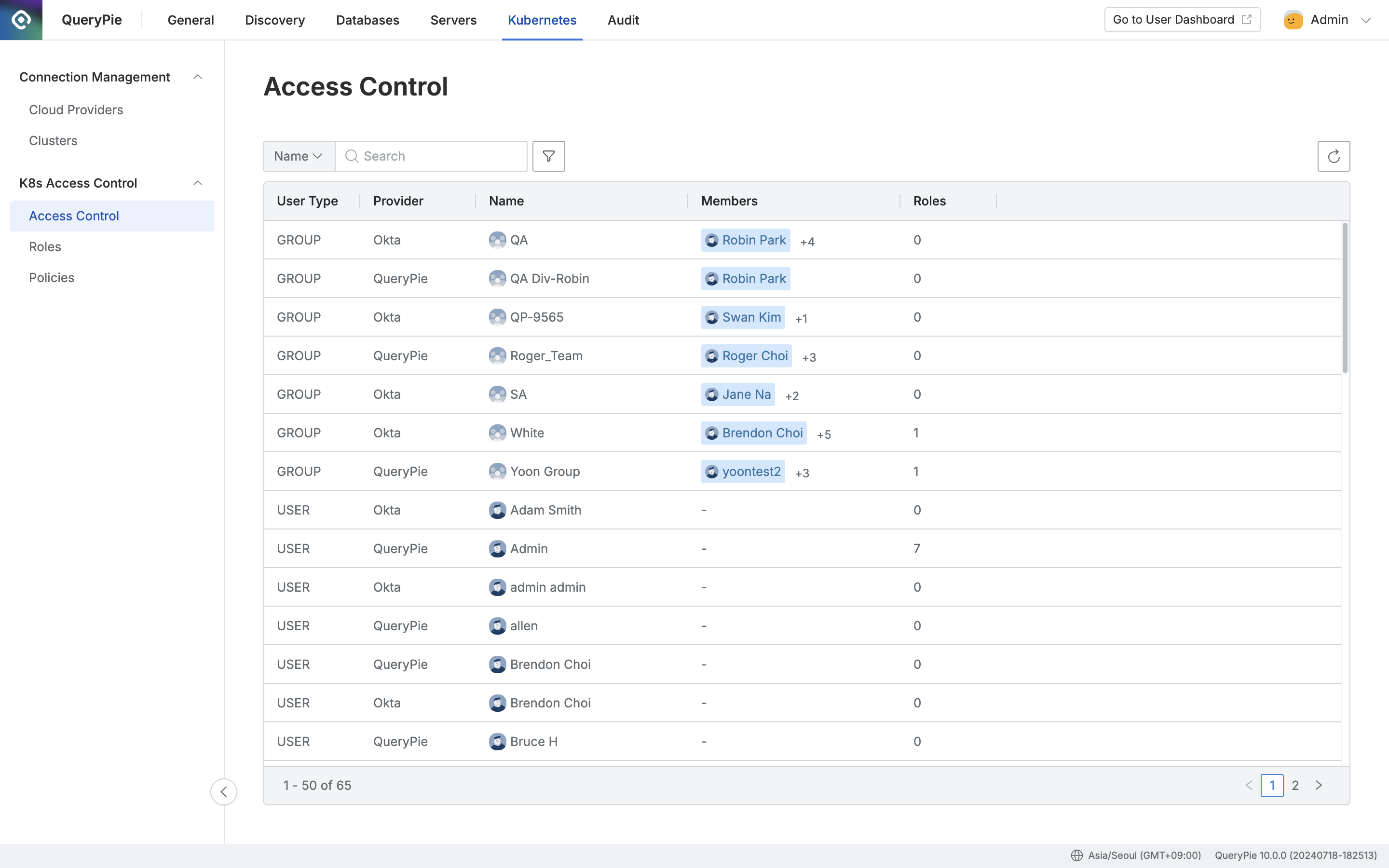
Administrator > Kubernetes > K8s Access Control > Access Control
Viewing Access Control Status
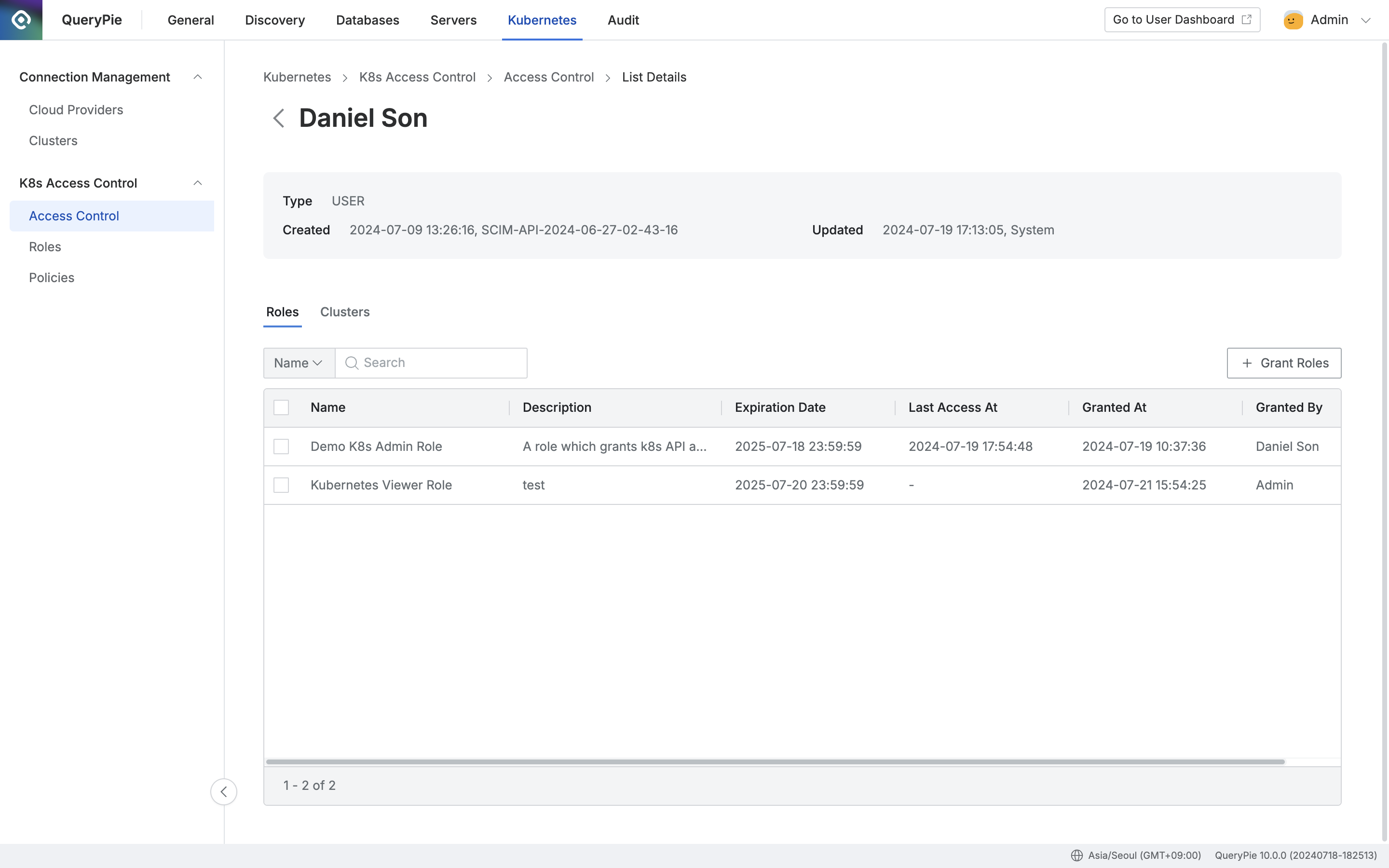
Administrator > Kubernetes > K8s Access Control > Access Control > List Details
- Navigate to Administrator > Kubernetes > K8s Access Control > Access Control menu.
- You can search by user/group name using the search box at the top left of the table.
- You can refresh the user/group list using the refresh button at the top right of the table.
- The table displays the following information for each user/group:
- User Type: User/group type
- Provider: Represents the identity source of the user/group
- Name: User/group name
- Members: List of members belonging to the group
- Roles: Number of granted Roles
- Clicking a row in the Access Control list navigates to the detail page for the target user/group.
- Roles
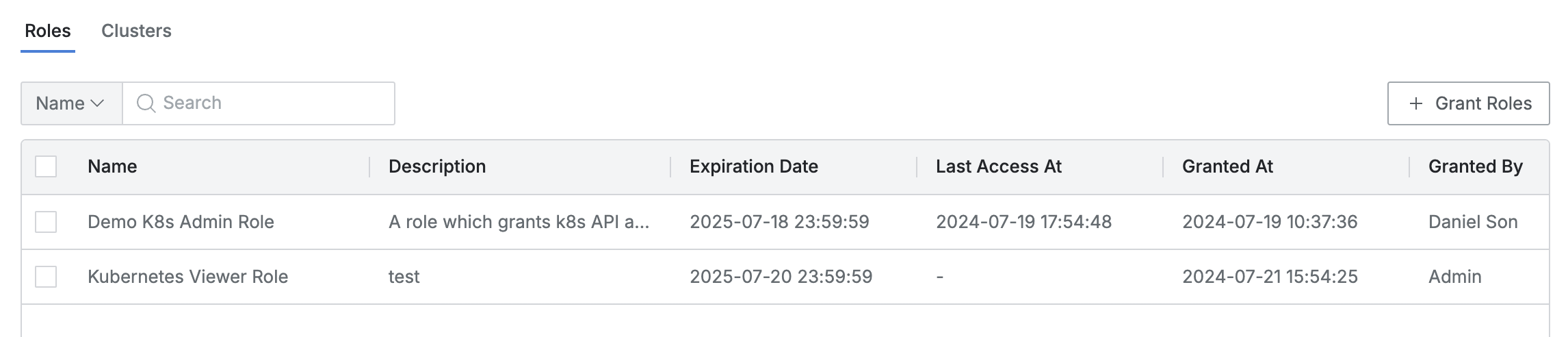
- This is the default tab where you can view the list of granted Roles.
- You can search by Role name.
- The list displays the following information for each Role:
- Name: Role name
- Description: Role description
- Expiration Date: Expiration date
- Last Access At: Date and time of the last invocation of the Role
- Granted At: Date and time when the Role was granted to the user/group
- Granted By: Name of the administrator who granted the Role to the user/group
- Clicking each Role row displays the detailed information of the Role in a drawer format.
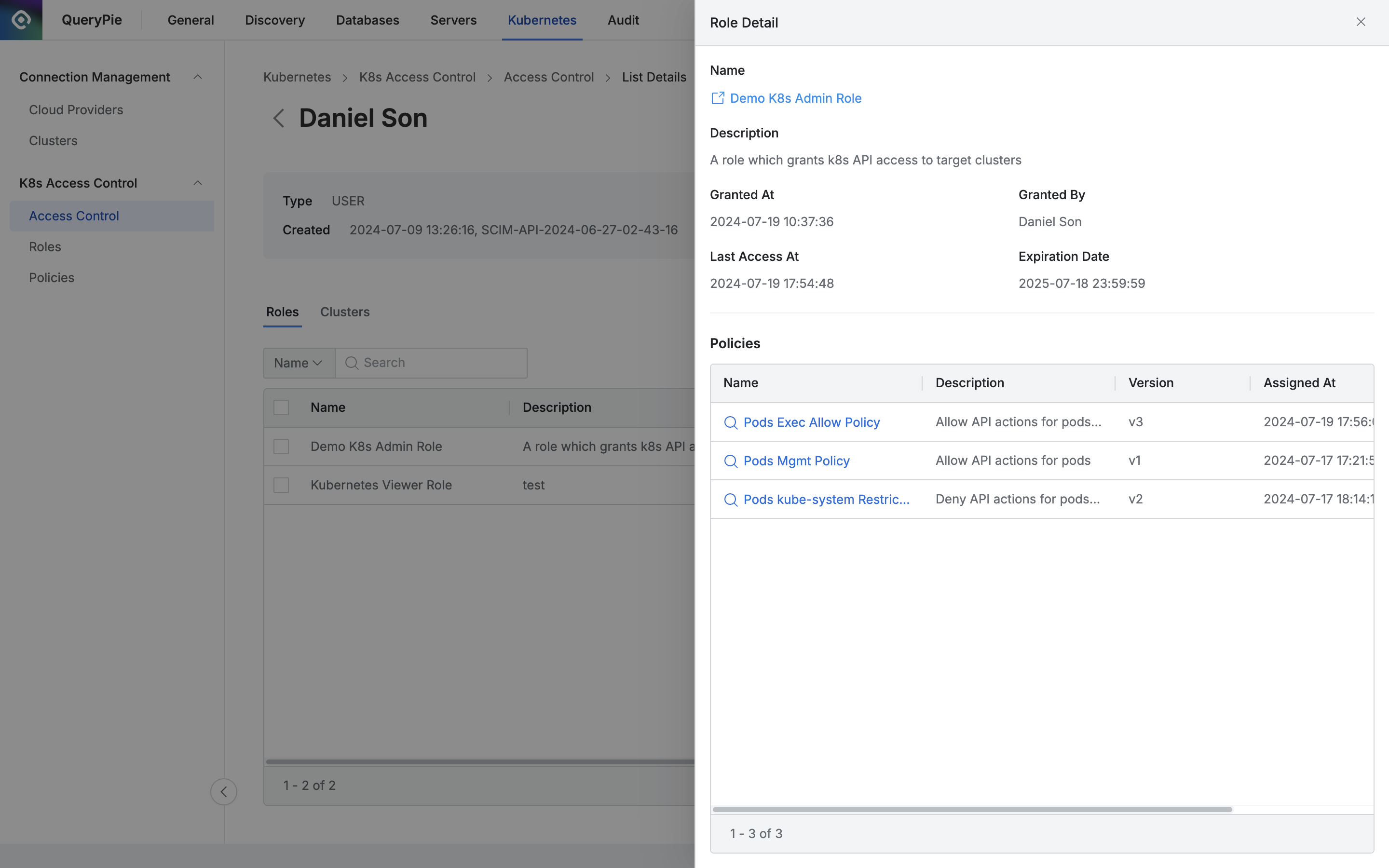
- Basic information is displayed at the top as follows:
- Name: Role name
- (You can open the Role detail page link in a new window.)
- Description: Role description
- Granted At: Date and time when the Role was granted to the user/group
- Granted By: Name of the administrator who granted the Role to the user/group
- Last Access At: Date and time of the last invocation of the Role
- Expiration Date: Expiration date
- Name: Role name
- The policies assigned to the Role are displayed as a list at the bottom.
- Name: Policy name
- (Provides a link to view the policy information.)
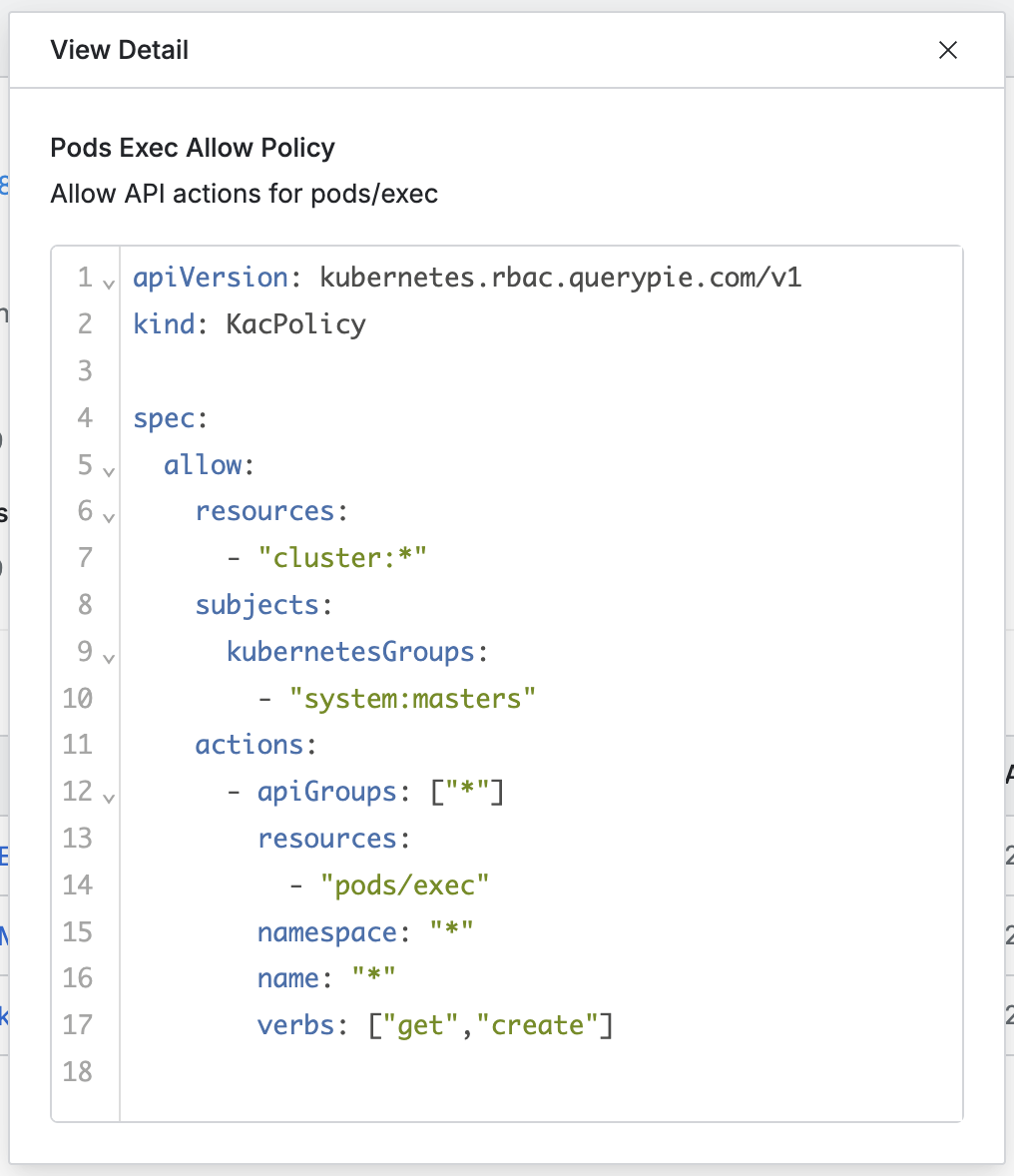
- (Provides a link to view the policy information.)
- Description: Policy description
- Version: Policy version
- Assigned At: Assignment date and time
- Assigned By: Name of the administrator who assigned the policy
- Name: Policy name
- Clusters
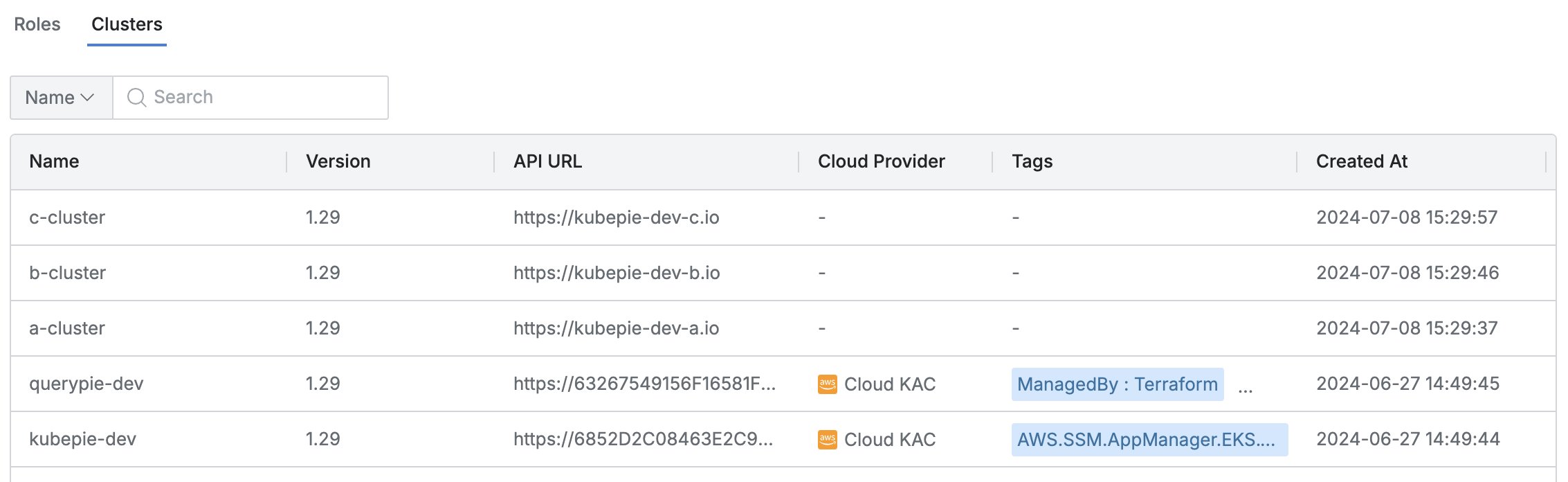
- Lists the Kubernetes clusters accessible through the granted Roles.
- You can search by Cluster name or Role name.
- The list displays the following information for each cluster:
- Name: Cluster name
- Version: Kubernetes version
- API URL: Cluster API URL
- Cloud Provider: Connected platform (displayed as a hyphen for manual clusters)
- Tags: List of tags attached to the cluster
- Role: List of related Roles
- Created At: Cluster initial creation date and time
- Updated At: Cluster last modification date and time
How Granted Roles with an Expired Expiration Date Are Handled
- For Roles that have reached the Expiration Date among Roles granted to users or groups, the following actions occur:
- The Role row is automatically removed from the Roles tab on the Access Control detail page.
- The cluster row that was accessible through the Role is automatically removed from the Clusters tab on the Access Control detail page.
- A “Role Revoked” log is recorded in Audit > Kubernetes > Kubernetes Role History, and Action By is marked as “System”.
Last updated on