Synchronizing Kubernetes Resources from AWS
Overview
QueryPie supports AWS integration for Kubernetes cluster registration and management. You can synchronize resources within AWS, register them as clusters managed by QueryPie, and grant Kubernetes API access permissions and configure policies for users and groups on the synchronized clusters.
Prerequisites
- To synchronize with AWS resources, ensure that the necessary policy actions have been attached to the AWS IAM role assigned to the QueryPie instance. The policy must include all of the following actions:
- eks:ListClusters
- eks:DescribeCluster
- eks:ListAccessEntries
- eks:DescribeAccessEntry
- eks:CreateAccessEntry
- eks:ListAssociatedAccessPolicies
- eks:AssociateAccessPolicy
Modifying AWS EKS Authentication Mode
QueryPie utilizes the EKS access entry API during synchronization for AWS EKS Kubernetes cluster connections. Therefore, if the cluster authentication mode is set to ConfigMap only, there may be connection difficulties, and we recommend changing the mode in the AWS console in advance for smooth synchronization.
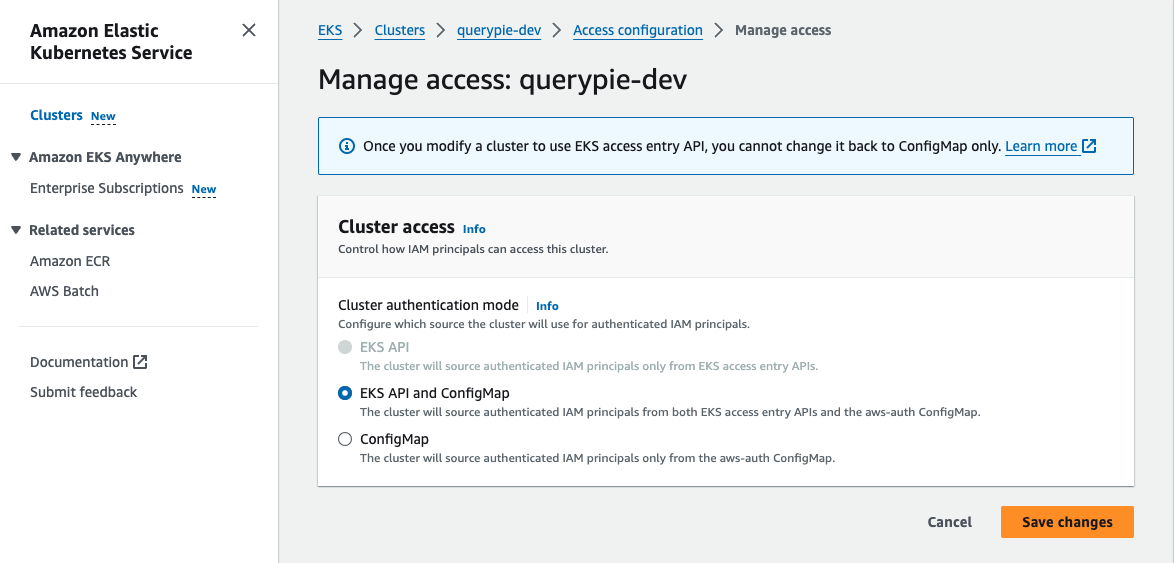
AWS Console > EKS > Clusters > {cluster} > Access > Access configuration > Manage access
- Access AWS Console with an account that has EKS administrator privileges
- Navigate to the Elastic Kubernetes Service (EKS) menu
- Move to the region where the target EKS cluster is located
- 예)

- 예)
- Select the target EKS cluster to navigate to the details page
- Click the Access tab to view the Access configuration status
- If the Authentication mode is “ConfigMap”, click the Manage access button on the right
- Change the Cluster authentication mode to “EKS API and ConfigMap”
- Click
Save changesto save the changes
Registering AWS Integration Information in QueryPie
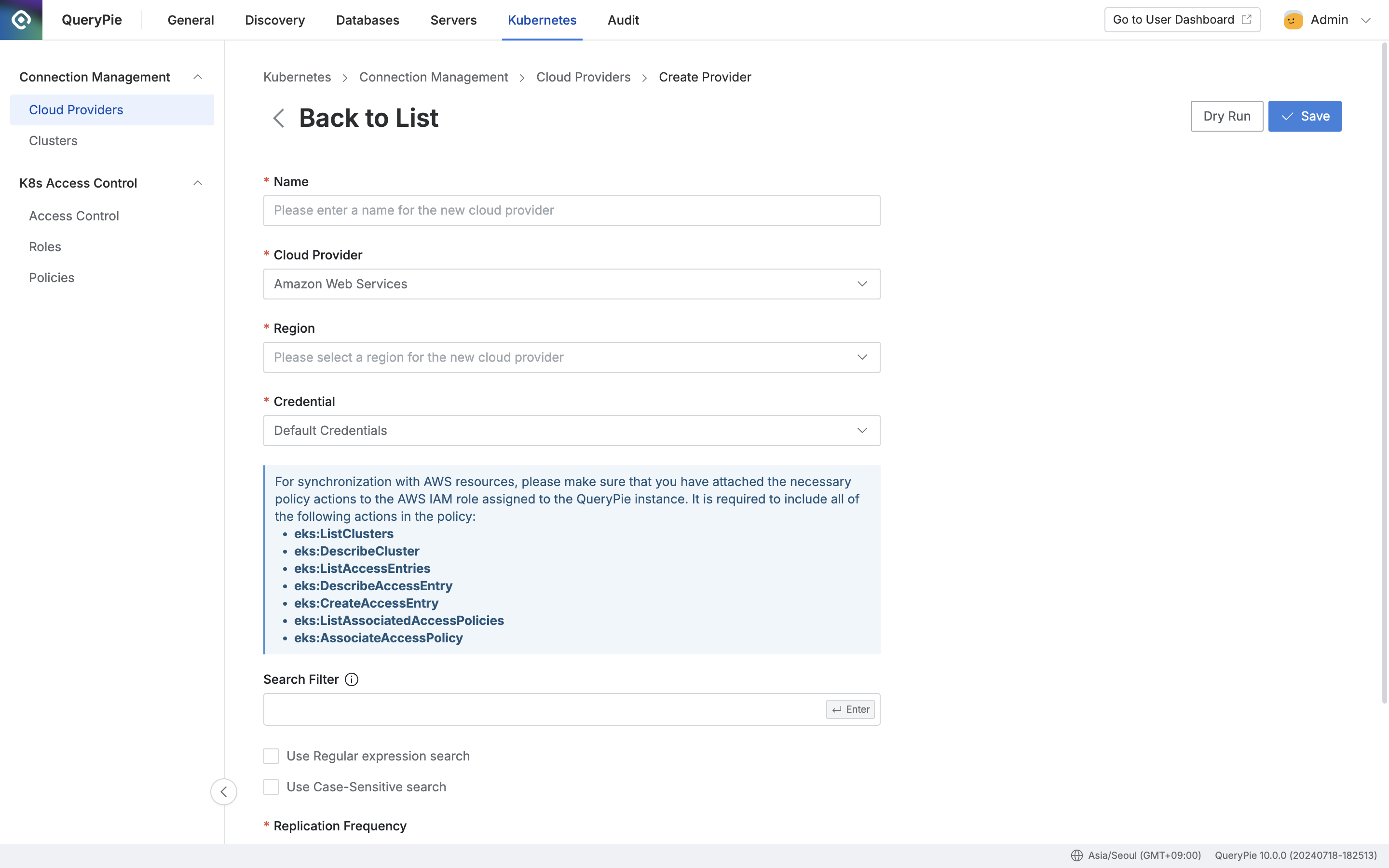
Administrator > Kubernetes > Connection Management > Cloud Providers > Create Provider
- Navigate to Administrator > Kubernetes > Connection Management > Cloud Providers menu
- Click the
+ Create Providerbutton in the top right - Enter a name that can distinguish this provider in the Name field
- Select Amazon Web Services from the Cloud Provider field
- Select the region of the resources you want to synchronize from the Region field
- Enter the Credential information required to synchronize resources

- Default Credentials: If the QueryPie server is installed in the same AWS account, you can assign an IAM role to the EC2 instance where QueryPie is installed to synchronize resources within the same AWS
- Cross Account Role: You can create an IAM role to synchronize resources from other AWS accounts. Please create permissions for synchronization and assign policies according to the steps displayed on the screen
- Use Search Filter to retrieve a list of specific resource types you want to synchronize
- Search Filter works the same way as AWS search. You can use values such as names and tags as filters, and conveniently enter search conditions and filters using the Enter key in the following order:
- Enter Key value and press Enter → Select search condition and press Enter → Enter Value value and press Enter
- For more detailed usage, please refer to User Guide for Linux Instances (AWS)
- Search Filter works the same way as AWS search. You can use values such as names and tags as filters, and conveniently enter search conditions and filters using the Enter key in the following order:
- Select the synchronization method from the Replication Frequency field
- Manual : A method that synchronizes manually only when you want to synchronize
- Scheduling : A method that synchronizes resources through periodic scheduling. Cron Expressions are provided
- (You can click the
Dry Runbutton to check in advance if there will be any issues with synchronization) - Click the
Savebutton to save the Cloud Provider
Q. I clicked the Save button but got an error saying “Already exists cloud provider.”
A. If there is already a Cloud Provider registered with Default Credentials as Credential and the same Region, duplicate registration is not possible.
In this case, you can register normally by selecting a different Region.
Synchronizing and Managing Registered AWS Cloud Provider
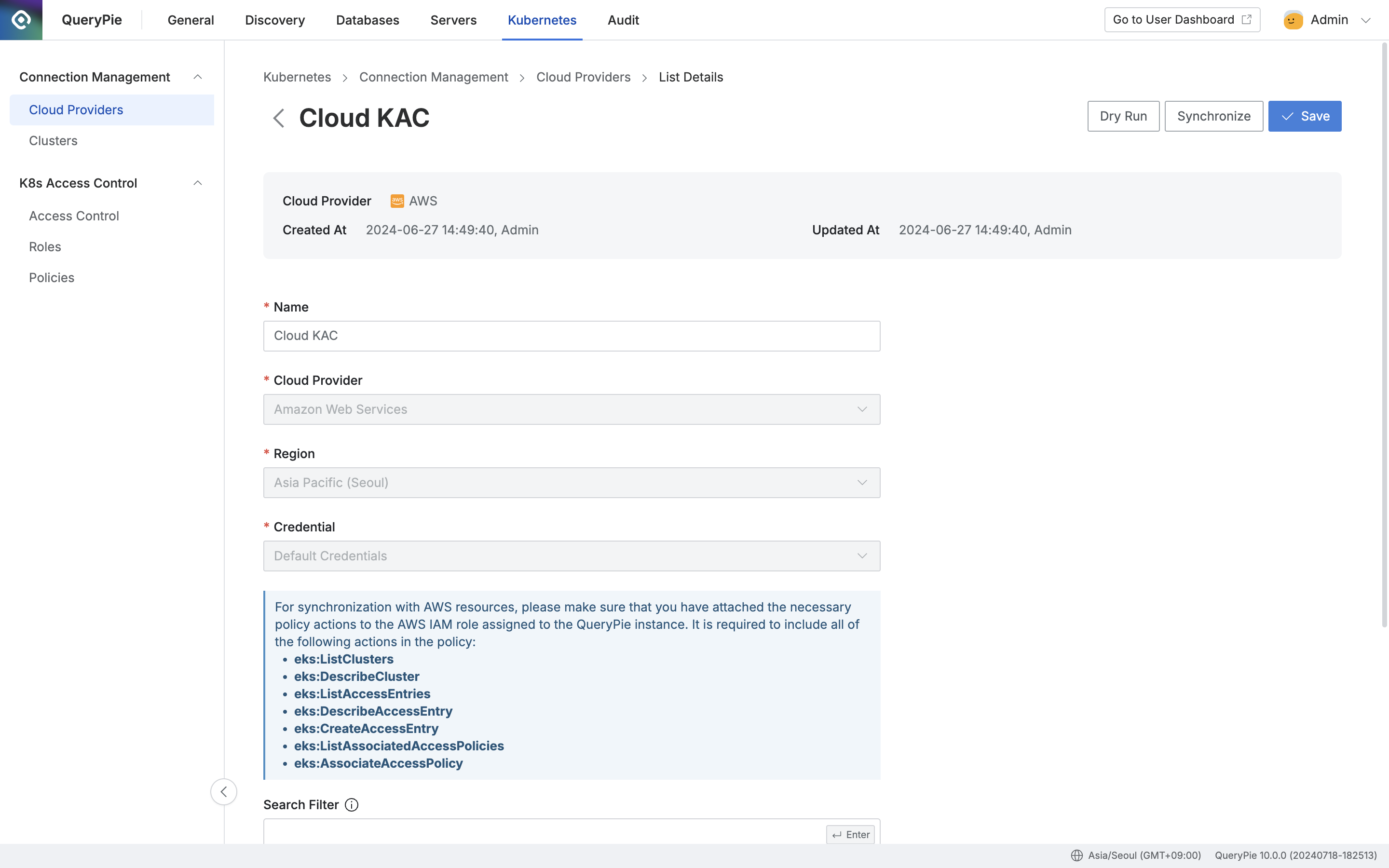
Administrator > Kubernetes > Connection Management > Cloud Providers > List Details
- Navigate to Administrator > Kubernetes > Connection Management > Cloud Providers menu
- Click on the registered Cloud Provider to enter the details screen
- Click the
Synchronizebutton in the top right to synchronize resources from AWS- Please refer to Dry Run/Synchronization Log Notation below for notation definitions
- You can check the synchronization progress in the displayed Synchronization Log, and you can also check the synchronization history in Settings > Systems > Jobs menu
- Once a Cloud Provider is registered, some information cannot be changed
- Name: Can be changed
- Cloud Provider: Cannot be changed
- Region: Cannot be changed
- Credential: Cannot be changed
- Role ARN: Cannot be changed
- Search Filter: Can be changed
- Replication Frequency: Can be changed
Dry Run/Synchronization Log Notation
| 발생 시점 | 문구 | |
|---|---|---|
| ✔️ | Dry Run 또는 Synchronize 동기화 시작 | Cluster synchronization started. |
| ✔️ | 신규 클러스터 추가 완료 | New Cluster is added: {Cluster Name} ({API URL}). |
| ✔️ | 기존 클러스터 정보 업데이트 완료 | Cluster {Cluster Name} is updated |
| ✔️ | 기존 클러스터 제거 완료 | Cluster {Cluster Name} is removed |
| ✔️ | Dry Run 또는 Synchronize 동기화 성공적으로 종료 | Cluster synchronization succeeded. |
 | EKS 클러스터의 인증 모드가 EKS API를 허용하지 않는 경우 동기화 스킵. ConfigMap 모드에서 EKS API를 허용하도록 변경 필요. | Skipping sync. Cluster {Cluster Name}’s authentication mode blocks EKS access entry API. To manage access, enable EKS API access. |
| ❌ | 이미 중복된 클러스터명이 확인되어 동기화 실패 | Cluster synchronization failed. The cluster name “{Cluster Name}” is already in use by another cluster. To synchronize it, delete the existing cluster. |
| ❌ | Dry Run 또는 Synchronize 동기화 실패 종료 | Cluster synchronization failed. + {additional statement} |