Reports
As of version 11.2.0, the Reports feature is currently provided as a Beta version.
Overview
QueryPie Reports is a feature that outputs data required for audit compliance in report format.
You can output user and administrator status and history, security configuration history, user-specific permission status and history for DB/servers, DB/server access and query/command usage history, etc.
As of version 11.2.0, reports can only be output in English.
Report Output Items and Filter Support
Please refer to the table below for report items and filters currently supported as of version 11.2.0.
Viewing Report List
From the Audit menu, you can check the report generation task list by entering Reports > Reports menu.
To access the Reports menu, the Report Audit Full Access administrator permission must be granted to the account.
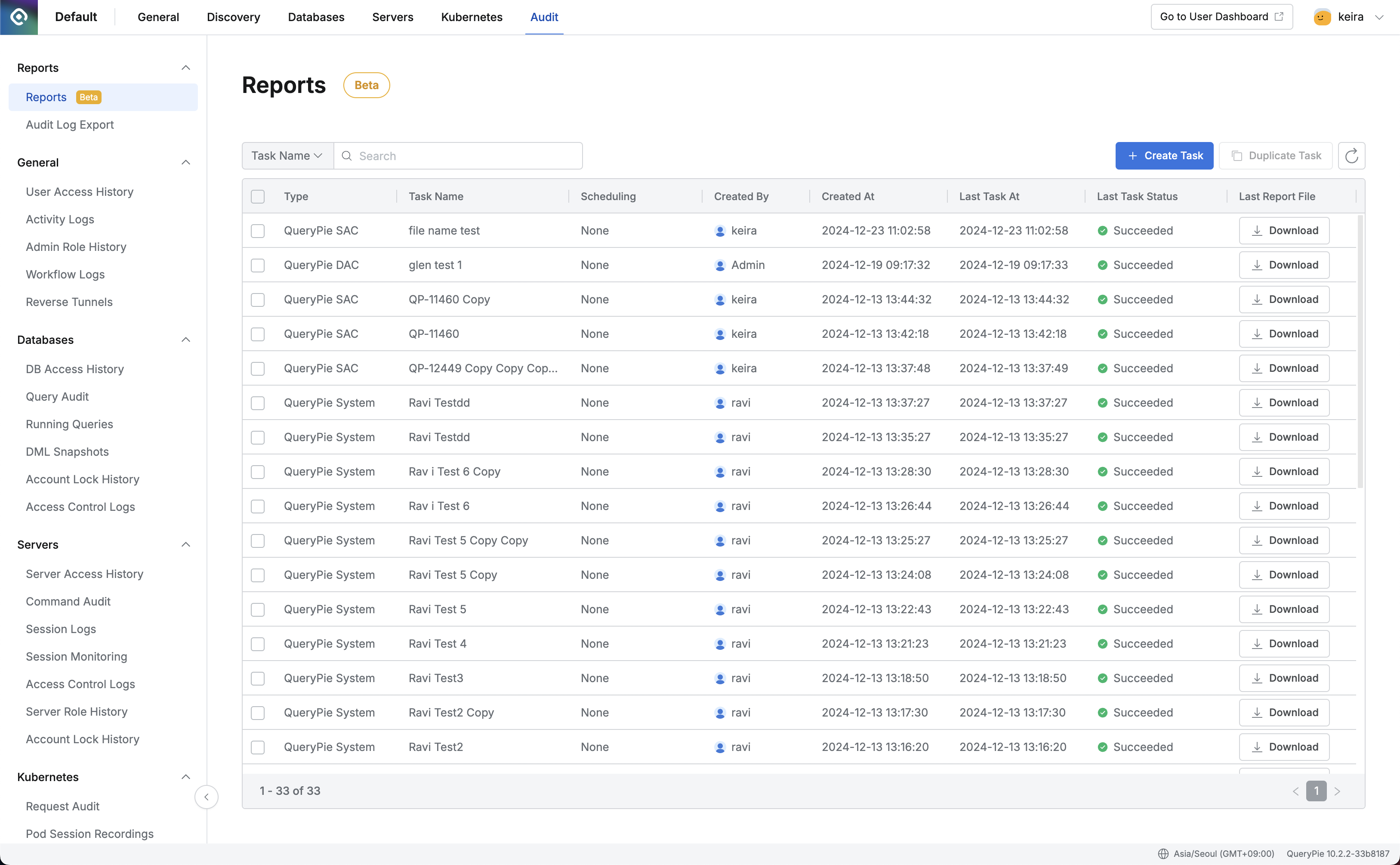
Administrator > Audit > Reports > Reports
- Search : You can search by Task Name.
- Create Task : Enters the report generation page.
- Refresh : Reloads the list.
- Type : Type information specified when creating the report, with the following three types:
- QueryPie System
- QueryPie DAC
- QueryPie SAC
- Task Name : The name of the task entered when creating the report.
- Scheduling : Repeat cycle information for the task entered when creating the report, which can have the following values:
- None : No repetition (generated one-time)
- Daily : Daily repetition
- Weekly : Weekly repetition
- Monthly : Monthly repetition
- Quarterly : Quarterly repetition
- Created By : Information about the person who created the report generation task.
- Created At : Time when the report generation task was created.
- Last Task At : Time when the report was last generated. (Empty if never generated)
- Last Task Status : Status of the last report generation task. Has the following values:
- Succeeded : Success
- In Progress : In Progress
- Failed : Failed
- Last Report File : Clicking the button allows you to download the last generated report file.
- Disabled if no file has been generated or if it has already expired.
- Whether to specify a password for file download can be set in Security settings.
- When password specification is enabled, you set a password when downloading the file. You must enter the set password when extracting the file.
Viewing Report Details
When you select an item from the report list to view detailed content, a Drawer opens and you can check detailed information.
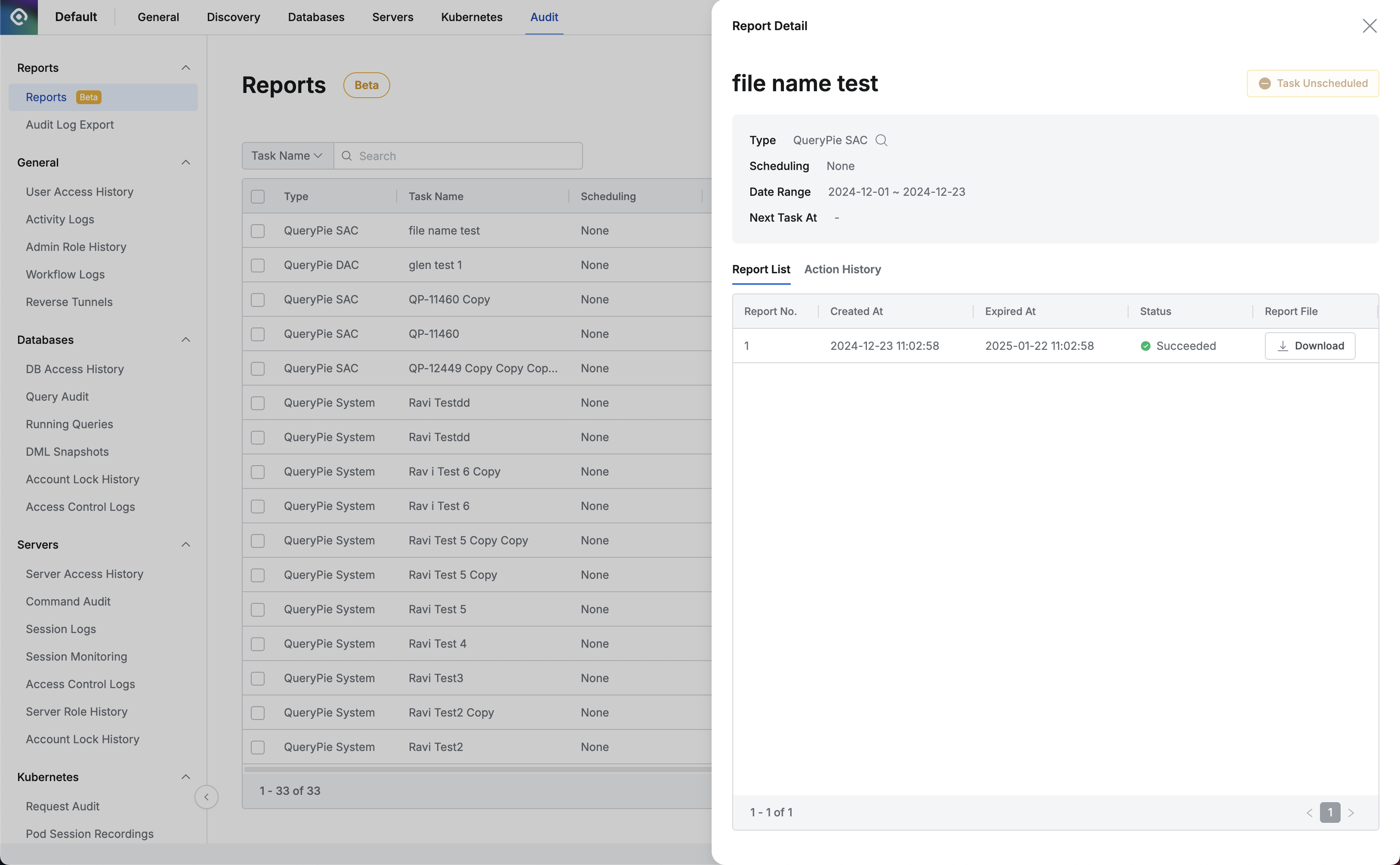
Administrator > Audit > Reports > Reports > Report Detail
- Unschedule Task : For reports that are generated repeatedly, you can unschedule them.
- The button is disabled for tasks with no schedule or already unscheduled tasks, and displays as Task Unscheduled.
- Type : Displays report type information. (QueryPie General, DAC, SAC)
- Clicking the magnifying glass button allows you to check the selected output items and filter information.
- Scheduling : Displays the set repeat cycle information. (None, Daily, Weekly, Quarterly)
- Date Range : For one-time generated reports, displays the period range.
- Start Date : For repeatedly generated reports, displays the task start date.
- Next Task At : Displays the date and time of the next scheduled task. (Left blank for non-repeating tasks)
- User Scope : Displays user scope information.
- Resource Scope : Displays resource scope information.
- Report List tab : Displays the list of generated reports.
- Report No. : Report serial number within the report task
- Created At : Report creation date and time
- Expired At : Report file expiration (scheduled) date and time
- Status : Report task status (one of Succeeded, Failed)
- Report File : File download link
- Disabled if no file has been generated or if it has already expired.
- Whether to specify a password for file download can be set in Security settings.
- When password specification is enabled, you set a password when downloading the file. You must enter the set password when extracting the file.
- Action History tab : Displays the user’s action history for the report.
- Action At : Action execution date and time
- Action Type : Action type (one of Report Download, Report Unschedule)
- Target Report No. : Target report serial number (blank if none)
- Action By : Action performer
Creating Reports
Click the + Create Task button on the report list screen to enter the report creation page.
You can enter task name, report type, scheduling-related content, and specify report output items and filters to apply by section. Click the + Add Section button to add sections.
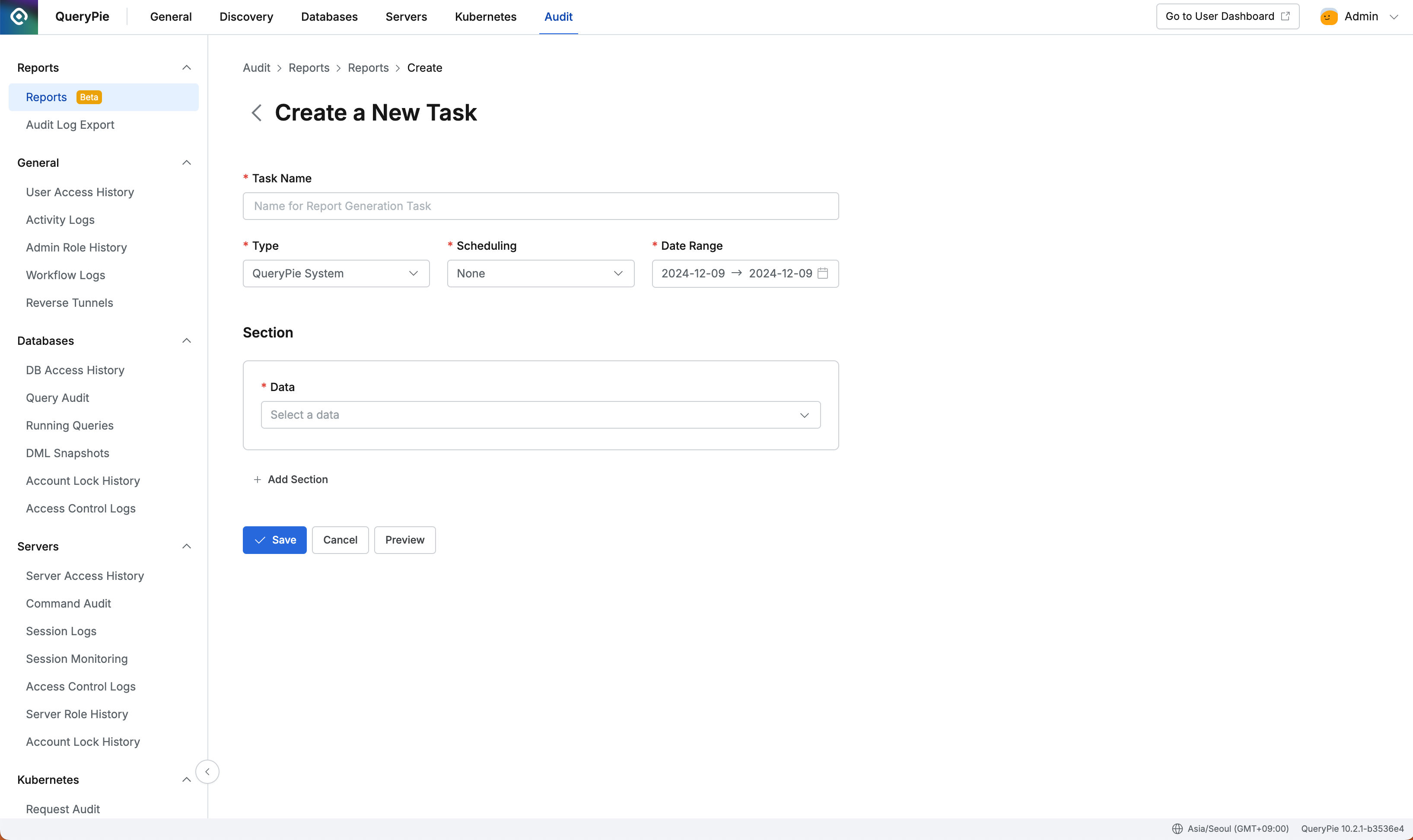
Administrator > Audit > Reports > Reports > Create
- Task Name : Enter a name that can identify the report generation task.
- Type : Select the report type. (QueryPie General, DAC, SAC)
- Scheduling : Enter the repeat cycle for the report generation task.
- None : Select when generating one-time without task repetition.
- Daily : Select when you want to generate daily repetition.
- Weekly : Select when you want to generate weekly repetition.
- Monthly : Select when you want to generate monthly repetition.
- Quarterly : Select when you want to generate quarterly repetition.
- Date Range : Period range for historical data
- When
Schedulingis set toNone, specify the output range for historical data. - Status data is output based on the task execution time regardless of the Date Range input value.
- Constraint: Date Range can only select up to 3 months of data.
- As of version
10.2.8, only data up to 3 months ago from today can be selected. This will be fixed in version10.2.9.
- As of version
- When
- Start Date : Start date for repeat tasks
- When
Schedulingis set toDaily,Weekly,Monthly, orQuarterly, specify the task start date.
- When
- Data : Report output items
- When selecting items, you can check the data period range information at the bottom, and when Scheduling is specified, it shows the content that will be applied to the first output report.
- Reference Time : Guidance on the reference time applied to status data
- Date Range : Guidance on the period range applied to historical data
- Filter : Filter input to apply to sections
- Available filters are displayed according to the selected report output items.
- Refer to the filter items below
After entering all desired information, click the Preview button to preview the report that will be output.
Click the Save button to save the report task and return to the list.
Duplicate Report 10.2.2
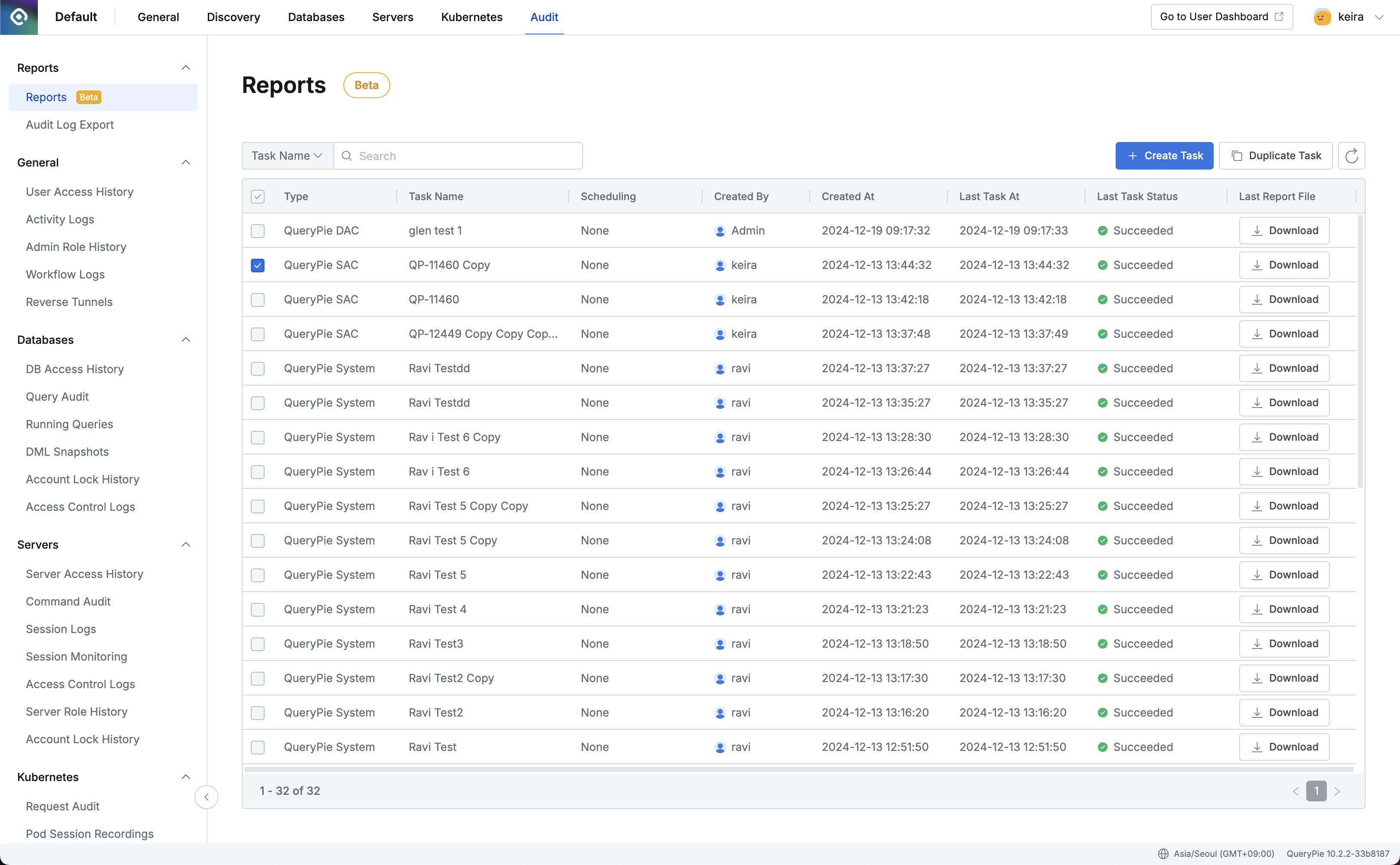
Administrator > Audit > Reports > Reports - Duplicate Task
After selecting the report you want to duplicate from the list, click the :copy: Duplicate Task button to duplicate an existing report and create a new report task.
The information that is duplicated when duplicating a task is as follows:
- Task Name - Copy is added after the existing task name
- Type - The report type selected in the existing task is maintained
- Scheduling - The repeat cycle selected in the existing task is maintained
- However, Date Range and Start Date are reset and need to be re-entered
- Data - The output items selected in the existing task are preserved
- Filter - Filters entered for each Data are preserved
- However, if previously selected Roles, Users, or Groups no longer exist, they are removed from the filter values
Filters
This section provides detailed specifications for filters supported in reports.
- User/Group : Filters report output data by user or group.
- Example: If you want to output a report on DB access permissions granted to the PM team:
- Type: QueryPie DAC
- Data: DB Access Control - Assigned Status
- Filter > User/Group: PM (group)
- Example: If you want to output a report on DB access permissions granted to the PM team:
- Resource : Filters report output data by tags assigned to resources.
- Example: If you want to output a report on access permissions for DBs tagged with
Service:Homepage:- Type: QueryPie DAC
- Data: DB Access Control - Assigned Status
- Filter > Resource:
Service:Homepage
- Tag operation logic is the same as other QueryPie functions and is as follows:
- When multiple tag filters with the same Key are entered, they are combined with OR conditions.
- When multiple tag filters with different Keys are entered, they are combined with AND conditions.
- For Workflows, requests can be made for multiple resources at once. In this case, if at least one resource that meets the conditions is included in the request, it is included in the search results.
- Example: If you want to output a report on access permissions for DBs tagged with
- User Status : Filters by User Account status when outputting User Account Status.
- Filter values: Active, Locked, Expired, Locked Manually
- Time Range : Filters by time range when selecting DB Access History or Server Access History.
- Enter start and end times.
- Select whether to exclude results within the entered time range. When selected, only logs outside the entered time range are output.
- Result : Filters by result when selecting Server Access History.
- Filter values: Success, Failure
- Action Type : Filters by action type (Action Type) when selecting Server Access History.
- Filter values: Connect, Disconnect
- Role : Filters by server role used when selecting Server Access History.
- When multiple Roles are entered, they are combined with OR conditions.
- Keyword : Filters by entered command when selecting Command History or Restricted Commands.
- After entering keywords, press Enter on the keyboard to apply the search condition.
- Only command history containing the entered keywords is extracted. (like search)
- Case insensitive.
- When multiple keywords are entered, they are combined with OR conditions.