Masking Pattern (Menu Relocated)
Overview
The Masking Pattern page allows you to manage patterns for detecting and masking sensitive information. By default, 25 masking patterns are provided, and you can add your own custom patterns as needed.
Menu Relocation From 11.2.0, the menu has been moved from Administrator > Databases > Policies > Masking Pattern to Administrator > Databases > General > Masking Pattern.
Viewing the List of Masking Patterns
On the Masking Pattern page, you can view the registered masking patterns. (searchable by pattern name)
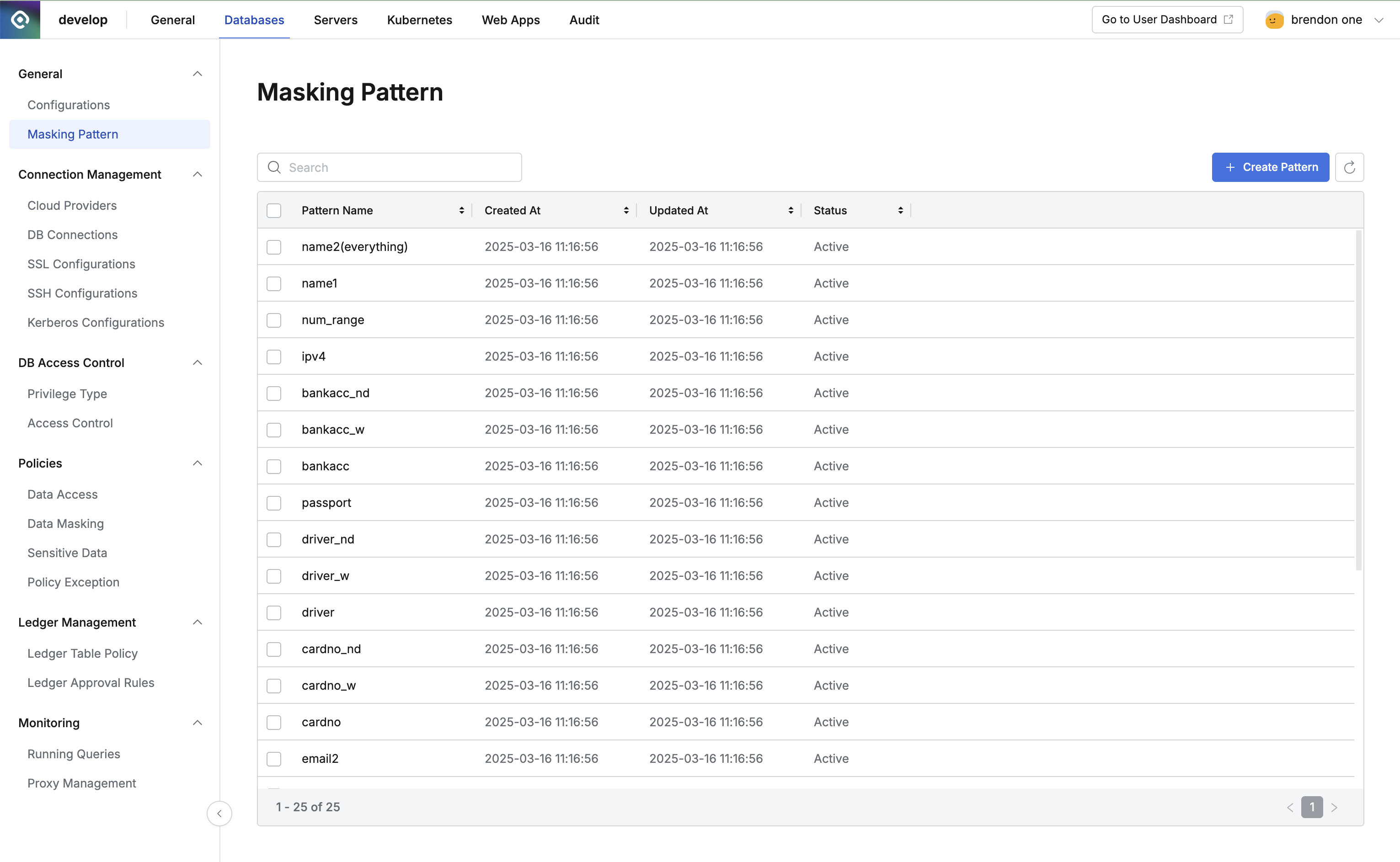
Administrator > Databases > General > Masking Pattern
Viewing/Editing/Deleting Masking Pattern Details
Click an item in the table to open a drawer where you can view, edit, or delete its details.
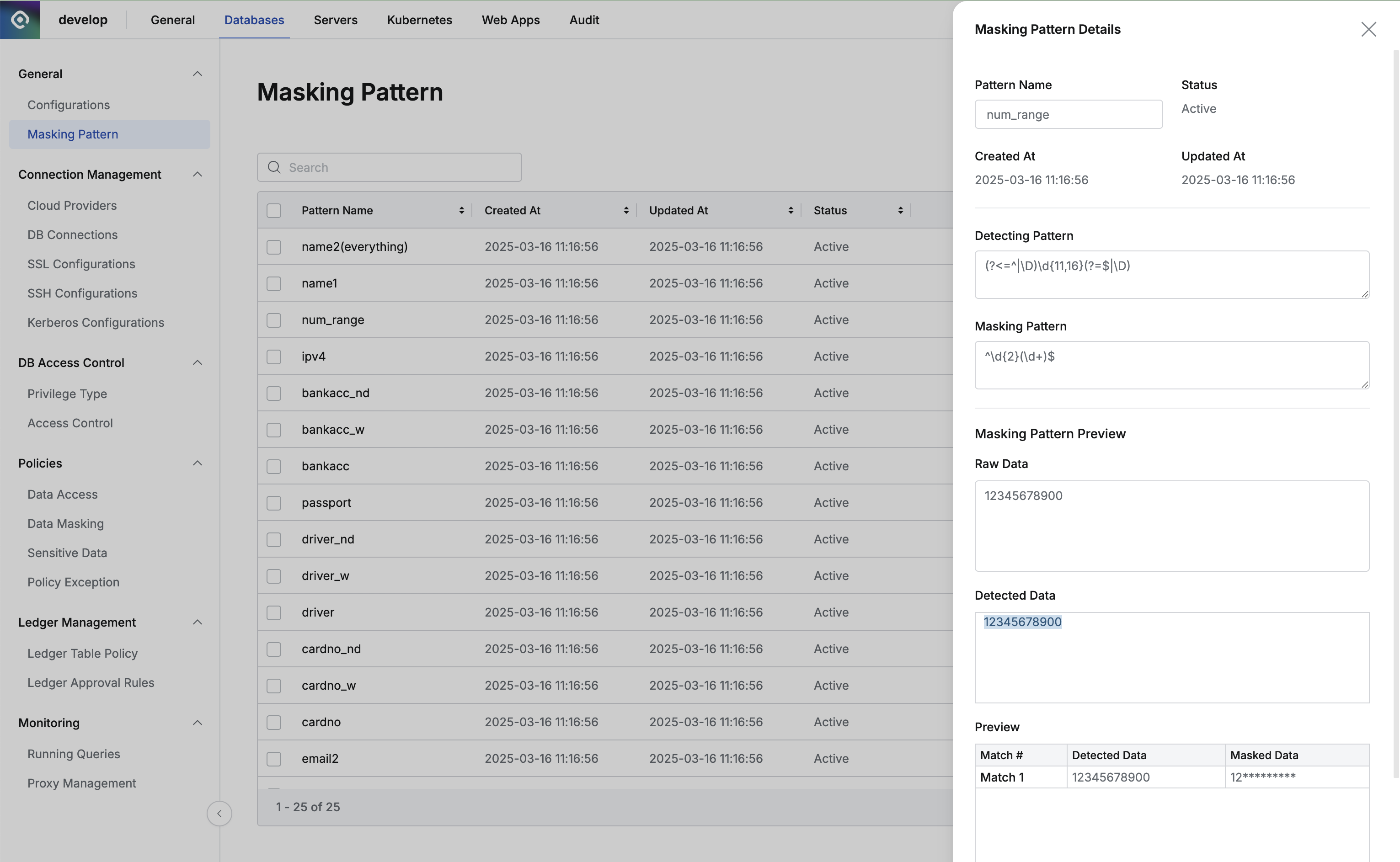
Administrator > Databases > General > Masking Pattern > Details
- Detecting Pattern : Pattern for detecting sensitive information
- Masking Pattern : Pattern for masking sensitive information
- Masking Pattern Preview : Preview of masking pattern results
- Raw Data : Sample data
- Detected Data : Area detected as sensitive information in the sample data by the Detecting Pattern (shaded in blue)
- In the Masked Data within the Preview table, you can check the masking results for the sample data
Click the Save button to store your changes.
Click the Delete button and then click the Delete button in the confirmation modal to remove the masking pattern.
Alternatively, select items to delete in the Masking Pattern list using the checkbox and click the Delete button to remove them.
Adding a Masking Pattern
Click the Create Pattern button to open a modal.
Enter all the required information and click the Save button to save.
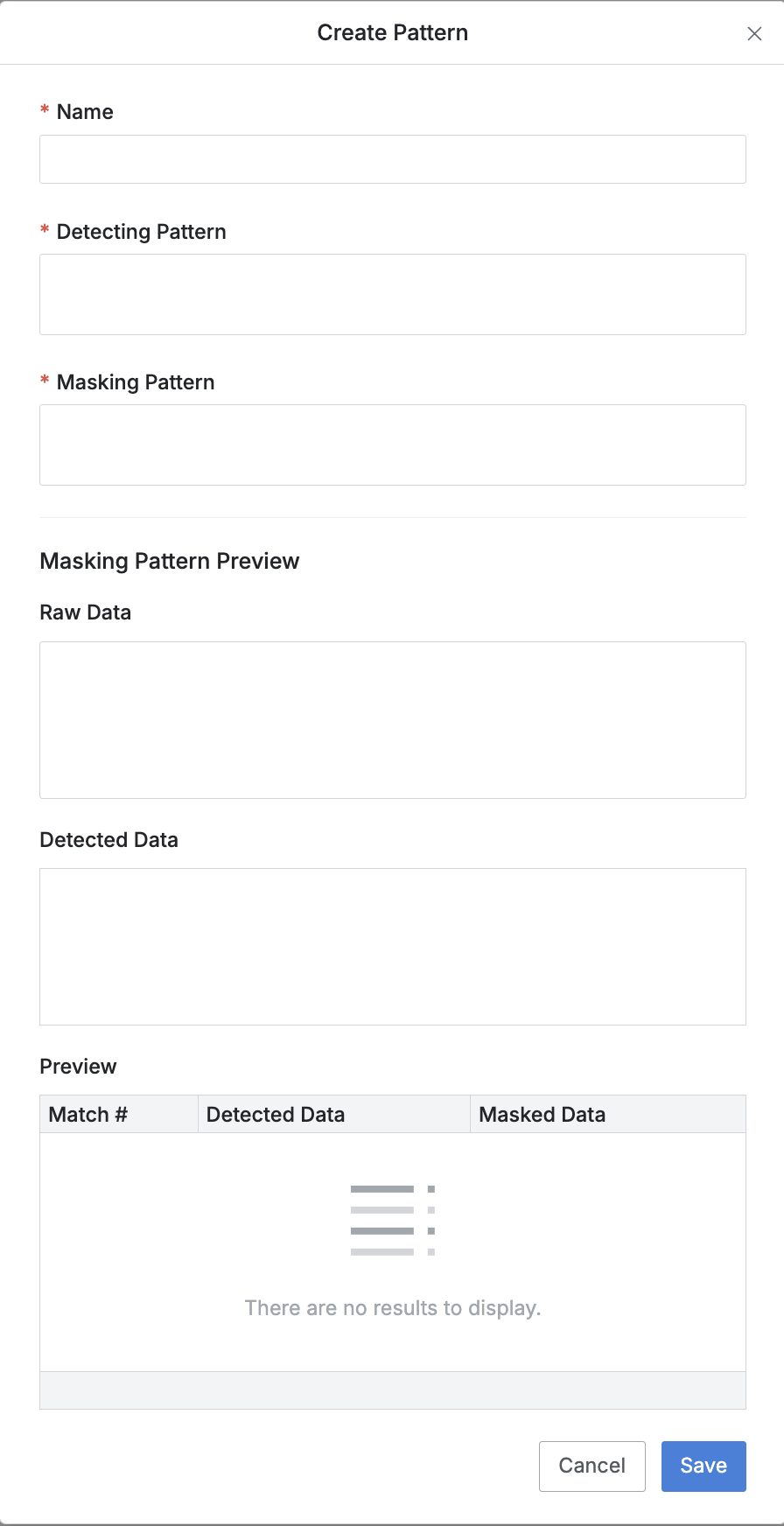
Create Pattern
- Name : Masking pattern name
- Detecting Pattern : Pattern for detecting sensitive information (regex)
- Masking Pattern : Pattern for masking sensitive information (regex)
- Masking Pattern Preview : Information to preview and validate the masking pattern
- When you enter sample data into Raw Data, the detected data will appear in Detected Data
- The summarized result will be displayed in the Preview table
- Only one sample data item can be entered