License Installation
This guide explains how to install and upgrade Product License for QueryPie product.
When Installing QueryPie for the First Time 11.3.0
When you first install and run QueryPie ACP, accessing the web console through a web browser will prompt you to enter a license. Once you enter the license correctly, you will see the login screen.
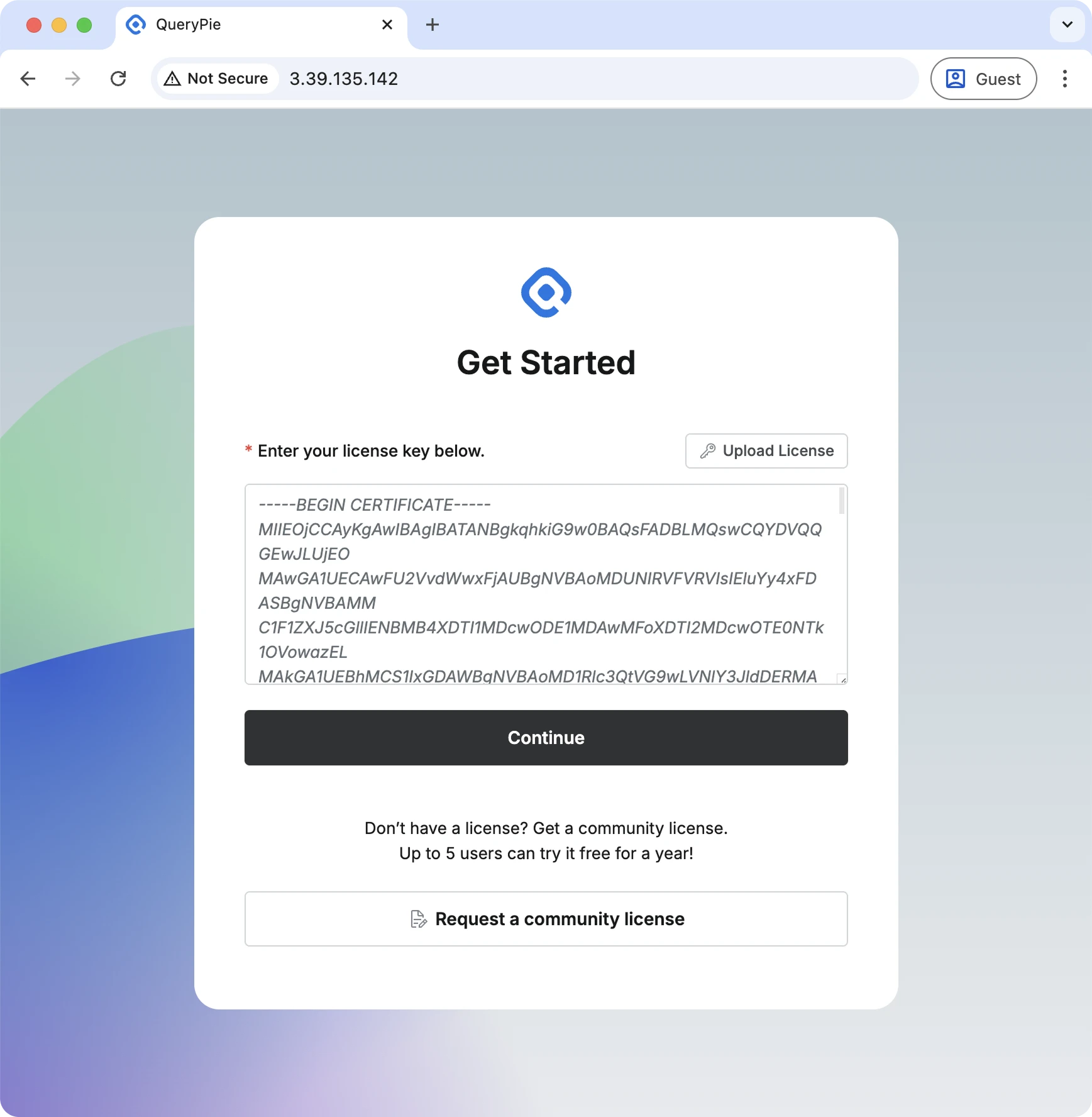
PEM format license input screen
Adding or Replacing a License 11.3.0
In version 11.3.0 or later, you can install, add, or replace product licenses through the web console: Licenses
Managing Multiple Licenses After Installation
In versions prior to 11.3.0, there was a restriction that prevented installing additional licenses with overlapping validity periods. Starting from 11.3.0, you can install additional licenses with overlapping validity periods. When there is more than one valid license, administrators can specify which valid license to activate.
The status of valid licenses is categorized as follows based on activation status:
- Activated: Currently activated state
- Available: A usable license that has not been activated
When Installing QueryPie for the First Time Deprecated
When installing QueryPie for the first time, you can install Product License by running a component called QueryPie Tools. QueryPie Tools is a tool that operates separately from QueryPie Server and is used for product installation, upgrade, license installation, etc.
To briefly explain how to install Product License using QueryPie Tools:
Run QueryPie Tools Container using the docker-compose command.
ubuntu@querypie:~/querypie/10.2.4$ docker-compose --env-file compose-env --profile tools up -d
[+] Running 1/1
 ⠿ Container querypie-tools-1  Started                                                                                                             0.2s
ubuntu@querypie:~/querypie/10.2.4$
Install the license.crt license file through QueryPie Tools API using the curl command. The license.crt license file name is an example, and it is the product license file transferred and stored on the server from the technical support manager.
You can use a different file name.
ubuntu@querypie:~/querypie/10.2.4$ curl -XPOST 127.0.0.1:8050/license/upload -F file=@license.crt
[License] Upload: Success
ubuntu@querypie:~/querypie/10.2.4$
If you see the response message [License] Upload: Success, the license has been installed normally.
For detailed explanations of the overall product installation process and Product License installation steps, please refer to the following document: Installation Guide - Simple Configuration
When Extending License for QueryPie in Use Deprecated
There may be cases where you want to extend the license for QueryPie currently in use. For example, assume a case where you want to install a Production License on a QueryPie Server Instance that was running PoC and extend the existing PoC License.
If the validity period of the new Production license does not overlap with the validity period of the existing PoC license, you can simply add and install the new Production license. The procedure is as follows.
Run QueryPie Tools Container using the docker-compose command.
docker-compose --env-file compose-env --profile tools up -d
ubuntu@querypie:~/querypie/10.2.4$ docker-compose --env-file compose-env --profile tools up -d
[+] Running 1/1
 ⠿ Container querypie-tools-1  Started 0.2s
ubuntu@querypie:~/querypie/10.2.4$
Install the license.crt license file through QueryPie Tools API using the curl command. The license.crt license file name is an example, and it is the product license file transferred and stored on the server from the technical support manager.
You can use a different file name.
curl -XPOST 127.0.0.1:8050/license/upload -F file=@license.crt
ubuntu@querypie:~/querypie/10.2.4$ curl -XPOST 127.0.0.1:8050/license/upload -F file=@license.crt
[License] Upload: Success
ubuntu@querypie:~/querypie/10.2.4$
If you see the response message [License] Upload: Success, the license has been installed normally.
Looking at the detailed process, it is the same as the license installation process at the initial installation time.
However, in some cases, you may encounter the response message [License] Upload: The periods overlap., and in this case, the new license installation has failed.
If you encounter this response message, please refer to the “When Replacing License for QueryPie in Use” section for how to handle it.
When Replacing License for QueryPie in Use Deprecated
QueryPie’s License management functionality has one constraint: if the validity period of the existing license partially overlaps with the validity period of the new license, you cannot install the new license additionally. Due to this, when installing a license with an overlapping validity period, you must delete the existing license through a separate procedure and then install the new license.
This restriction has been resolved in version 11.3.0 or later. Reference: Licenses
There are two main methods to delete an existing license.
- Delete the existing license using mysql client inside Docker Container
- Delete the existing license by connecting to QueryPie MySQL from QueryPie Web Console
- For customers using QueryPie DAC functionality, you can connect to QueryPie MySQL Database by adding a DAC Database Connection. Detailed methods are not explained in this document.
This document explains how to delete an existing license using mysql client inside Docker Container.
Deleting Existing License
Connect to the Linux server where QueryPie Server Container is running via terminal.
Execute the docker exec command to run bash inside QueryPie Server Container.
docker exec -it querypie-app-1 bash
ubuntu@querypie:~/querypie/10.2.4$ docker exec -it querypie-app-1 bash
022f073afae5:/app#
Run mysql client inside the Container to connect to QueryPie MySQL.
Inside the Container, environment variables are defined, so information for connecting to QueryPie MySQL is provided.
Please note that in the mysql command below, there is no space between option names and option values such as -h, $DB_HOST.
mysql -h$DB_HOST -u$DB_USERNAME -p$DB_PASSWORD $DB_CATALOG
ubuntu@querypie:~/querypie/10.2.4$ docker exec -it querypie-app-1 bash
022f073afae5:/app# mysql -h$DB_HOST -u$DB_USERNAME -p$DB_PASSWORD $DB_CATALOG
Reading table information for completion of table and column names
You can turn off this feature to get a quicker startup with -A

Welcome to the MariaDB monitor.  Commands end with ; or \g.
Your MySQL connection id is 257
Server version: 8.0.30 MySQL Community Server - GPL

Copyright (c) 2000, 2018, Oracle, MariaDB Corporation Ab and others.

Type 'help;' or '\h' for help. Type '\c' to clear the current input statement.

MySQL [querypie]>
Execute the following SQL to check the number of installed license files. If this value is 0, the license has not been installed yet.
SELECT COUNT(*) FROM certificates;
MySQL [querypie]> SELECT COUNT(*) FROM certificates;
+----------+
| count(*) |
+----------+
|        1 |
+----------+
1 row in set (0.001 sec)

MySQL [querypie]>
Executing the following SQL will delete the installed license file.
DELETE FROM certificates;
MySQL [querypie]> DELETE FROM certificates;
Query OK, 1 row affected (0.007 sec)

MySQL [querypie]>
After that, enter the exit command to exit from inside the Container.
MySQL [querypie]> exit
Bye
022f073afae5:/app# exit
exit
ubuntu@querypie:~/querypie/10.2.4$
Run QueryPie Tools to Install License
Now run QueryPie Tools to install the License. You can install the license in the same way as during initial installation.
Run QueryPie Tools Container using the docker-compose command.
docker-compose --env-file compose-env --profile tools up -d
ubuntu@querypie:~/querypie/10.2.4$ docker-compose --env-file compose-env --profile tools up -d
[+] Running 1/1
 ⠿ Container querypie-tools-1  Started  0.2s
ubuntu@querypie:~/querypie/10.2.4$
Install the license.crt license file through QueryPie Tools API using the curl command. The license.crt license file name is an example, and it is the product license file transferred and stored on the server from the technical support manager.
You can use a different file name.
curl -XPOST 127.0.0.1:8050/license/upload -F file=@license.crt
ubuntu@querypie:~/querypie/10.2.4$ curl -XPOST 127.0.0.1:8050/license/upload -F file=@license.crt
[License] Upload: Success
ubuntu@querypie:~/querypie/10.2.4$
If you see the response message [License] Upload: Success, the license has been installed normally.
Restart QueryPie Server Container
Now, please restart the QueryPie Server Container.
docker-compose --env-file compose-env --profile querypie downdocker-compose --env-file compose-env --profile querypie up -d
Please check in the installed QueryPie Web Console whether the product is functioning normally.
So far, we have looked at the process of replacing an existing license and installing a new license. Great job.