User Profile
Overview
Attribute-based Access Control (ABAC) can be implemented using attributes registered in the user profile. This document provides detailed information for each user profile field.
Profile
This tab displays user attributes. For descriptions of each attribute, please refer to the Reference: User Attribute List section at the bottom of this page.
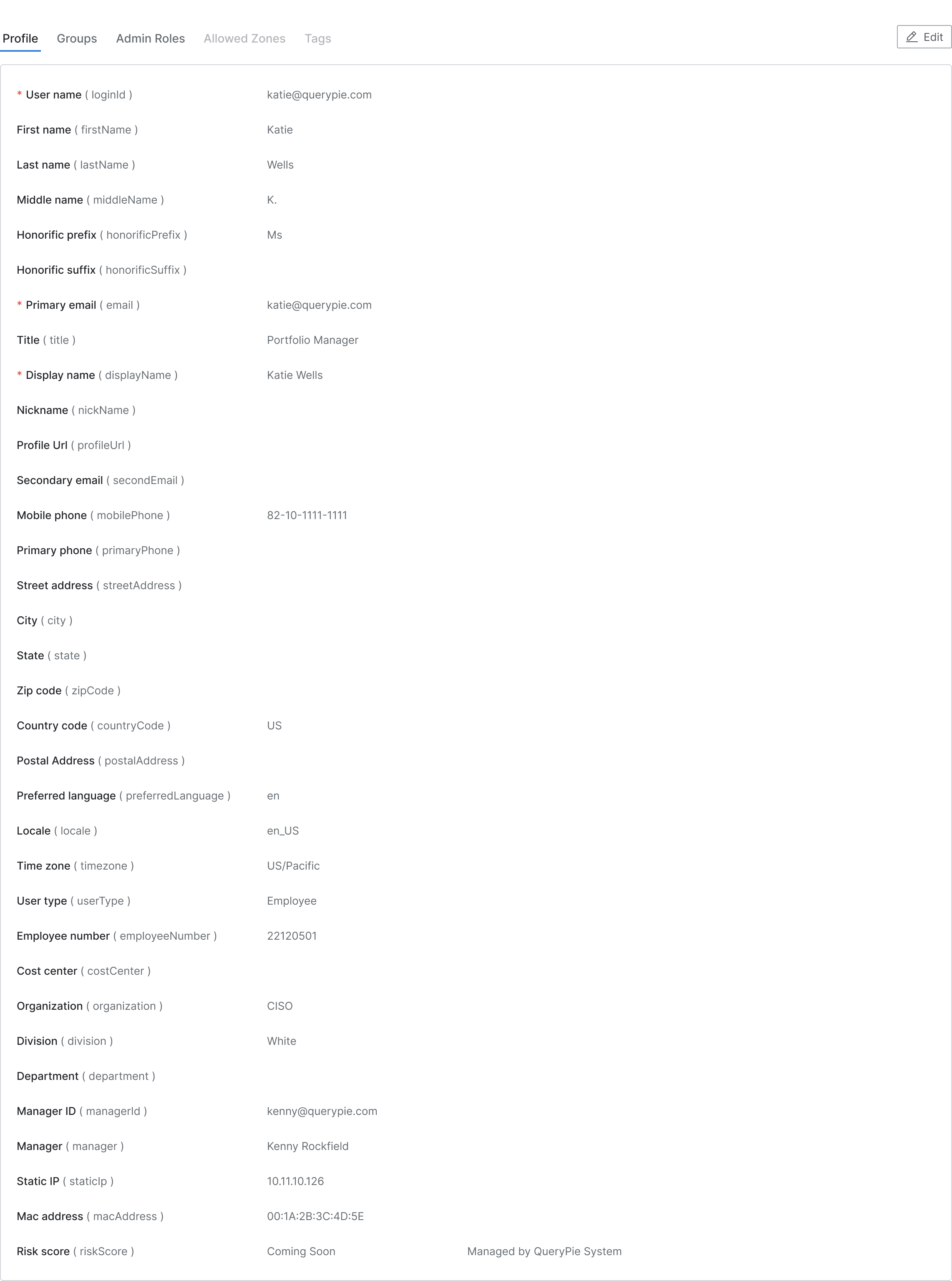
Administrator > General > User Management > Users > List Details > Profile Tab
Groups
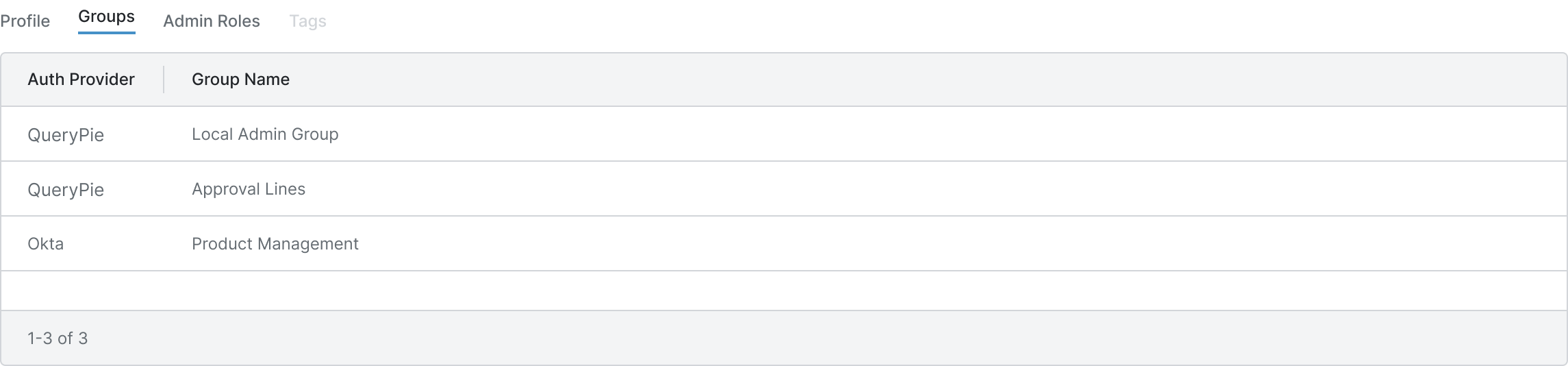
Administrator > General > User Management > Users > List Details > Groups Tab
This tab displays the user groups to which the user belongs.
- Auth Provider : Group management authority
- Group Name : Group name
Admin Roles
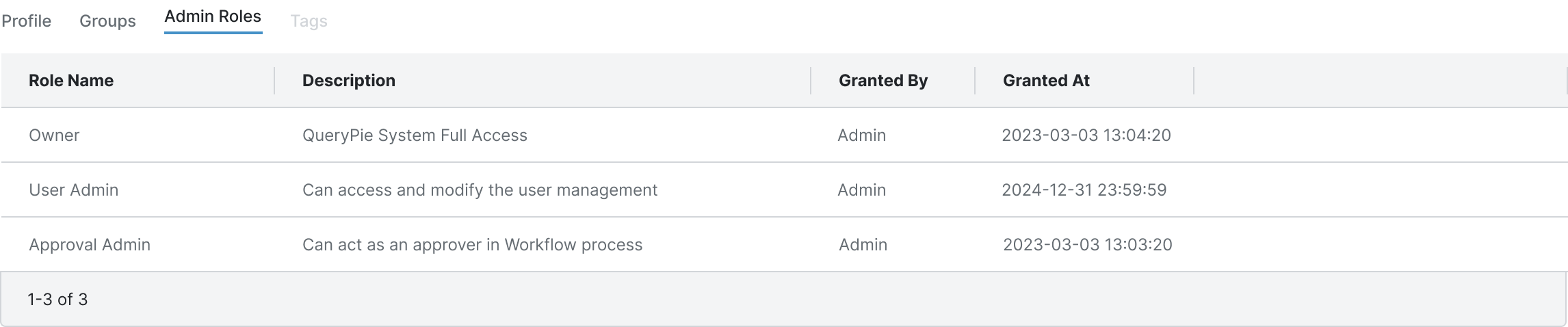
Administrator > General > User Management > Users > List Details > Admin Roles Tab
This tab displays the list of QueryPie administrator privileges assigned to the user.
- Role Name : Administrator role name
- Description : Description of the administrator role
- Granted By : Entity that granted the administrator role to the current user
- Granted At : Date and time when the administrator role was granted
Allowed Zones
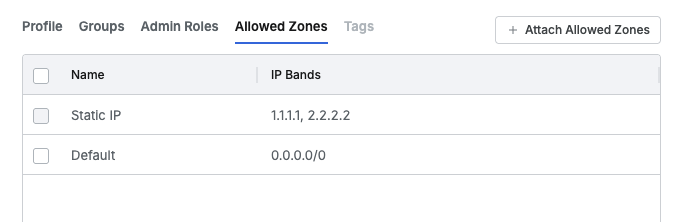
You can directly assign Allowed Zones created in the Administrator > General > Company Management > Allowed Zones menu to users, or view the history of Static IPs automatically applied through the ‘IP Registration Request’ workflow.
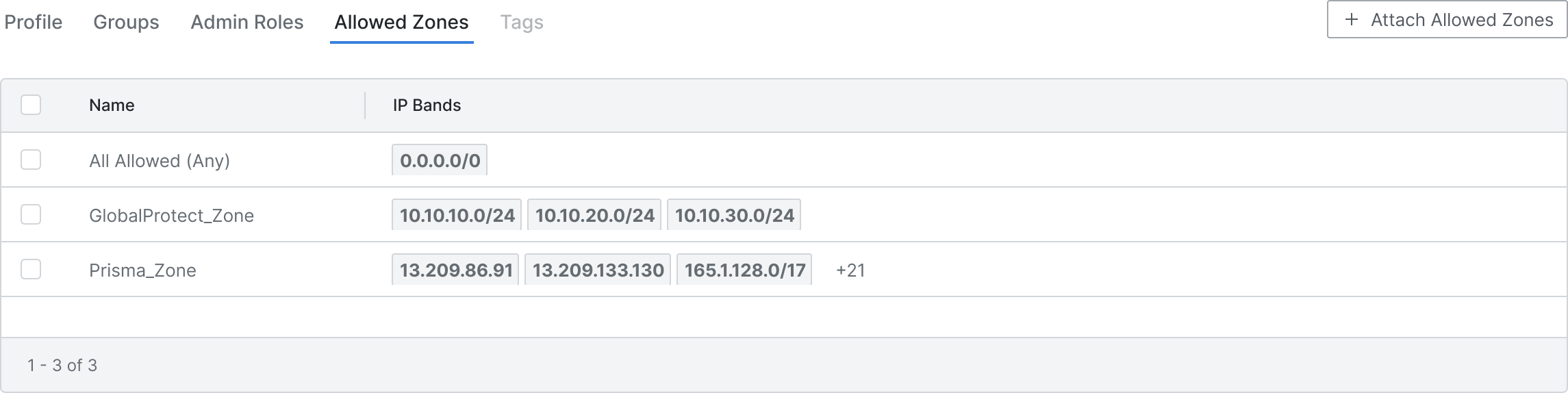
Allowed Zones Tab
Prerequisites To assign Allowed Zones per user, you must first enable the per-user QueryPie Web access IP control feature in the Admin > General > Company Management > Security menu. Please refer to the Security documentation.
Viewing Static IPs Registered Through Workflow
When users request IP address registration through the ‘IP Registration Request’ workflow and receive final approval, the IP is automatically added to the Static IP attribute in the user’s Profile tab.
These addresses registered in the Static IP attribute are automatically reflected in this Allowed Zone tab as items with Name set to Static IP, granting users access permissions from those IPs.
Deleting Static IPs Registered Through Workflow
Static IP items automatically registered through workflow cannot be directly detached from the Allowed Zones tab.
To delete them, navigate to the user’s Profile tab and directly edit the Static IP attribute value to remove the desired IP address. When values are deleted from the Static IP attribute, those IPs are immediately removed from the Allowed Zones tab and access permissions are revoked.
Table Display Information
The information displayed in the table is as follows:
- Name : Allowed Zone name
- IP Bands : Allowed Zone IP range
Assigning Allowed Zones to Users
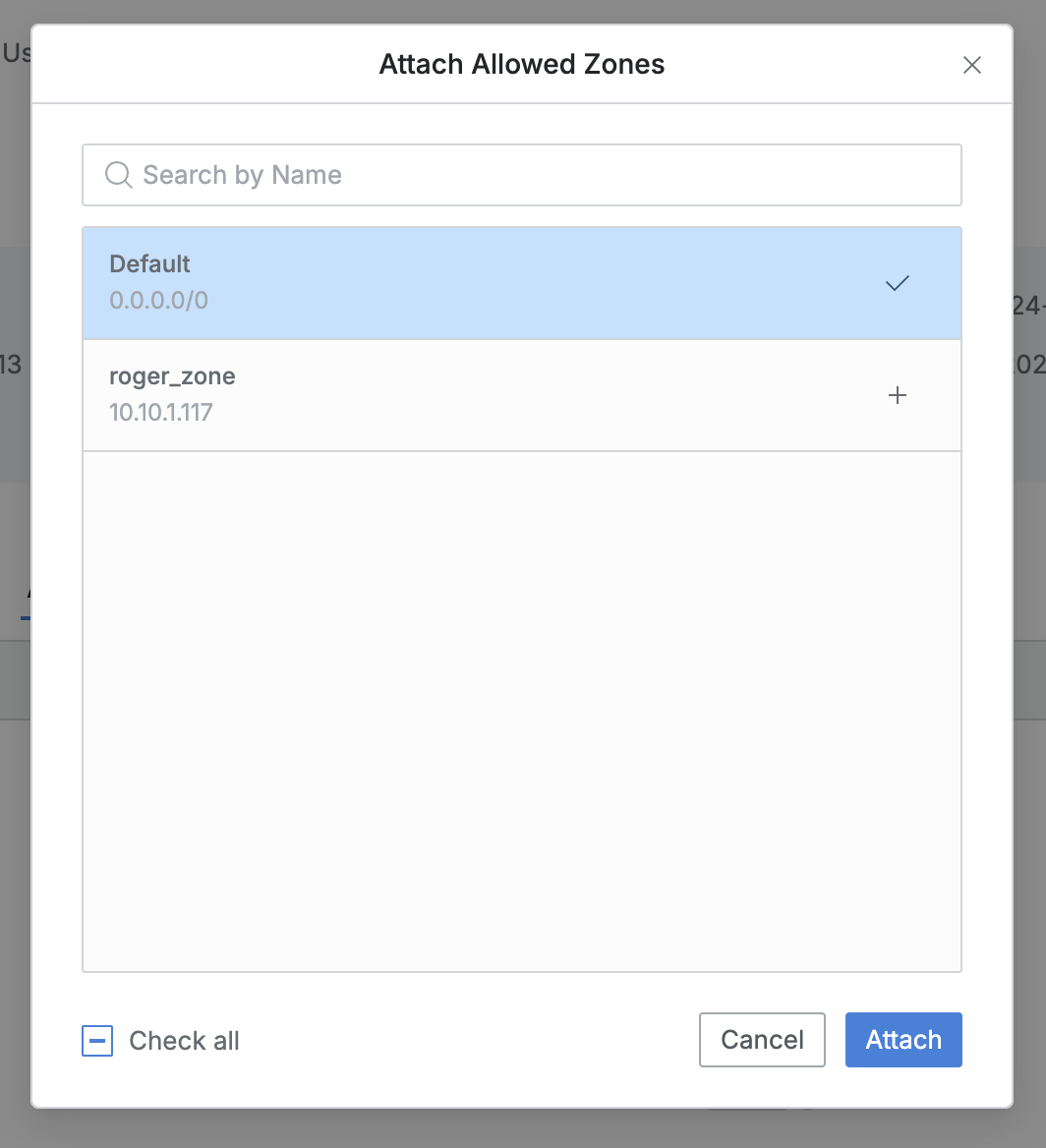
Click the Attach Allowed Zones button on the right side of the Allowed Zones tab to display the Allowed Zone assignment modal.
Select the Allowed Zone you want to assign and click the Attach button to complete the assignment.
Attach Allowed Zone Modal
Detaching Allowed Zones from Users
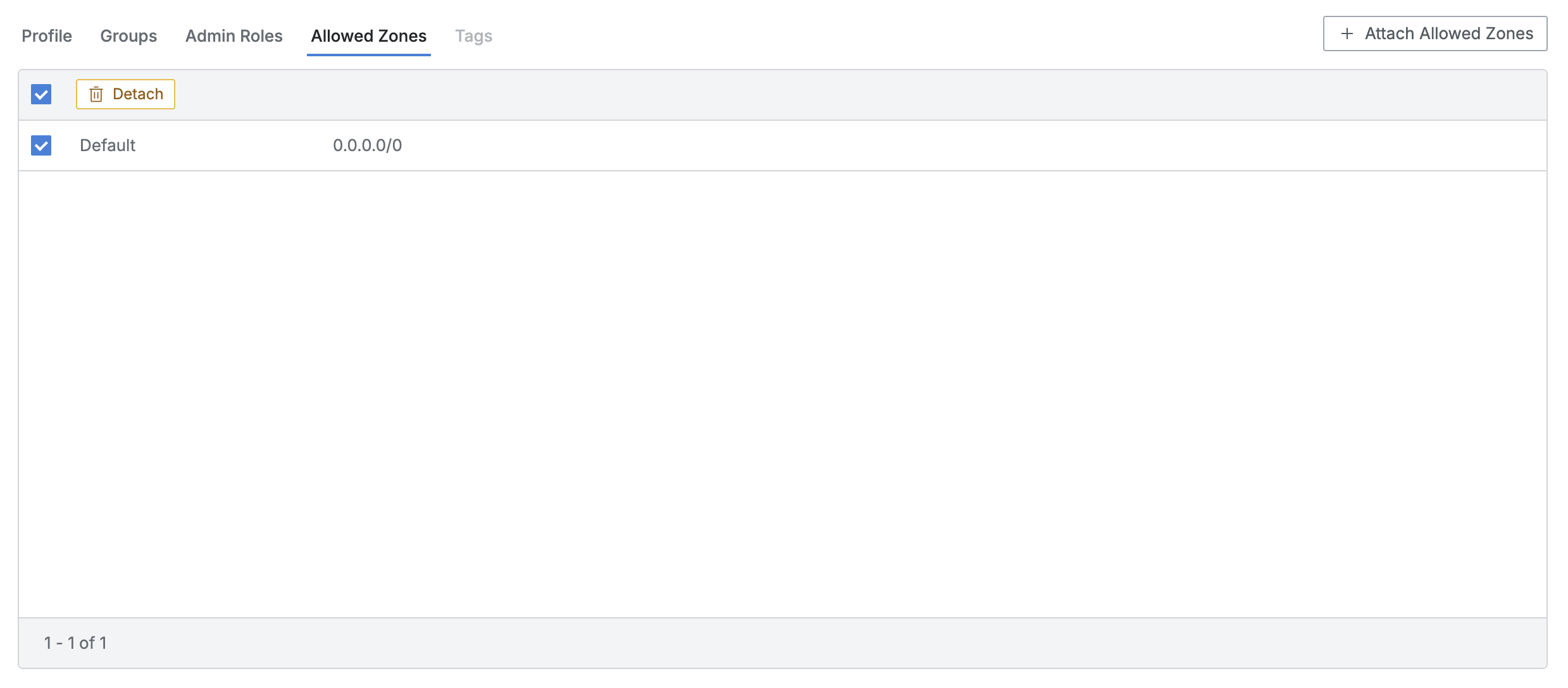
Select the item you want to detach using the checkbox in the list at the bottom of the Allowed Zone tab, and the Detach button will appear.
Click the button and then click the Detach button in the confirmation modal to complete the detachment.
Allowed Zones Detachment
Q. The Tags tab is disabled. A. The Tags tab allows you to view and manage Tags assigned to individual users, but this feature has not yet been released. It is planned for support in future versions.
Reference: User Attribute List
| Attribute Name | Variable | Description | Notes |
|---|---|---|---|
| User name | loginId | User ID | Required |
| First name | firstName | User first name | |
| Last name | lastName | User last name | |
| Middle name | middleName | User middle name | |
| Honorific prefix | honorificPrefix | User honorific (prefix) (e.g. Mr./Ms.) | |
| Honorific suffix | honorificSuffix | User honorific (suffix) (e.g. 님, 씨) | |
| Primary email | User email | Required | |
| Title | title | User title | |
| Display name | displayName | User display name | Required |
| Nickname | nickName | User nickname | |
| Profile Url | profileUrl | User profile URL | |
| Secondary email | secondEmail | Secondary email | |
| Mobile phone | mobilePhone | Mobile phone number | |
| Primary phone | primaryPhone | Primary phone number | |
| Street address | streetAddress | Street address | |
| City | city | City | |
| State | state | State/Province | |
| Zip code | zipCode | Postal code | |
| Country code | countryCode | Country code | |
| Postal Address | postalAddress | Postal address | |
| Preferred language | preferredLanguage | Preferred language (e.g. en) | |
| Locale | locale | Locale for country/language settings (e.g. en_US) | |
| Time zone | timezone | Regional timezone (e.g. US/Pacific) | |
| User type | userType | User type (e.g. Employee) | |
| Employee number | employeeNumber | Employee number | |
| Cost center | costCenter | Cost center (financial accounting basis) | |
| Organization | organization | User organization | |
| Division | division | User division | |
| Department | department | User department | |
| Manager ID | managerId | Manager ID | |
| Manager | manager | Manager display name | |
| Static IP | staticIp | User assigned static IP | |
| Mac address | macAddress | User MAC address | |
| Risk score | riskScore | User risk score (managed by QueryPie System) | Planned for future release |