Query Rules
Overview
Query Rules is a feature that allows you to set filtering rules such as allow, deny, and audit exclusion for SQL queries passing through QueryPie.
For example, you can exclude (SKIP) heartbeat queries periodically executed by Connection Pools from Audit logs, deny (DENY) dangerous DDL queries such as DROP TABLE, or temporarily allow (ALLOW) queries that failed SQL parsing, among various other operational scenarios.
When multiple rules are registered, they are evaluated in order of Priority, and the first matching rule is applied.
This feature is available in version 11.6.x and later.
(Provided as Beta from 11.6.0 through 11.6.4 and as a GA feature in 11.6.5)
Query Rules do not apply to MongoDB / DocumentDB.
Creating a Query Rule
Create a new Query Rule.
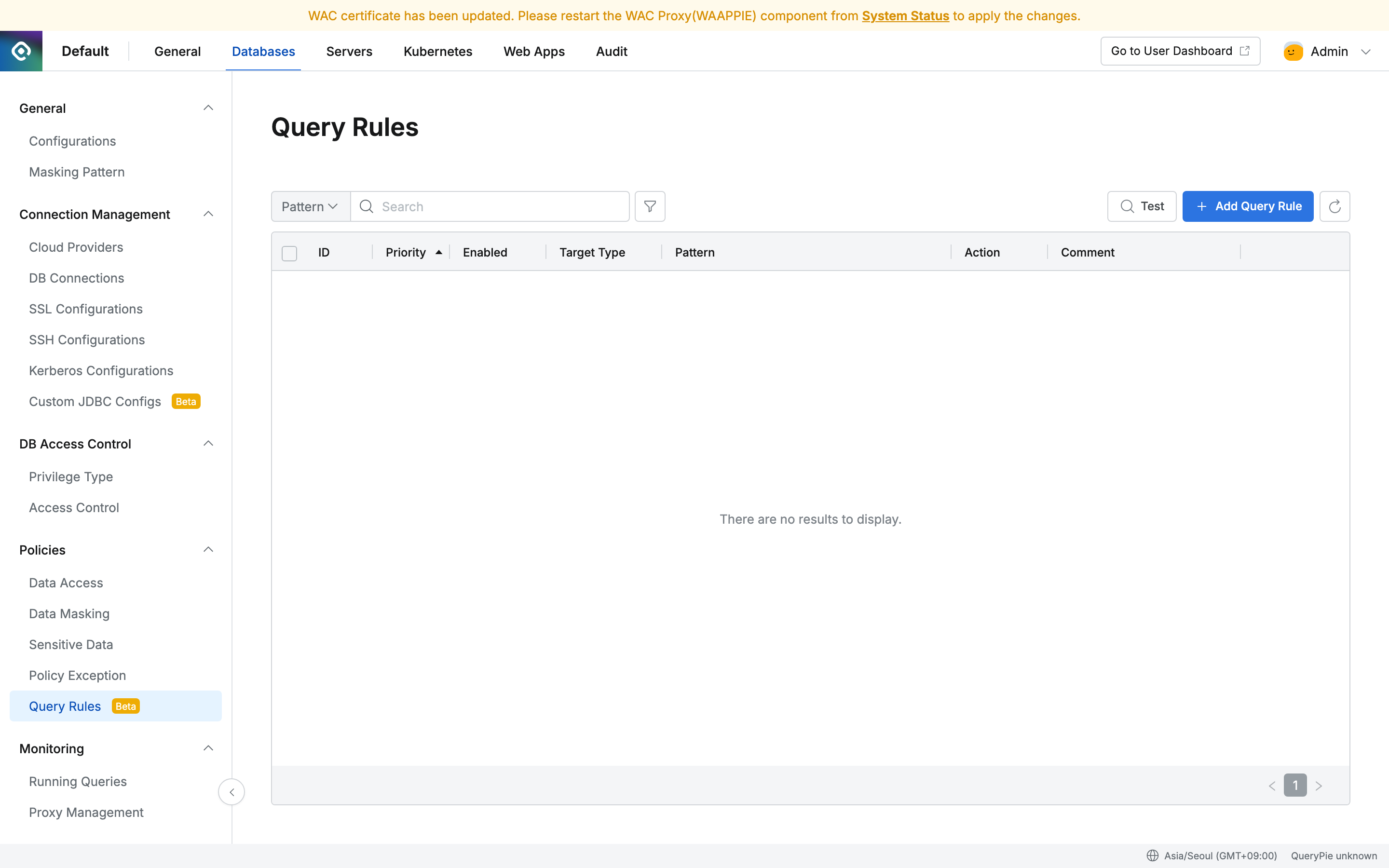
- Navigate to
Admin > Databases > Policies > Query Rules. - Click the
+ Add Query Rulebutton in the top right. - Enter the information for creating a Query Rule.
- Basic Settings
- Enabled : Sets whether the rule is active. You can enable or disable it using the toggle.
- Priority : Specifies the rule priority as a number. Lower numbers have higher priority. The default value is 100.
- Target Settings
- Target Type : Selects the scope of targets the rule applies to.
- All : Applies to all connections.
- Connection : Applies only to specific connections.
- Vendor : Applies only to specific DB types (e.g., MySQL, PostgreSQL).
- Input Mode : When Target Type is Connection or Vendor, selects how to specify targets.
- Select : Directly select targets from a list.
- RegExp Pattern : Specify targets using a regular expression. For Connection, matching is performed against the Name or UUID.
- Target Value : Specifies the targets to apply the rule to. Multiple targets can be selected.
- Target Type : Selects the scope of targets the rule applies to.
- Pattern Settings
- Match Type : Selects the query matching method.
- Exact : Matches when the query string is an exact match (case-insensitive, leading/trailing whitespace trimmed).
- Regexp : Matches using a regular expression pattern. Case-insensitive (
(?i)) and DOTALL mode ((?s), where.also matches newlines) are applied by default. - Normalized : Matches using placeholders after normalizing SQL (removing comments, normalizing whitespace, case-insensitive).
?matches a single value (number, string, NULL, function call), and?...matches one or more values (e.g., IN clauses).
- Pattern : Enter the SQL pattern to match.
- Test Pattern : You can test whether a SQL statement matches the entered Pattern. Enter the SQL and click the
Testbutton. - Origins : Selects the query origins the rule applies to. The default value is All.
- All : Applies to queries from all origins.
- Proxy : Applies only to queries through the proxy.
- SQL Editor : Applies only to queries executed from SQL Editor.
- Match Type : Selects the query matching method.
- Action Settings
Skip Action is for Proxy only. When Skip is selected, the Origin is automatically set to Proxy and is not supported in SQL Editor. Since it is not recorded in Audit, do not use it for sensitive queries.- Action : Selects the action to apply to queries matching the rule.
- Allow : Executes the query bypassing policies (Privilege, Data Masking, etc.). It is still recorded in Audit logs.
- Deny : Rejects query execution. It is recorded in Audit logs with a Prevented status.
- Skip : Executes the query without Audit recording. All policies are skipped.
- Error Message : When Action is Deny, enter the error message to display to the user.
- Allow Reason : When Action is Allow, records the reason for allowing. It is stored in the action_comment of the Audit log.
- Action : Selects the action to apply to queries matching the rule.
- Additional Information
- Max SQL Length : Specifies the maximum length of SQL the rule applies to. The default value is 16,384 characters. If the SQL length exceeds this value, only this rule is skipped and evaluation proceeds to the next rule.
- Comment : Enter a description for the rule.
- Basic Settings
- Click the
Createbutton to save.
Rule changes are event-driven and are applied almost immediately in most cases. In multi-instance environments, it may take up to 10 minutes for other instances to reflect the changes.
Testing a Query Rule
You can test in advance whether registered rules correctly match a specific SQL statement.
- Navigate to
Admin > Databases > Policies > Query Rules. - Click the
Testbutton in the top right. - Enter the SQL to test, and optionally select an Origin and Target Type.
- If Target Type is
Connection, select a Connection; if it isVendor, select a Vendor. - Click the
Test with CacheorTest without Cachebutton to see the list of matched rules and the final rule that will be applied.
Immediately after changing rules, you can use the Test without Cache button to query the latest rules directly from the DB.
Viewing Query Rules
View the list of registered Query Rules.
- Navigate to
Admin > Databases > Policies > Query Rules. - The list of registered Query Rules is displayed.
- ID : The unique identifier of the Query Rule.
- Priority : The rule priority.
- Enabled : Whether the rule is active.
- Target Type : The scope of targets the rule applies to.
- Pattern : The matching pattern.
- Action : The action applied when matched (Allow / Deny / Skip).
- Comment : A description of the rule.
Editing a Query Rule
Modify the settings of an existing Query Rule.
- Navigate to
Admin > Databases > Policies > Query Rules. - Click the item to edit from the Query Rule list.
- Modify the desired information on the detail screen.
- Click the
Savebutton to save.
Deleting a Query Rule
Delete a registered Query Rule.
- Navigate to
Admin > Databases > Policies > Query Rules. - Select the checkbox of the item to delete from the Query Rule list. Multiple items can be selected at once.
- Click the
Deletebutton that appears at the top. - Click
OKin the confirmation popup.
Usage Examples
Example 1: Excluding Heartbeat Queries from Audit (SKIP)
You can exclude SELECT 1 queries periodically executed by Connection Pools that are unnecessarily accumulating in Audit logs.
| Setting | Value |
|---|---|
| Priority | 10 |
| Target Type | All |
| Match Type | Exact |
| Pattern | SELECT 1 |
| Origins | Proxy |
| Action | Skip |
Skip Action is for Proxy only.
This rule does not apply to SELECT 1 executed from SQL Editor.
Example 2: Blocking Dangerous DDL Queries (DENY)
Block queries that can cause data loss, such as DROP DATABASE and DROP TABLE, across all connections.
| Setting | Value |
|---|---|
| Priority | 20 |
| Target Type | All |
| Match Type | RegExp |
| Pattern | `DROP\s+(DATABASE |
| Origins | All |
| Action | Deny |
| Error Message | This query has been blocked by security policy. Please contact your administrator. |
Regexp matching is case-insensitive by default, so queries entered in lowercase such as drop database are also blocked.
Example 3: Temporarily Allowing SQL Parsing Failure Queries (ALLOW)
Temporarily allow a specific query that is being blocked due to SQL parsing failure. Audit logs are recorded normally.
| Setting | Value |
|---|---|
| Priority | 30 |
| Target Type | Connection |
| Input Mode | Select |
| Target Value | (Select the specific Connection to allow) |
| Match Type | Normalized |
| Pattern | SELECT * FROM users WHERE id = ? |
| Origins | All |
| Action | Allow |
| Allow Reason | Temporary allow for parsing failure - QPD-1234 |
Example 4: Excluding Configuration Queries for a Specific DB Vendor (SKIP)
Exclude encoding configuration queries automatically executed by MySQL Connection Pools from Audit.
| Setting | Value |
|---|---|
| Priority | 10 |
| Target Type | Vendor |
| Input Mode | Select |
| Target Value | MySQL |
| Match Type | Exact |
| Pattern | SET NAMES utf8mb4 |
| Origins | Proxy |
| Action | Skip |
Example 5: Using Priority - Allow Exception Then Block All
When you want to allow a specific Connection while blocking all others, use Priority.
Rule 1 - Allow Exception (Priority: 10)
| Setting | Value |
|---|---|
| Priority | 10 |
| Target Type | Connection |
| Target Value | dev-db-001 |
| Match Type | Regexp |
| Pattern | DROP\s+TABLE |
| Action | Allow |
Rule 2 - Block All (Priority: 20)
| Setting | Value |
|---|---|
| Priority | 20 |
| Target Type | All |
| Match Type | Regexp |
| Pattern | DROP\s+TABLE |
| Action | Deny |
Rule 1, which has the lower Priority number, is evaluated first, so DROP TABLE on dev-db-001 is allowed, while it is blocked on all other Connections by Rule 2.