Custom Attribute
Overview
この文書では、Custom Attribute設定および管理方法を案内します。
Custom Attribute生成
- 属性リストテーブル右上の
+ Create Attributeボタンをクリックします。
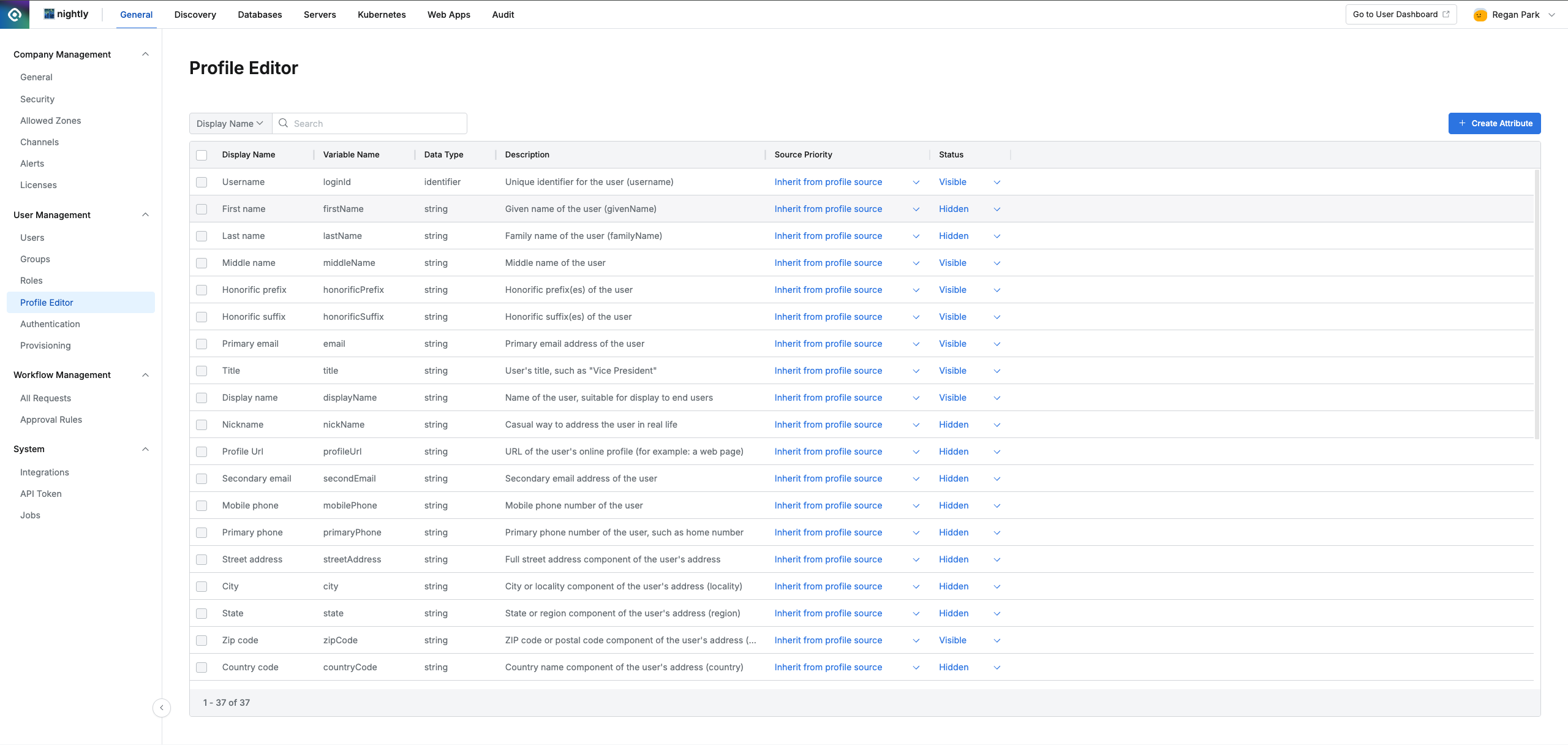
Administrator > General > User Management > Profile Editor
- 以下に明示された項目を入力後、
OKボタンを押してCustom Attributeを生成します。
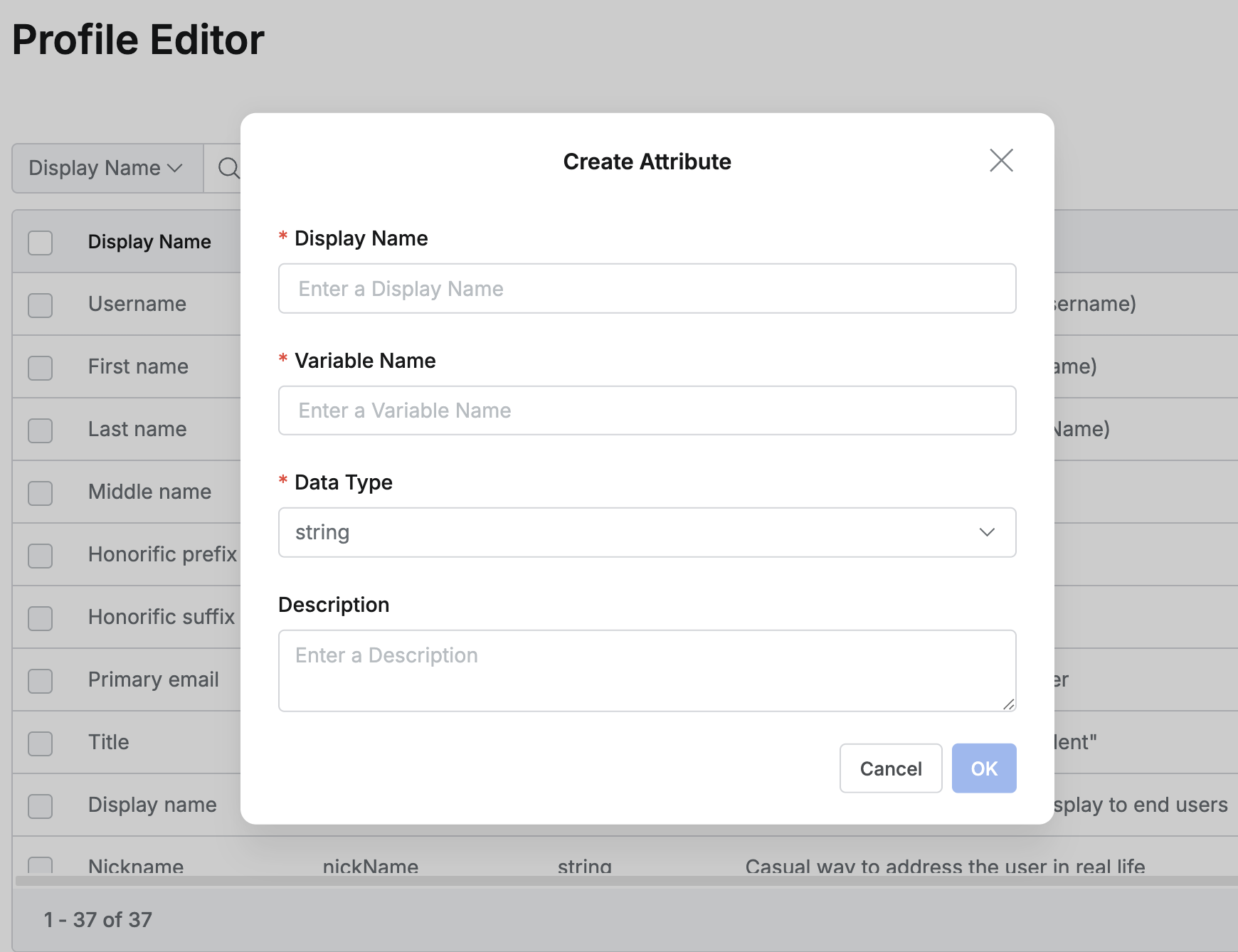
- Display Name (必須):属性の名前で重複できません。例)Team Leader
- Display Name重複時には以下のようなエラーメッセージがモーダルで表示されます。
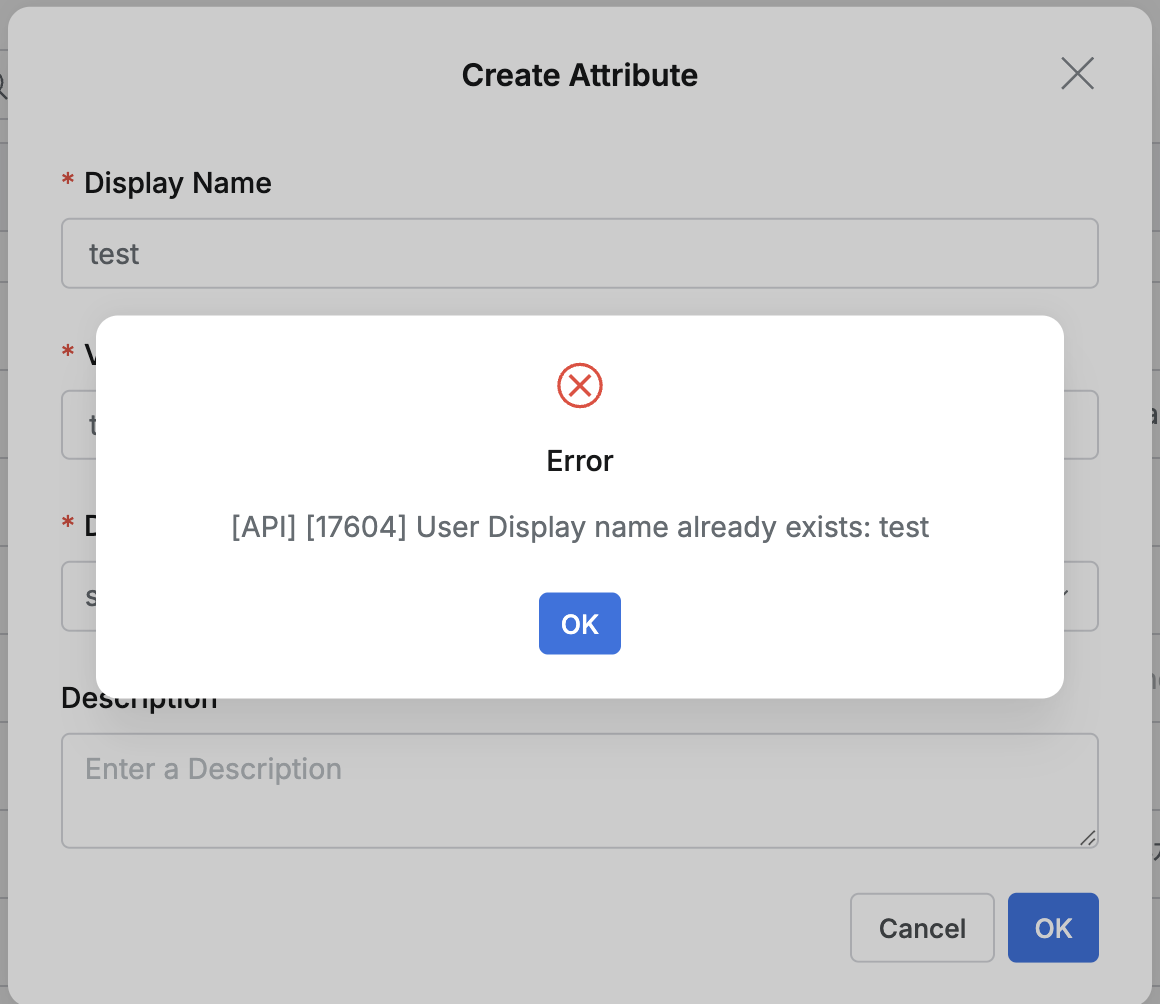
- Display Name重複時には以下のようなエラーメッセージがモーダルで表示されます。
- Variable Name (必須):属性の変数名で重複できません。例)teamLeader
- Variable Name重複時には以下のようなエラーメッセージがモーダルで表示されます。
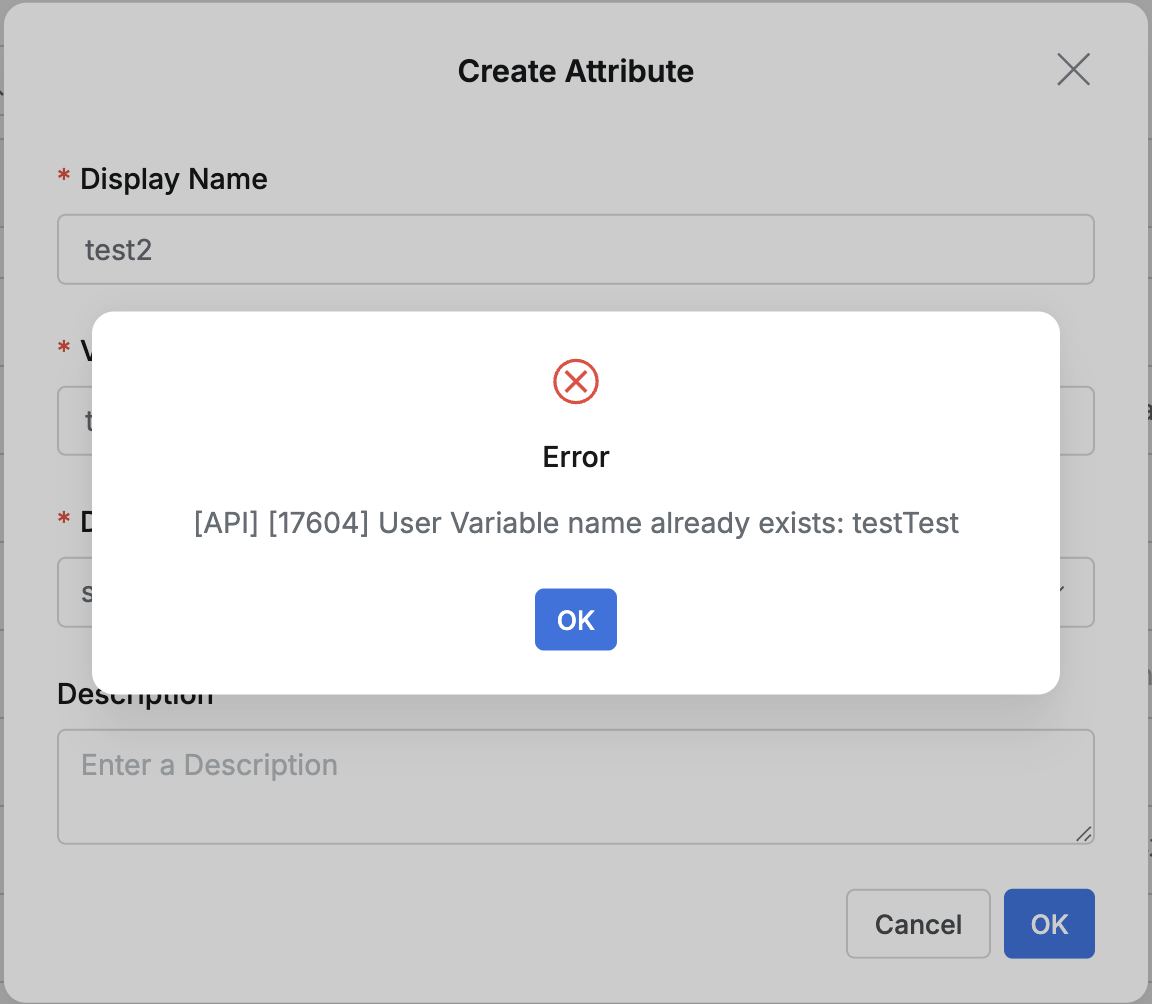
- Variable Name重複時には以下のようなエラーメッセージがモーダルで表示されます。
- Datatype (必須):属性値のデータタイプを選択します。
- string:一般的なテキスト(文字列)値です。(例:「Marketing Team」)
- number:数値です。(例:100)
- string array:複数のテキスト値をリスト形式で持つことができます。(例:[“variable1”, “variable1”])
- identifier:システム内の他のオブジェクト(主にLoginID)を指す固有識別子
- Description (選択):属性に対する説明です。
- 生成時基本設定:
- Source Priority :inherit from profile source(基本値)
- Status :Visible(基本値)
Custom Attribute修正
- 修正可能項目:
- Display Name
- Description
- Source Priority
- Status
- 修正不可項目:
- Variable Name
- Data Type
- 修正方法:
- Display Name、Description:Profile Editorテーブルで該当Custom Attributeをクリックして詳細モーダルを開き修正します。
- Source Priority、Status:Profile Editorテーブルの該当Custom Attribute行で直接インラインで修正可能です。
- 制限事項:
- IdPと連動されたCustom Attributeは修正できません。
- Custom AttributeがWorkflow Approval Rule内のUser Attribute-Based Approvalに使用されている場合、該当属性のDisplay NameとDescriptionは修正できません。
Custom Attribute削除
- 削除方法:
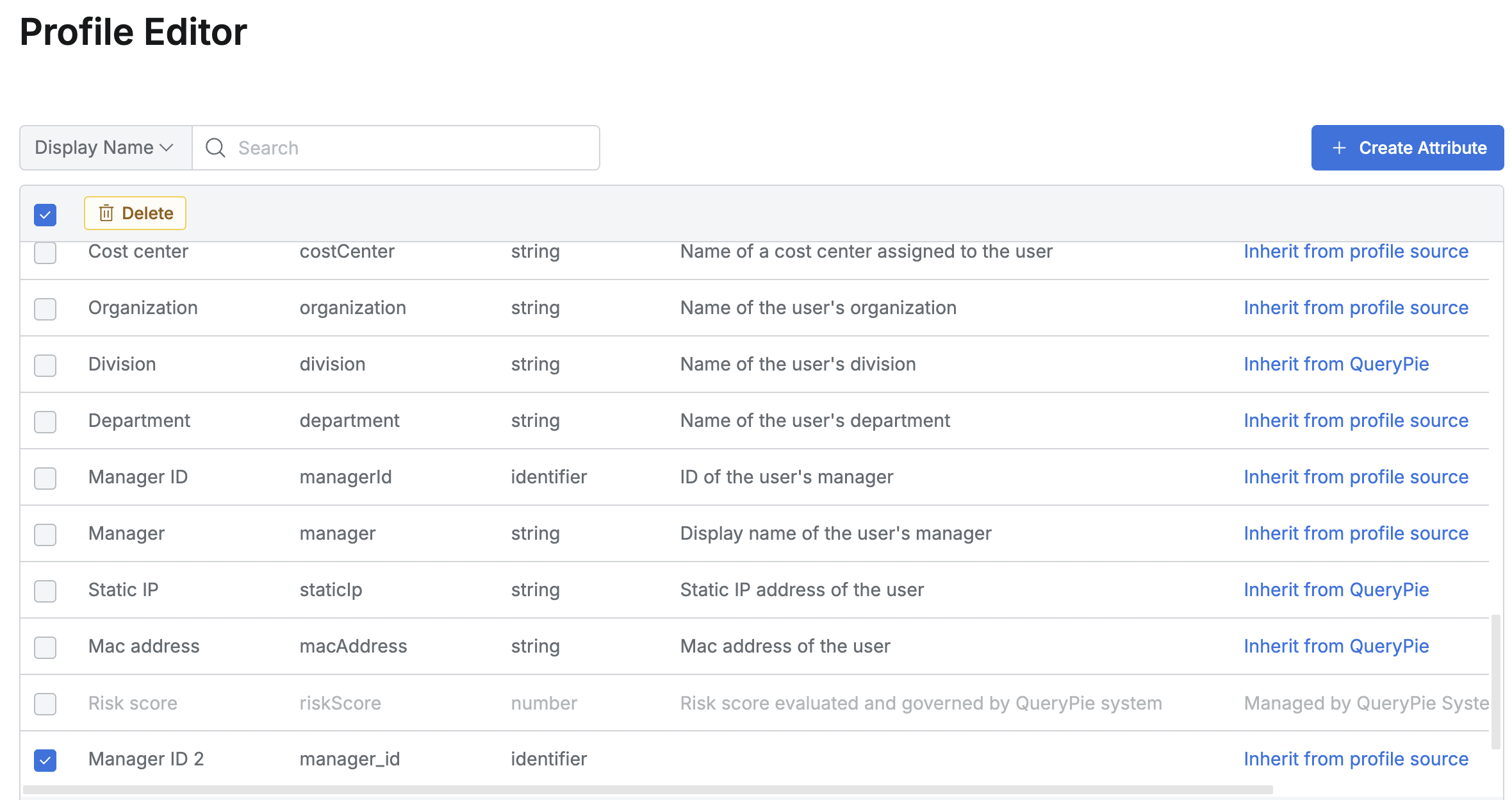
- 削除するCustom Attribute項目のチェックボックスを選択します。
- テーブル上部に現れる
Deleteボタンをクリックします。 - 削除確認モーダルウィンドウで削除を確認します。
- 削除不可対象:
- QueryPieシステムに内蔵された基本Attribute(例:Username、Primary emailなど)
- IdPと連動されたCustom Attribute
- Workflow Approval Rule内のUser Attribute-Based Approvalに使用されているCustom Attribute
- 上記項目のチェックボックスは非活性化されて選択できません。
Last updated on