AI Chat Audit
Overview
You can view audit logs for the AI Chat feature. The content users entered in the chat window and the results can both be viewed on the detail screen.
Viewing AI Chat Audit Logs
View AI Chat usage history from Admin > Audits > General > AI Chat Audit.
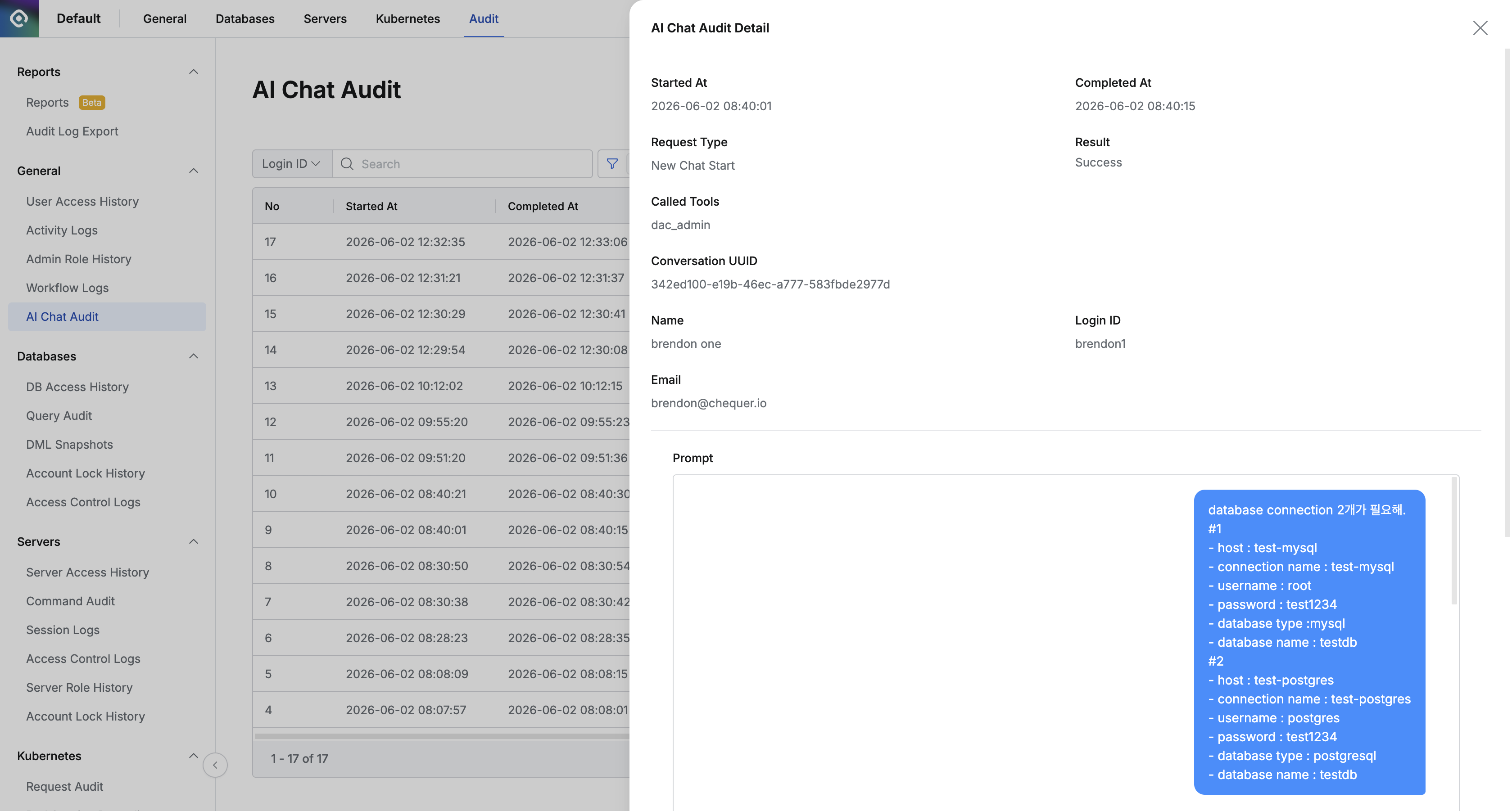
Admin > Audit > General > AI Chat Audit
- Navigate to Admin > Audits > AI Chat Audit.
- The AI Chat Audit Log list is displayed. You can check the following information in the list.
- Event UUID : The unique identifier of the audit event.
- User : Information about the user who used AI Chat.
- Request Type : The request type, such as CHAT or TOOL_CALL.
- Status : The request processing status, such as SUCCESS or ERROR.
- Scope : The request scope.
- Tool Names : The list of called MCP Tool names.
- Date : The event date and time.
- You can enter search conditions to filter the list.
- Date Range : Set the query period.
- User : Search by user ID, name, login ID, or email.
- Request Type : Filter by request type.
- Status : Filter by processing status.
- Scope : Filter by scope.
- Tool Names : Filter by the MCP Tool used.
- Click an item in the list to open the detail Drawer.
- Summary : Check summary information for the event.
- Prompt : Check the system prompt and user input that were used.
- Conversation History : Check the conversation history for the event.
The AI Chat Audit Log Export feature is available from the Audit Log Export menu and is currently provided as Beta.
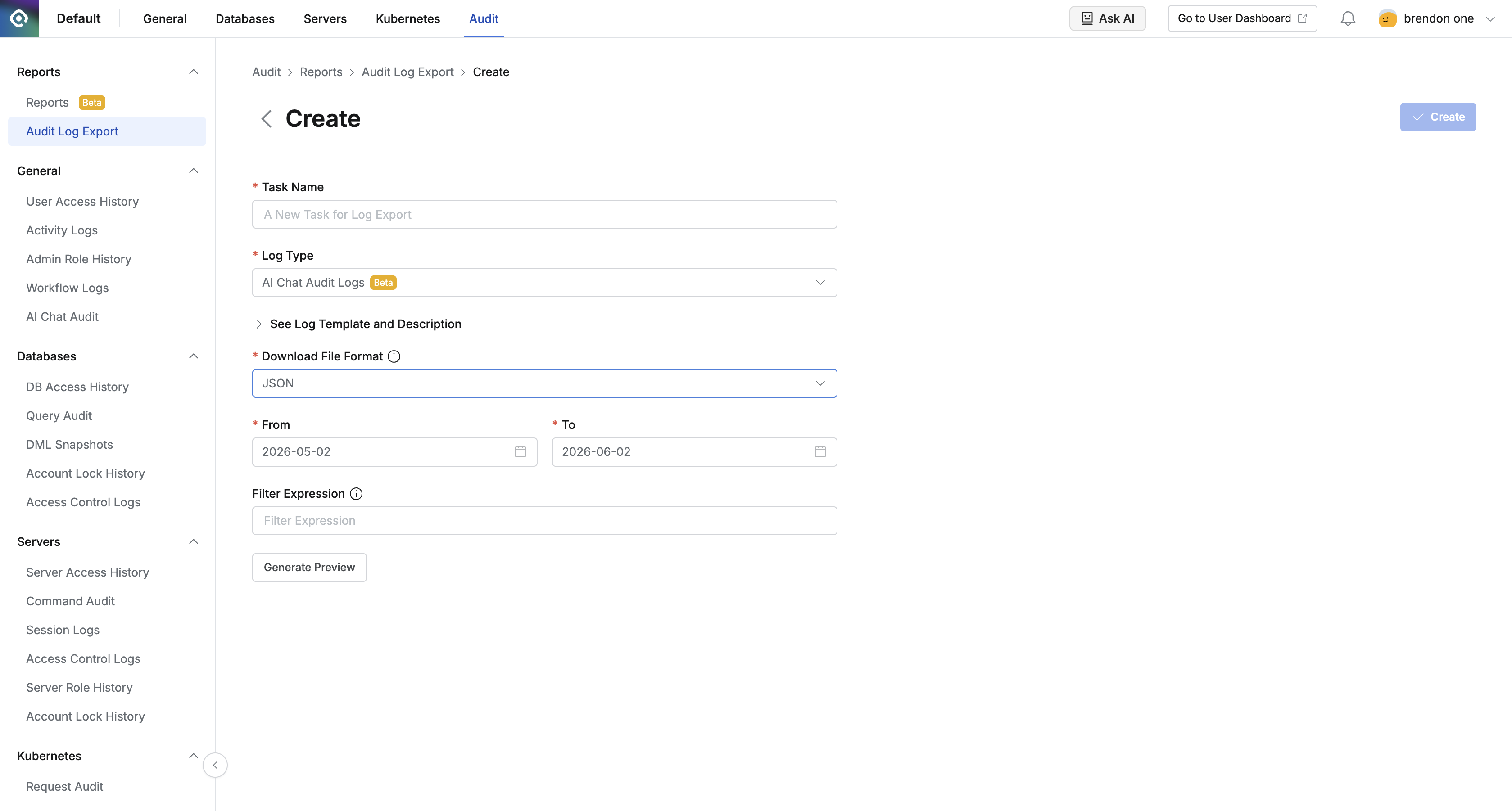
Admin > Audit > Reports
Last updated on