LLM Provider Configuration
Overview
To use AI Chat, you must first configure an LLM provider in QueryPie ACP and connect it to an LLM server. QueryPie currently supports models served through OpenAI, Anthropic, LiteLLM (OpenAI-compatible LLM server), and Z.ai LLMs. (Available in 11.6.0 and later.)
Configuring the LLM provider
To use AI Chat, LLM Provider configuration is required first. Admins can configure the LLM Provider connection and AI Chat usage policy.
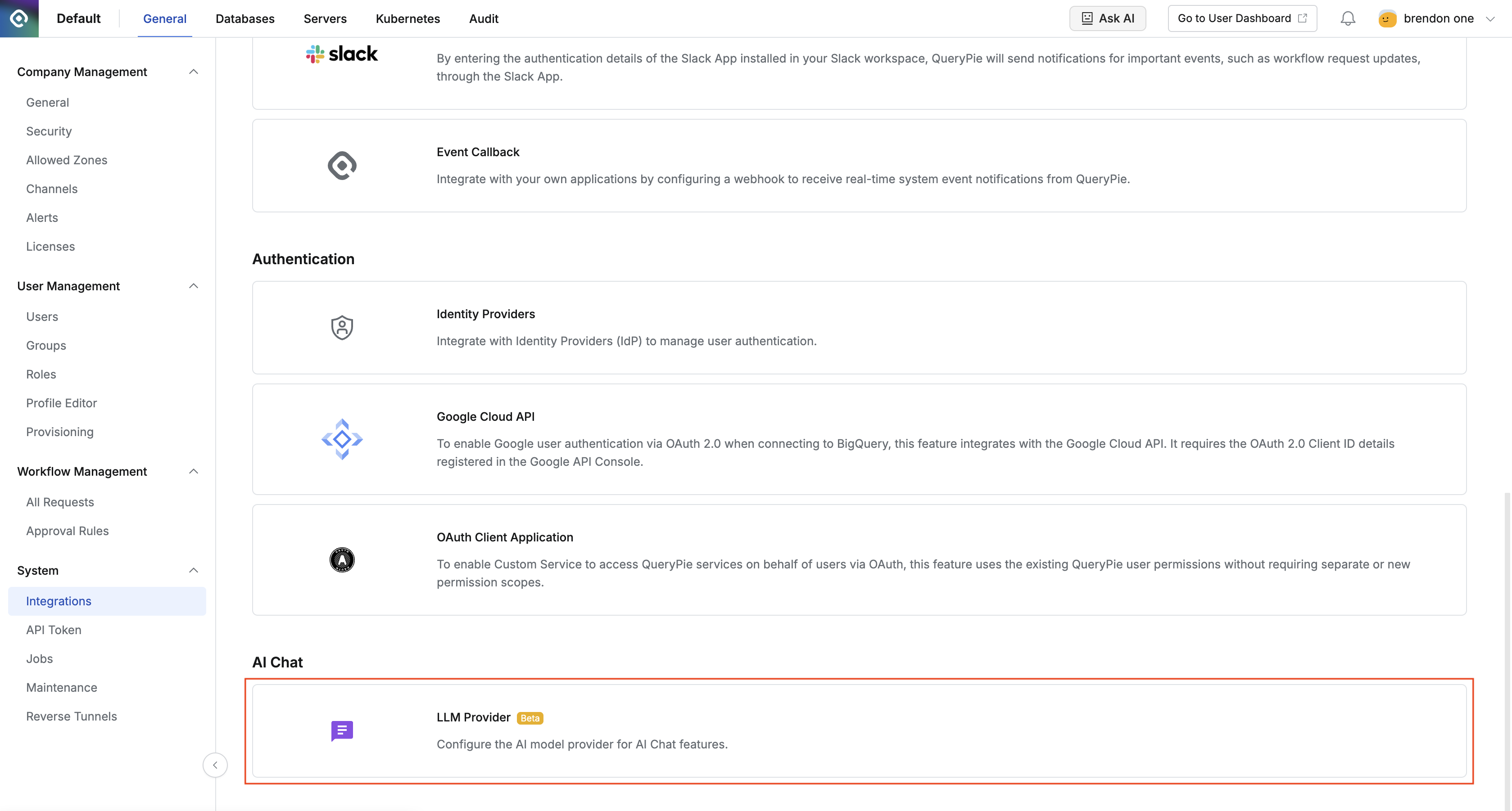
- Navigate to Admin > General > System > Integrations > LLM Provider.
- You can enable or disable AI Chat with the AI Chat ON/OFF toggle switch at the top of the page.
- Configure the following options in LLM Provider settings.
- Provider Type : Select the LLM Provider to use.
- LiteLLM : Use this when connecting directly to a self-operated LiteLLM proxy server or OpenAPI-compatible LLM server.
- OpenAI, Claude(Anthropic), Gemini : Connect directly to the API of the corresponding cloud service. Because the official API endpoint is used, you do not need to enter
Provider URLseparately. - Z.ai : Enter the API URL of the Z.ai service directly in
Provider URL.
- Provider URL : When LiteLLM or Z.ai is selected, enter the API endpoint URL of the LLM service. When entering the endpoint URL of LiteLLM or an OpenAI-compatible LLM server, exclude ‘/v1’.
- API Key : Enter the API key of the selected Provider. (For an OpenAI-compatible LLM server, enter an empty value or any value.) You can verify whether it works correctly through a connection test.
- Default Model : Enter the model name to use as the default in AI Chat. After a successful connection test, the list of available models is displayed automatically.
- System Prompt : Enter the system prompt that AI uses as the basis for its responses.
- Proxy Settings : Configure this if a proxy server is required for the LLM Provider connection.
- Host : The proxy server host address.
- Port : The proxy server port number.
- Username / Password : Proxy authentication information.
- Skip SSL Verify : Skips SSL certificate verification for proxy connections.
- Context Limit (Tokens) : Configure the maximum number of tokens to use for maintaining conversation context. The default is 100,000 tokens. If this value is exceeded, earlier messages are automatically excluded. Set this value by referring to the maximum context length of the model you use, such as up to 200K tokens for Claude Sonnet and up to 128K tokens for GPT-4o.
- Admin Only : When enabled, only users with Admin privileges can use AI Chat.
- Provider Type : Select the LLM Provider to use.
After changing LLM Provider settings, you must click the Save button to save them.
After saving, verify normal operation through a connection test.
Reference : Using AI Chat
Last updated on