AI Chat
Overview
AI Chat has been added to QueryPie. (Available in 11.6.0 and later.) Users and administrators can perform various tasks in QueryPie through natural language. It is connected to the built-in MCP (Model Context Protocol) server in QueryPie ACP and supports Tool calls. The following are examples of tasks users and administrators can perform through AI Chat by access control area.
Database (DAC)
| Feature | Description |
|---|---|
| View DB connections | Check the list of database connections that I can access |
| Run SQL | Run a single query (up to 1,000 rows) |
| Session query | Run multiple queries that require large result retrieval or transactions |
| Workflow request | Request new DB access, schema permissions, or SQL execution approval |
| AI Preview | Validate schemas and analyze expected results without actually running SQL |
Server (SAC)
| Feature | Description |
|---|---|
| View servers/roles | Check accessible servers and assigned roles |
| Select role | Activate a role for access to a specific server |
| Shell session | Connect to a server through SSH/SFTP and start a shell |
| Run commands | Run Linux/Windows commands in a started shell session |
| Web terminal integration | Send commands to a terminal session opened by the user in the web UI |
Kubernetes (KAC)
| Feature | Description |
|---|---|
| View clusters | Check the list of accessible K8s clusters |
| Manage resources | View/create/update/delete Pods, Deployments, Services, and more |
| Analyze clusters | Diagnose cluster status and report issues |
| Check events/metrics | View node metrics and cluster events |
Admin
| Feature | Description |
|---|---|
| Manage access control | Grant/revoke DB/server/K8s roles, policies, and permissions |
| Manage connections/clusters | Register and update DB connection information, servers, and K8s clusters |
| Manage users | View user lists and activate/deactivate users in bulk |
| Audit logs | View SQL execution history, server access history, command audits, and K8s request audits |
| Data masking/tagging | Manage sensitive data tags and masking policies |
Other supporting features
| Feature | Description |
|---|---|
| Schema validation | Check actual table column names and types before writing SQL |
| Chart visualization | Convert query results to bar, line, pie, or area charts |
| YAML policy validation | Automatically validate YAML formats for SAC and KAC |
| Usage guide | Reference official specification documents and run automatic validation |
Using AI Chat
To use AI Chat, an administrator must configure it in advance so users can use the feature.
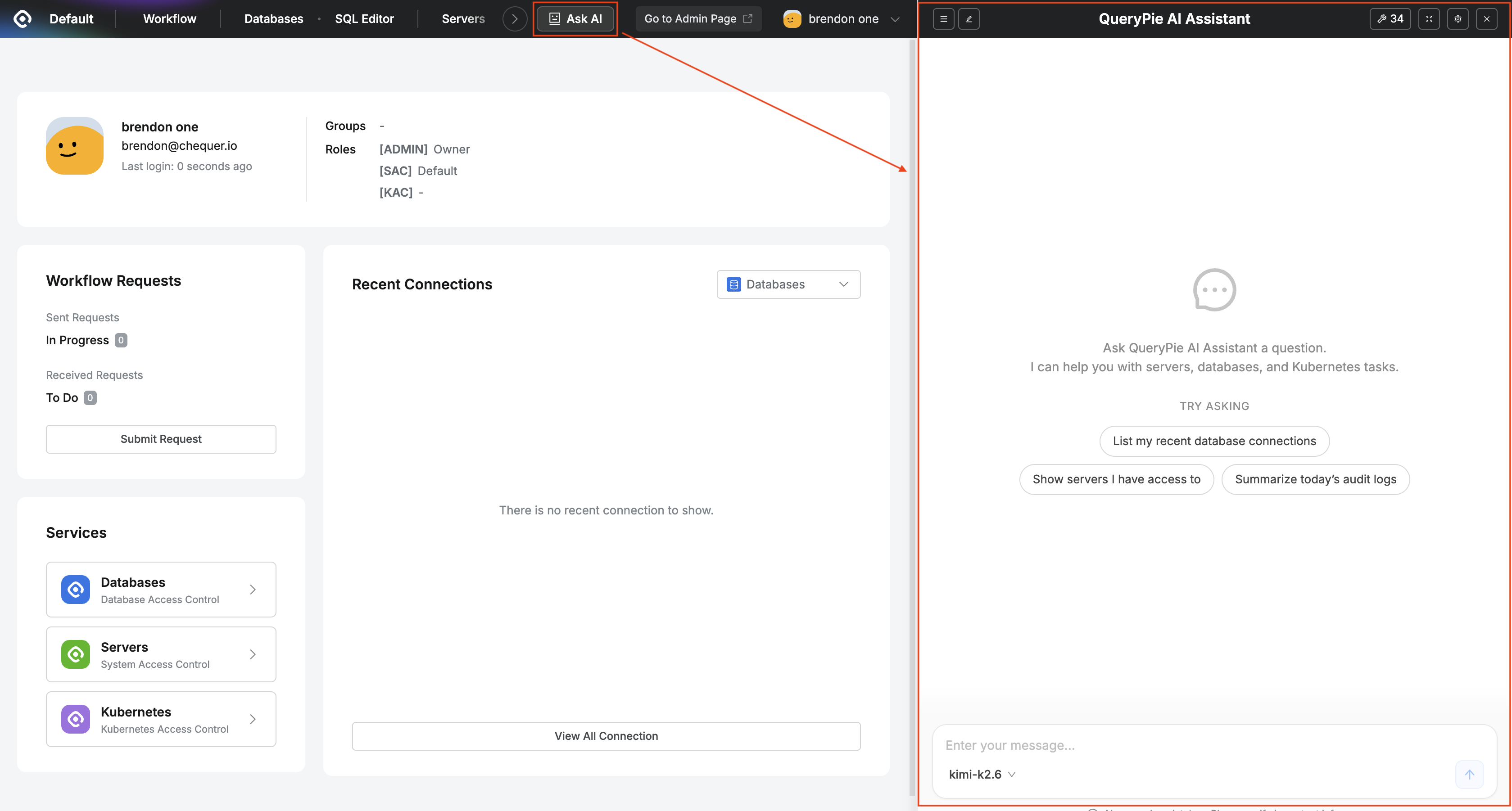
Loading the chat window with the Ask AI button
- Click the
Ask AIbutton on the right side of the top menu in QueryPie to open the chat panel. - The chat panel slides in from the right. You can adjust the panel width by dragging the resize handle at the right edge.
- You can use the following features in the header area.
- Conversation list button
 : Opens a dropdown that shows the automatically generated conversation list.
 - New conversation button
 : Click the pencil icon button to start a new conversation.
 - Tool list
 : Click the wrench icon button to check the list of MCP Tools that AI can use, such as Database, Server, and User.
 - Full-screen toggle button
 : Switches the chat panel to full screen.
 - Settings button
 : Click the gear icon to refresh the MCP Tool list.
 - Close
 : Click the button to close the chat panel.
- Conversation list button
- Enter a question in the chat input field at the bottom and send it.
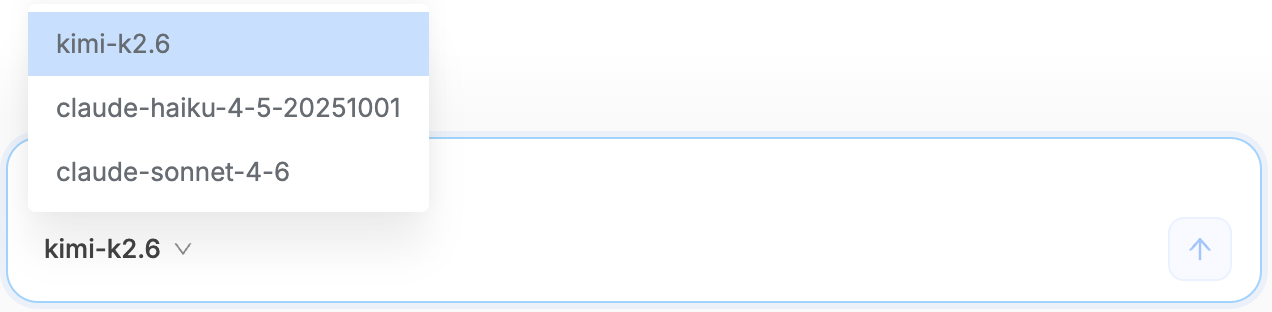
- Model selection : Check the currently used LLM model and switch to another model within the same Provider.
- Context information for the page you are currently viewing is entered automatically, such as a Database detail page or SQL Editor.
- When you switch pages, the context changes and a warning message is displayed.
- AI generates an answer to the question. If needed, it calls MCP Tools and provides answers by referencing QueryPie data.
- While a response is being generated, a spinning indicator is displayed at the bottom, and you can click the stop button to stop generation.
- AI responses can include various artifacts, such as SQL code and charts.
AI Preview
When you click the AI preview button in the DAC Web editor toolbar, the AI chat window shows the expected execution result for the query.
You can check the target schema structure, expected row count, expected performance, and potential issues without running the query.
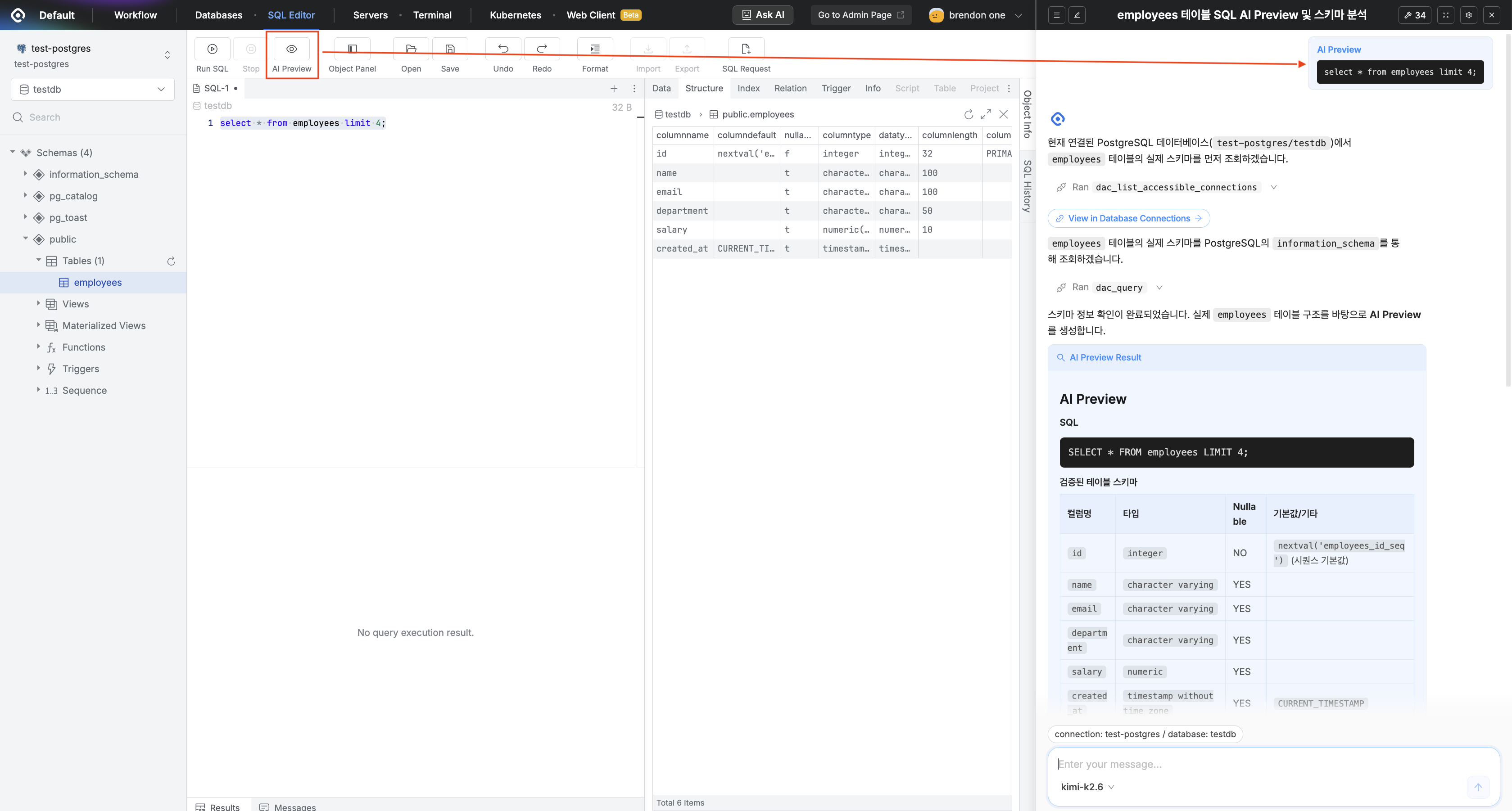
Running AI Preview
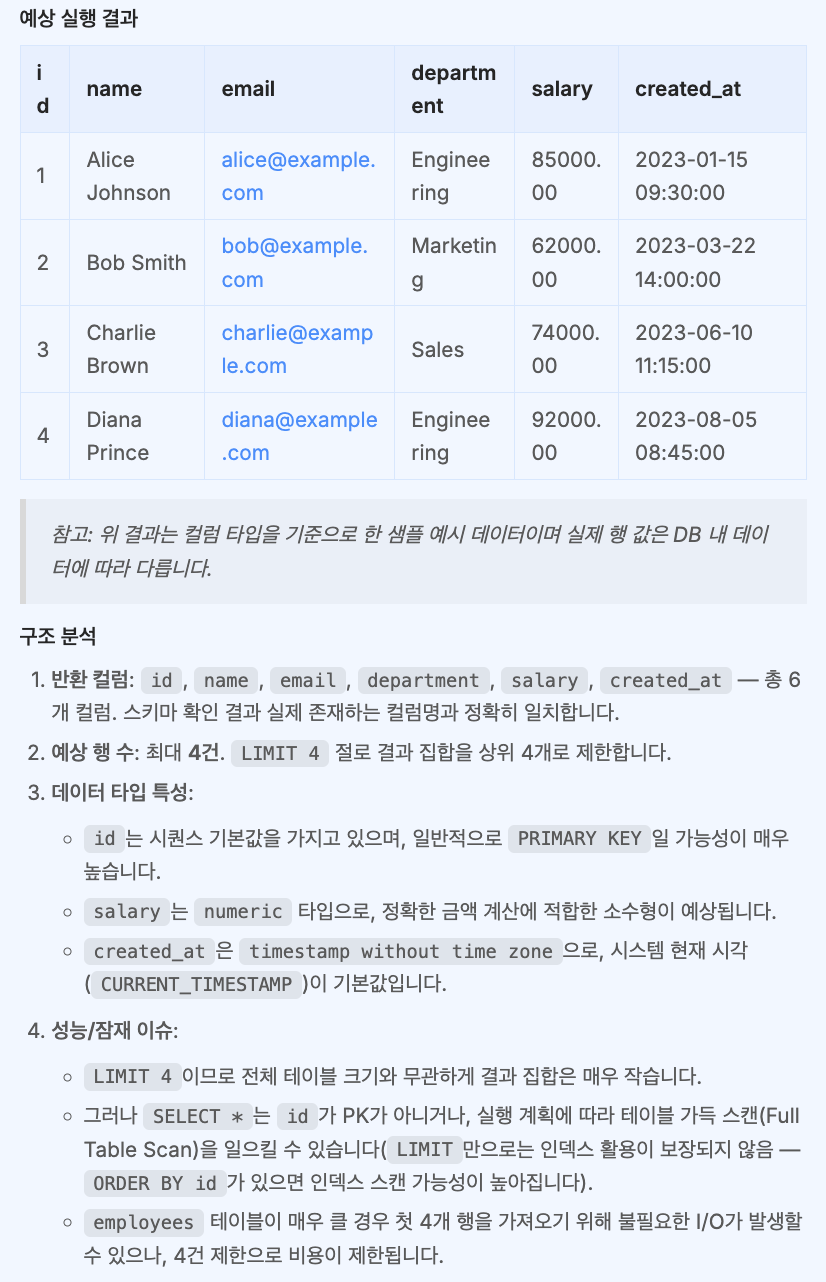
Example AI Preview result
AI responses are for reference only. For important tasks, make sure to verify the results.
Managing Conversation History
You can view and manage previous conversations.
- Click the hamburger menu (☰) button in the AI Chat panel header to open the recent conversations dropdown.
- In the dropdown, you can view and select up to five recent conversations, and you can start a new conversation with the
New Chatbutton. - The
View Allbutton appears at the bottom of the dropdown only when there are six or more conversations. Click it to open the conversation list sidebar. - When the conversation list sidebar is open, you can use the following features.
- Select conversation : Click a conversation in the list to display its contents.
- Edit conversation title : When you hover over a conversation item, a more button (
…) appears on the right. SelectRenameand edit the title. - Favorites : Use the more button (
…) menu that appears when you hover over a conversation item to add it to or remove it from favorites. - Delete conversation : Use the more button (
…) menu that appears when you hover over a conversation item and selectDeleteto remove the conversation. - Load more : The
Load morebutton appears at the bottom of the list only when there are additional conversation pages. Click it to load older conversations.
The current version does not provide conversation search.