Ledger Table Policy
Overview
Administrators can set ledgers at the table level of databases through the Ledger Table Policy menu and apply rules when users call ledger tables.
The existing ledger table policy feature was provided as a separate license, but from version 10.2.1 onwards, it is provided as an integrated DAC feature without requiring a separate license.
Mapping Approval Rules to Ledger Tables
DBMS supporting ledger table management include MySQL, MongoDB, Oracle, MariaDB, and Athena.
You can create policies by DB connection and map approval rules to tables to be managed as ledgers within connections. After setup, when users attempt to execute modification queries such as UPDATE or export data on the corresponding table, you can configure SQL Requests through the corresponding approval rules.
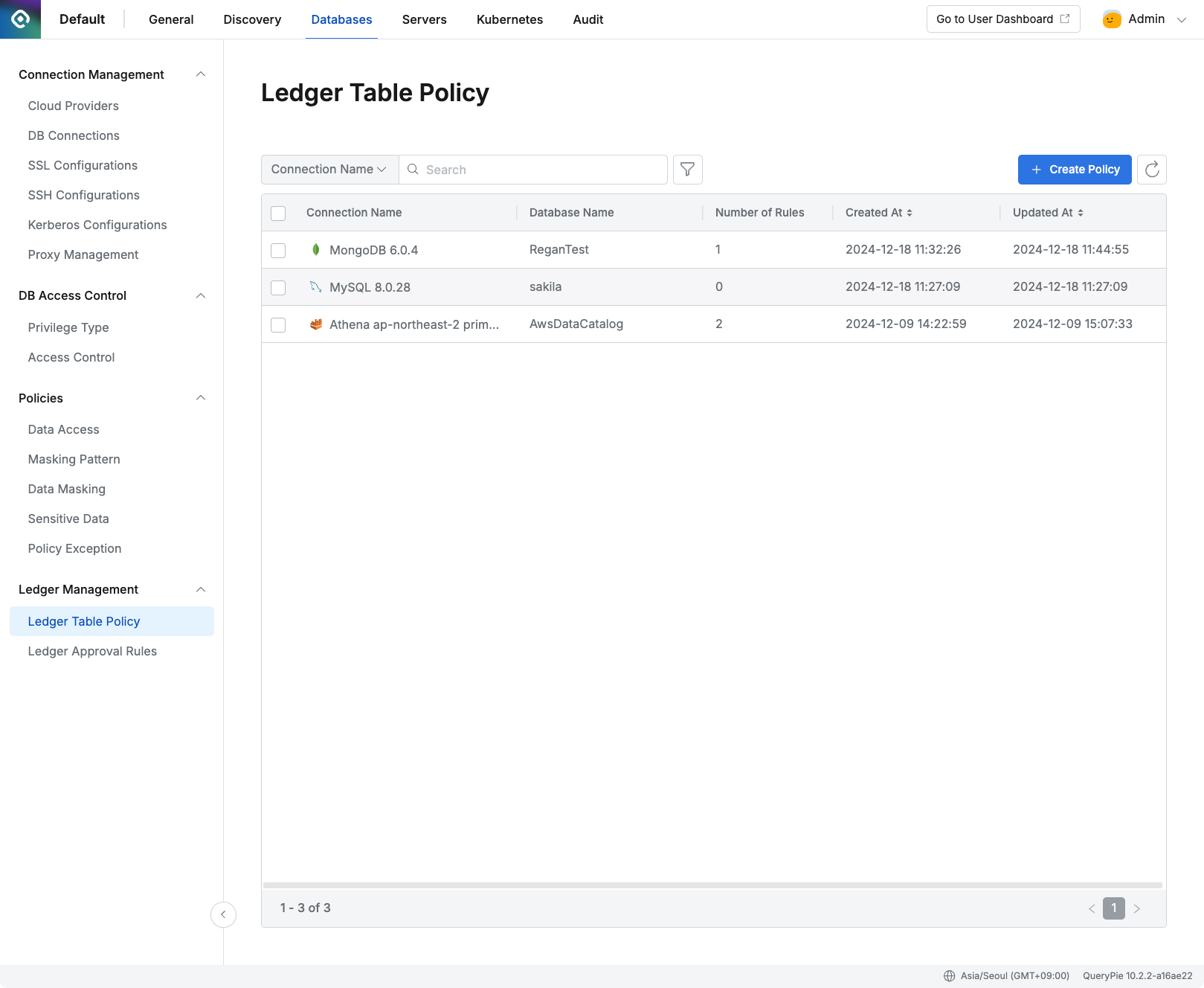
Administrator > Databases > Ledger Management > Ledger Table Policy
- Navigate to Ledger Management > Ledger Table Policy menu from the Database settings menu.
- Click the
Create Policybutton in the top right. - Enter the following information for policy creation:
- Target Connection: Select the connection containing the table that is the target of policy application.
- Target Databases: Select the databases containing the tables that are the targets of policy application. You can select multiple databases simultaneously.
- Save through the
Savebutton.
You can verify that policies have been created in the Ledger Table Policy list by DB connection.
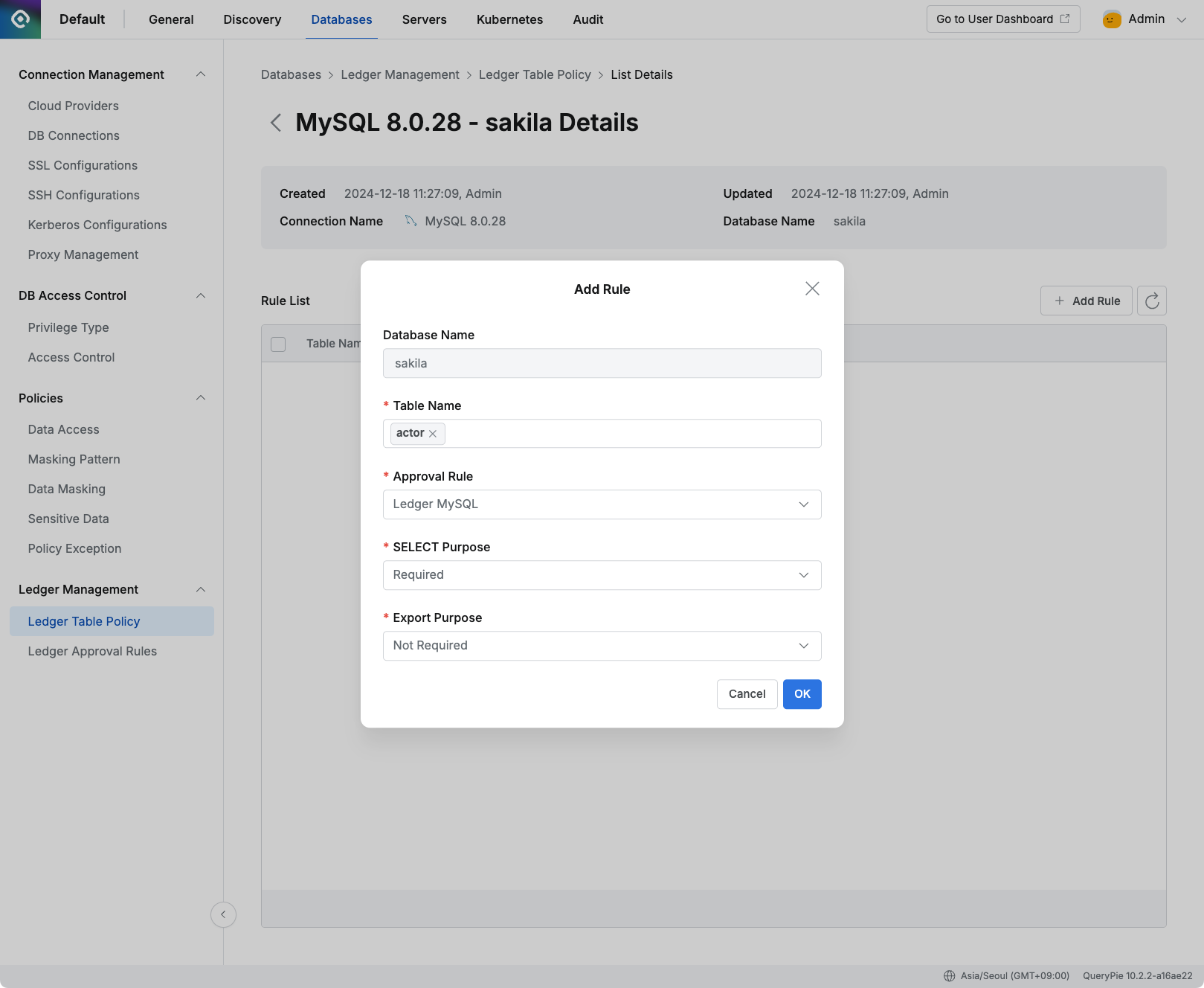
Administrator > Databases > Ledger Management > Ledger Table Policy > Details
Go to the detail page of the created policy to set ledger table approval rules.
- Click the
Add Rulebutton in the middle right of the detail page. - Select the ledger table from the list.
- Select the workflow approval rule to apply when executing DML queries on the corresponding ledger table.
- You can separately configure the corresponding approval rules in the Ledger Approval Rules menu.
- If you want to enforce input of reasons for querying data, set the SELECT Purpose field to Required (Default value is Required).
- If you want to enforce input of reasons for exporting data, set the Export Purpose field to Required (Default value is Not Required).
- Click the
Okbutton to complete rule addition.