MAC General Configurations
Overview
In the QueryPie MCP Access Control General settings, you can configure global security settings such as the client-oriented request audit scope and forward proxy settings.
QueryPie MCP Access Control divides security audit records into two scopes.
MCP Client – :1_one_circle_red: Client-oriented request —> QueryPie MAC – :2_two_circle_red: upstream request —> Remote MCP Server
General Configuration determines whether to record events for client-oriented requests. Event recording for upstream requests is controlled in the settings for each MCP Server.
If internet access is blocked, you can configure communication with remote MCP Servers through a forward proxy server.
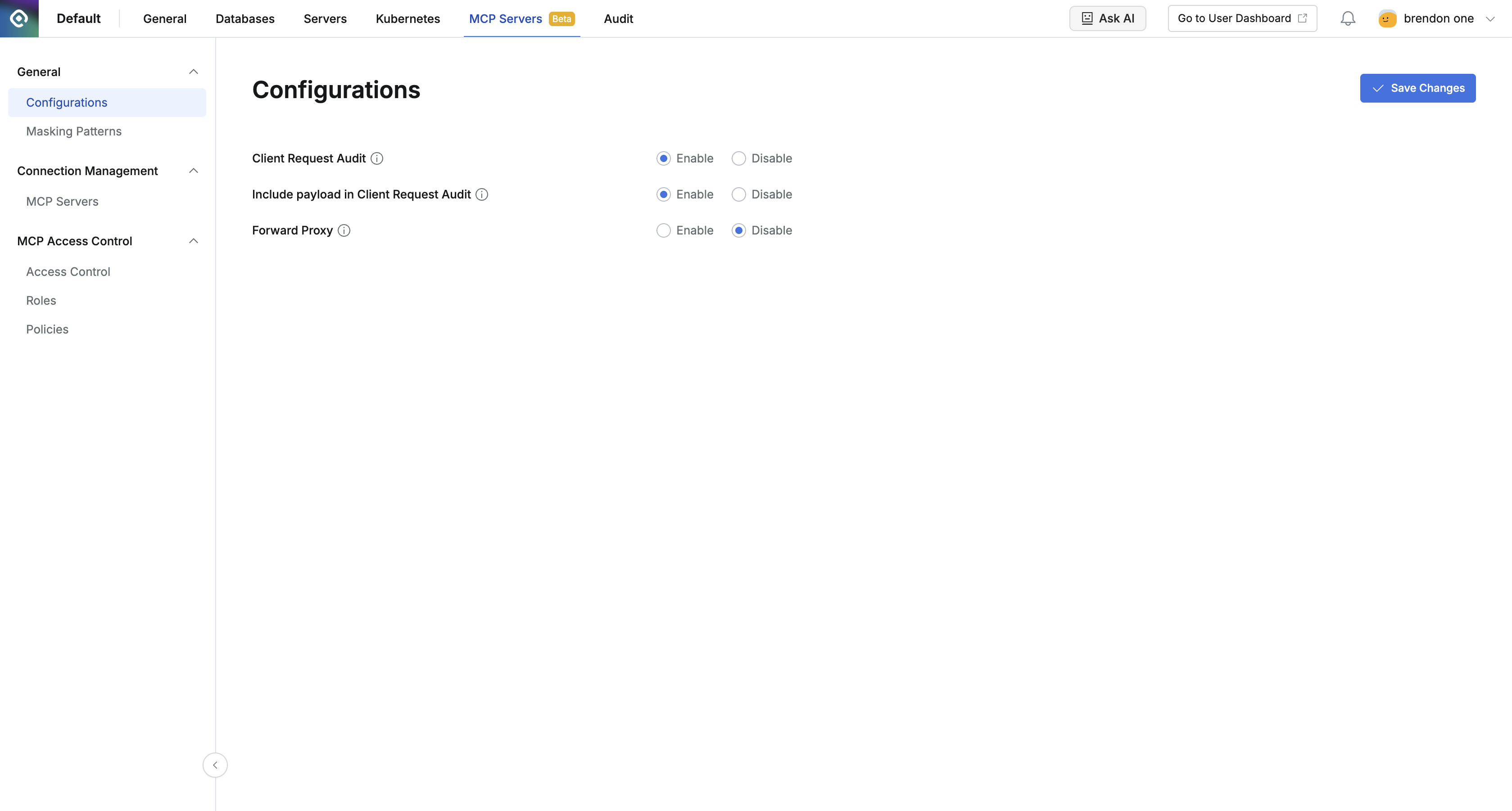
Admin > MCP Servers > General > Configurations
You can use masking patterns to mask responses received from an MCP Server based on regular expressions.
Client Request Audit and Include payload in Client Request Audit
- Client Request Audit: Enabled by default. When enabled, it records events for requests sent from a client to an MCP Server in the segment between the MCP Client and QueryPie MAC.
- Include payload in Client Request Audit: Enabled by default. It also records the payload content in Client Request Audit events.
Forward Proxy
Forward Proxy on the Admin > MCP Servers > General > Configurations screen is a global network setting applied to all MCP connections.
- When you turn on Enable Forward Proxy, you can enter a Host and Port, and configure a Username and Password if necessary.
- This setting applies to admin
Test Connection,Sync Tools, OAuth-related upstream calls, and runtime MCP proxy upstream connections. - You may need this Forward Proxy configuration in an environment where the remote MCP Server is not directly reachable.
- If QueryPie and the MCP proxy can directly access the remote MCP Server over the network, they can connect without a Forward Proxy.
Masking Patterns
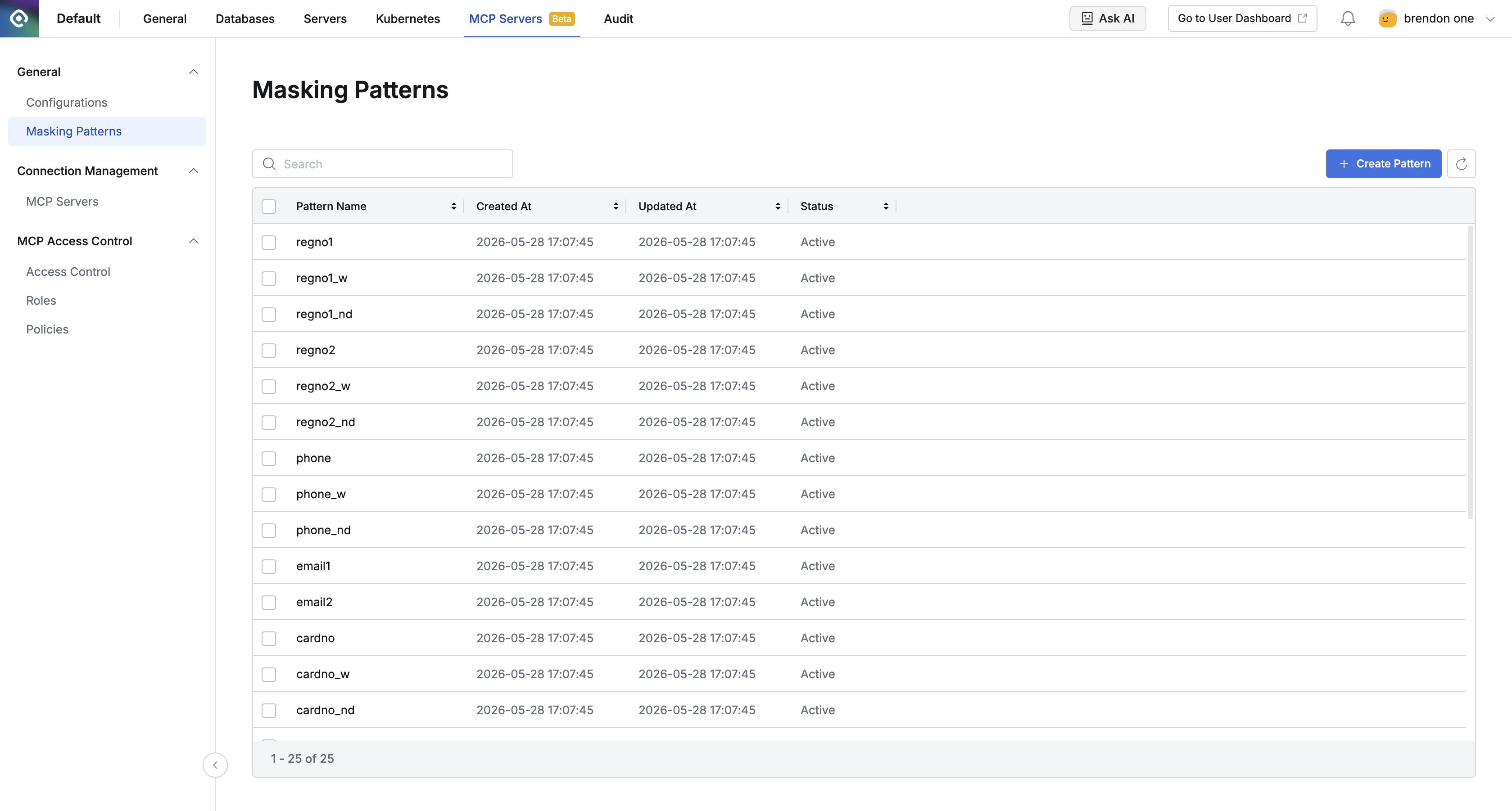
Admin > MCP Servers > General > Masking Patterns
By default, 25 predefined masking patterns are provided. You can also add and manage custom masking patterns.
- Detecting Pattern: Pattern for detecting sensitive information
- Masking Pattern: Pattern for masking sensitive information
- Masking Pattern Preview: Preview of the masking pattern result
- Sample Data: Sample data
- Detected Data: Area detected as sensitive information in the sample data by the Detecting Pattern (blue shading)
- In the Preview table, Masked Data shows the result of masking sensitive information in the sample data
Click Save to save your changes.
To delete a masking pattern, click Delete, then click Delete in the confirmation modal.
Alternatively, select the item to delete using its checkbox in the Masking Patterns list, then click Delete.