Setting Server Access Policies
Overview
You can manage access policies (Policy) for servers managed by the organization. Policies operate based on YAML Code in a form similar to IaC. You can not only set the days and times when access is allowed, but also set accessible IP addresses, audit settings, and agent usage availability. In addition, you can set the number of allowed sessions per user.
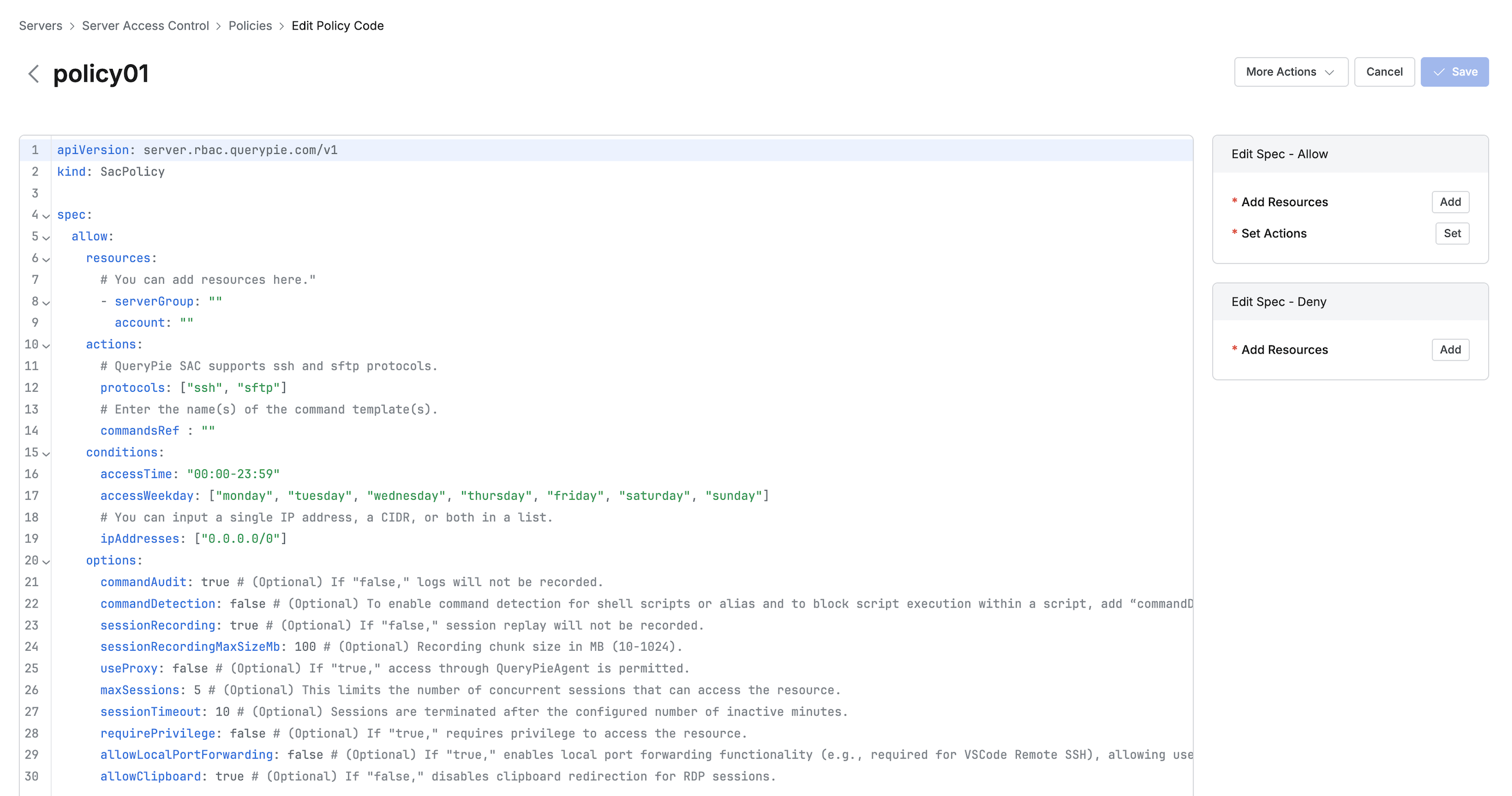
Configurable Policy Items
- serverGroup: Server group to allow access to
- account: Account registered in the server group
- protocols: Allowed protocols (as of 10.2, supports SSH, SFTP, TELNET, FTP, RDP)
- commandsRef: Command template to apply when accessing
- You can check the content of the selected Command Template by expanding the
Command Policy Detailaccordion - For creating and managing command templates, refer to Command Templates
- When both Allow / Deny command templates are applied, Deny takes priority
- You can check the content of the selected Command Template by expanding the
- accessTime: Access allowed time
- accessWeekday: Access allowed days of the week
- ipAddresses: Access allowed IP settings
*When corresponding to Security > Resource IP Access Control Configuration settings, only IPs within the allowed range are permitted access - commandAudit: Whether to apply command auditing when accessing
- commandDetection: Whether to detect prohibited commands within Script and Alias when they are called
*Limitation: (10.2.1) Only works in Bash Shell, commands that call other Scripts from Script are blocked - sessionRecording: Sets whether session recording is enabled. The default is
On(true). When multiple policies apply, session recording is enabled if any policy has this option set toOn(true). To disable session recording, set it toOff(false)in all matching policies. (Supported from 11.5.8 and 11.6.6) - sessionRecordingMaxSizeMb: Sets the maximum chunk size of session recording files in MB. The default is
100, and you can enter a value from 10 to 1024. When multiple policies apply, the smallest value is used. (Supported from 11.5.8 and 11.6.6) - useProxy: Whether to allow proxy access through Agent
- maxSessions: Maximum concurrent connections per server
- sessionTimeout: Server session timeout criteria time (minutes)
- requirePrivilege: Whether privilege approval is required for server access
*When this option is activated (Enable), the account must receive approval through the server privilege request (Server Privilege Request) workflow to access the server. - allowLocalPortForwarding: Allows clients to forward local ports to the remote server. The default is
Disable(false). Set it toEnable(true)for clients that use local port forwarding, such as VS Code Remote SSH. - allowClipboard (Allow RDP Clipboard): Sets whether clipboard redirection is allowed for RDP sessions. The default is
true; setting it tofalseblocks clipboard redirection in the RDP session. (Supported from 11.5.8 and 11.6.6)
What is Clipboard Redirection?
Clipboard Redirection is a Remote Desktop Protocol (RDP) feature that shares the clipboard between a local device and a remote Windows desktop session, allowing copied text or files to be pasted between them.
Editing Policies in Editor Mode
Administrator > Servers > Server Access Control > Policies > List Details > Go to Editor Mode
- Navigate to Administrator > Servers > Server Access Control > Policies menu.
- Click the Policy to edit policy code from the list.
- Click the
Go to Editor Modebutton on the right of the Detail tab to go to the Code Editor screen. - Use the following methods to modify the desired policy content in the code editor window.
- Debug errors in directly modified code through the Errors tab at the bottom.
- Check the definition methods for each item through the Tips tab at the bottom and reflect them in the code.
- Insert or modify content in the code through the buttons on the right.
- When access policy definition is complete, click the activated
Savebutton in the top right to save the policy.
Last updated on