QueryPie ACP Community Edition Initial Configuration Guide
Overview
Learn about the settings that must be configured after completing the Community Edition installation.
Web Base URL Configuration
You must enter the address related to external access in the Web Base URL field on the General > Company Management > General settings page of the admin console.
Features that use the value entered in Web Base URL
- OAuth / SAML redirect URI, SCIM endpoint
- Link URL generation in Email / Slack
- Server Agent configuration and download URL
- User Agent download link
- Audit log export / Report download link
- [DAC] DB OAuth redirect URI
- [KAC] Session recording download
For more details on other uses, please refer to QUERYPIE_WEB_URL.
This URL must not end with /. Be careful not to add / at the end of the URL, as in https://querypie.customer.com/.
For Community Edition, the default port is 8000, so please include the port as well.
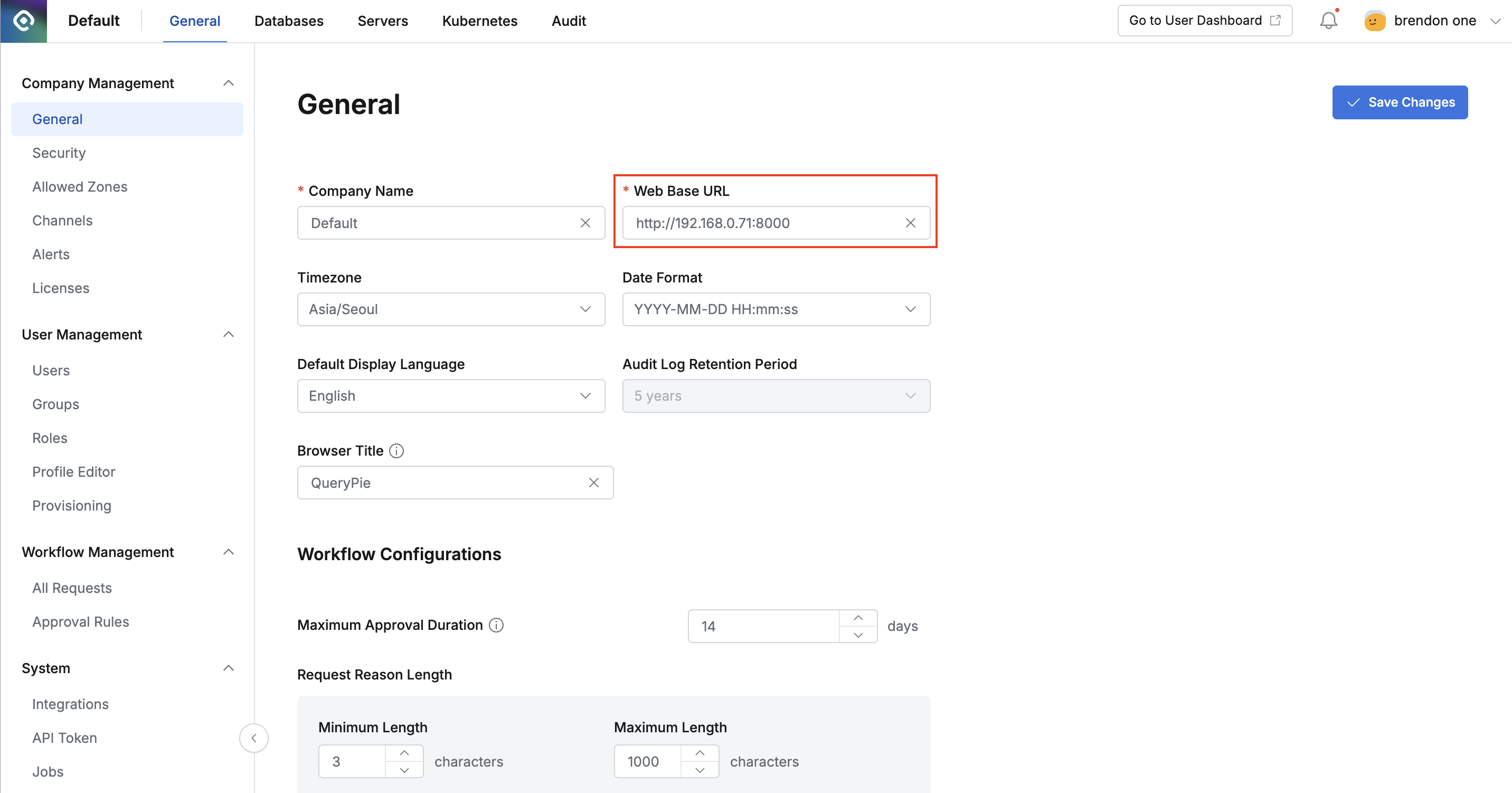
Web Base URL
Proxy Configuration per Service
Proxy configuration is required to connect to targets using 3rd party tools.
Navigate to the directory where QueryPie is installed and run the configure-proxy.sh script.
Use the -h or —help option to view the script help.
bash configure-proxy.sh -h
Usage: configure-proxy.sh [OPTIONS] [PROXY_ADDRESS]

Configure QueryPie ACP proxy settings for DAC/SAC and KAC in one step.

ARGUMENTS:
  PROXY_ADDRESS  FQDN or IPv4 address of this host.
                 e.g. 192.168.1.100, querypie.example.com
                 If omitted, the host IP is auto-detected.

OPTIONS:
  -y, --yes      Assume yes to all prompts; run non-interactively.
  -h, --help     Show this help message
cd ~/querypie/current #### This is an example when installed under the home directory.
bash configure-proxy.sh ## run proxy configuration scriptWhen you run the script, enter the Proxy Address to use. By default, the host IP is auto-detected. If needed (e.g., to enter an FQDN), you can modify and enter it.
Proxy address [10.11.20.87]:The proxy settings for DAC / SAC / KAC are applied all at once.
Apply the above proxy settings?
Do you agree? [y/N] : y
Press y to continue.
A restart is required to apply the settings.
Restart services to apply changes?
Do you agree? [y/N] : y
Press y to continue. When the services have restarted successfully, the output will appear as shown below.
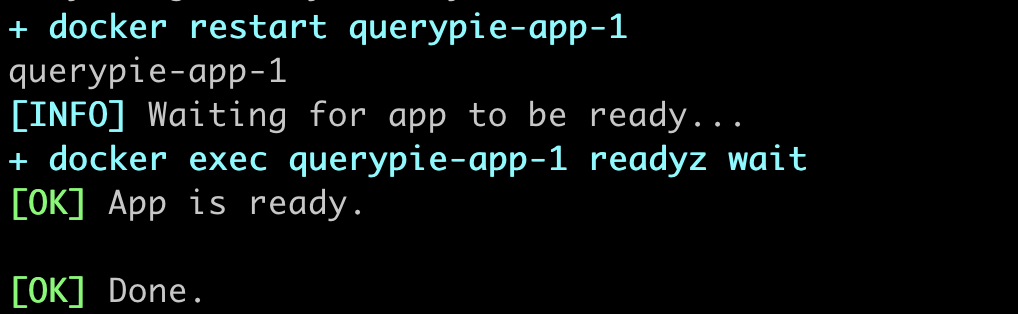
Proxy configuration script completed successfully.