Using Remote MCP Servers through MAC
Overview
MCP Servers is a user screen where you can view the remote MCP Servers you are allowed to access and connect external MCP Clients through the MCP endpoint provided by QueryPie.
On this screen, you can view the servers available to you and review each server’s Basic Info, Tools, and Accessible Roles. When an MCP Server’s Credential Mode is “User OAuth” (configured on the administrator page), you can also establish the upstream OAuth connection yourself.
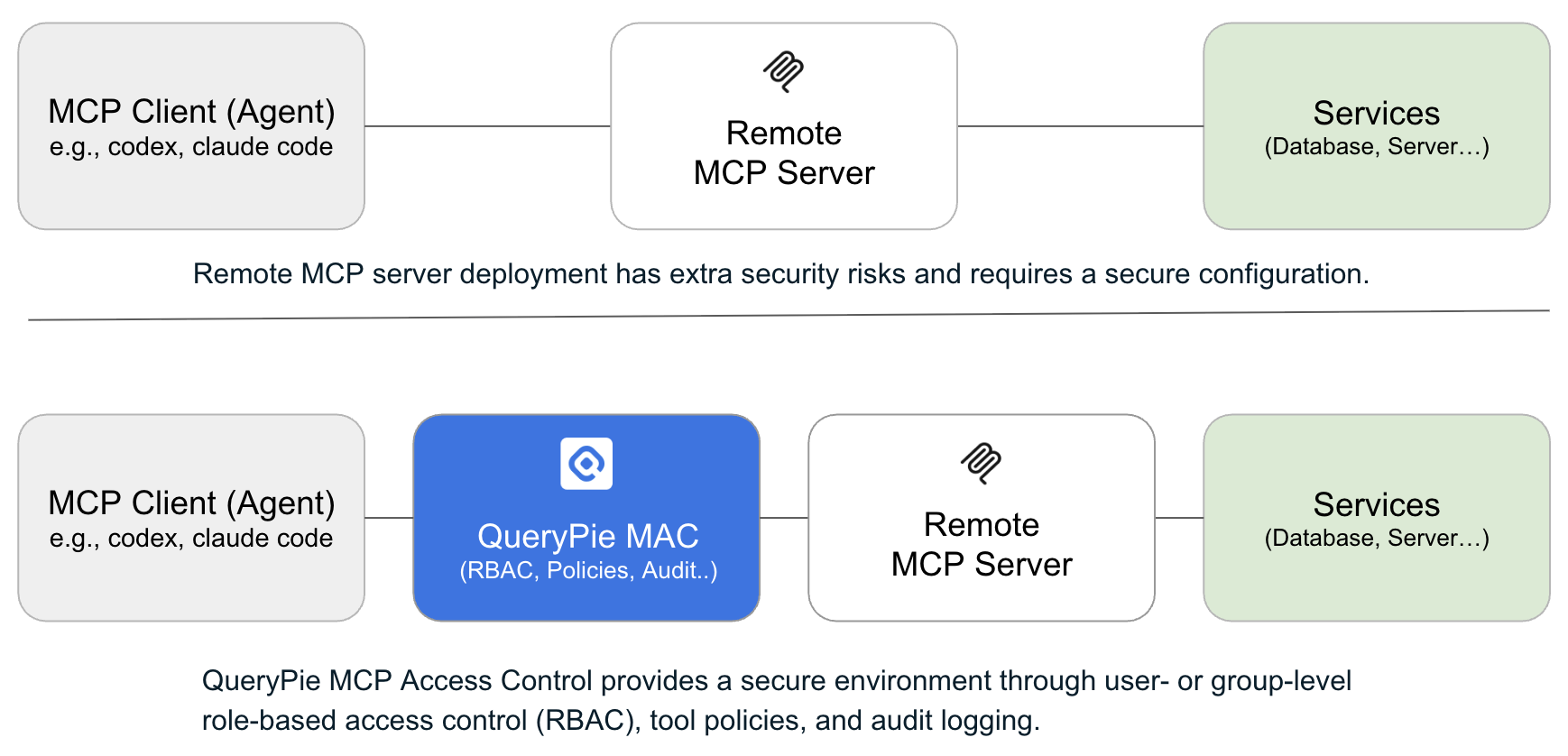
This document explains how to perform the following tasks on the user page.
- View the MCP Servers you can access
- View connection instructions for each MCP Client
- Review Basic Info, Tools, and Accessible Roles for each server
- Establish an upstream OAuth connection when necessary
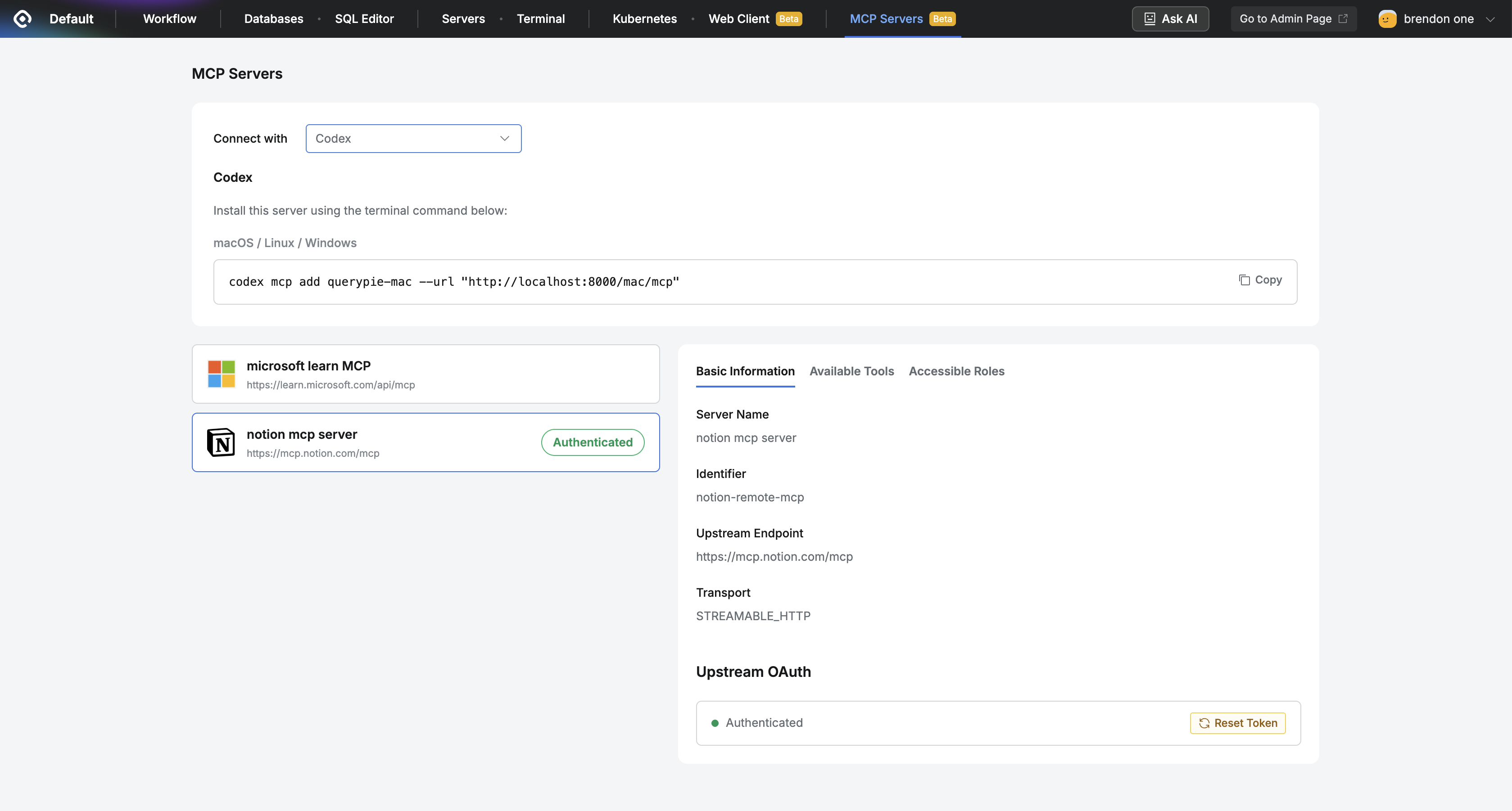
User > MCP Servers
Before you begin
The following conditions must be met.
- QueryPie ACP must have a MAC license.
- An administrator must grant you a Role that provides access to an MCP Server.
- The policy associated with the granted Role must provide access to at least one MCP Server.
If no Role is granted to you, an informational screen appears instead of the server list, and you may need to request access. Currently, only an administrator can grant a Role. You cannot request access through a workflow.
You connect to the MCP endpoint provided by QueryPie, not directly to the upstream MCP Server’s original URL. The connection instructions under Connect with are generated based on the QueryPie endpoint (<QueryPie Instance FQDN>/mac/mcp).
Opening the MCP Servers screen
- Click
MCP Serversin the top menu. - The MCP Servers screen consists of the
Connect withsection, theserver list (server cards), and thedetail panel. - If you have permission to access MCP Servers through a granted Role, the server card list appears.
Information available on the screen
| Item | Description |
|---|---|
| Connect with | Select the MCP Client you use from the drop-down list to view connection instructions for that Client. |
| Server list (server cards) | Displays the accessible MCP Servers. Each server card shows the MCP Server name and endpoint address configured by the administrator. |
| Authentication badge | Servers that require OAuth display an Authenticated or Not Authenticated status. |
| Detail panel | Shows Basic Information, Available Tools, and Accessible Roles for the selected MCP Server. |
Viewing MCP Client connection information under Connect with
The Connect with section shows how to register the QueryPie MCP endpoint in an external MCP Client.
- Select the MCP Client you want to use from the
Connect withdrop-down. - QueryPie displays connection instructions for that Client.
- Copy the command, URL, or configuration example shown in the instructions and register it in the MCP Client.
The supported instruction method may differ by Client.
| Method | Description |
|---|---|
| One-click | Opens the Client and passes connection information through the Connect button. (Example: VS Code) |
| Command | Copy a terminal command and register it in the MCP Client CLI. (Example: claude mcp add --transport http querypie-mac "https://<QueryPie Instance FQDN>/mac/mcp") |
| Terminal URL | Copy the displayed URL and enter it in the Client settings. |
| Connector steps | Copy and enter the URL or configuration value on the Client settings screen. (Example: LibreChat) |
The values shown in the connection instructions are generated from QueryPie’s common MCP root URL, not the upstream URL of the selected server.
For example, the Notion endpoint URL is “https://mcp.notion.com/mcp”, but the connection instructions under Connect with for the QueryPie MCP Server show “https://<QueryPie Instance FQDN>/mac/mcp”.
Viewing accessible MCP Servers
- Click the server you want in the server card list.
- The card displays the following information.
- MCP Server display name
- Endpoint
- OAuth authentication status badge (when required)
- The detail panel for the selected server opens.
Tabs available in the detail panel
Tab | Description |
Basic Information |
|
Available Tools | View the Tools currently available to you. |
Accessible Roles |
|
Connecting to an MCP Server that requires OAuth
When a server’s Credential Mode is User OAuth, an OAuth connection section appears below the Basic Information tab.
Only an administrator can configure Credential Mode. Users cannot change it.
Establishing an OAuth connection
- Select the server and open the
Basic Informationtab. - If the OAuth status is
Not Authenticated, clickConnectto start authentication. - QueryPie opens an OAuth authentication window in your web browser.
- Complete authentication on the upstream OAuth provider screen.
- When authentication is complete, the status changes to
Authenticated.
Disconnecting OAuth
- Open a server that already has an OAuth connection.
- Click
Reset Token. - The stored OAuth connection is removed, and the status changes back to
Not Authenticated.
When you do not have access or cannot see an MCP Server
When you have no Role
- The
MCP Serversscreen displays an empty state instead of a server list.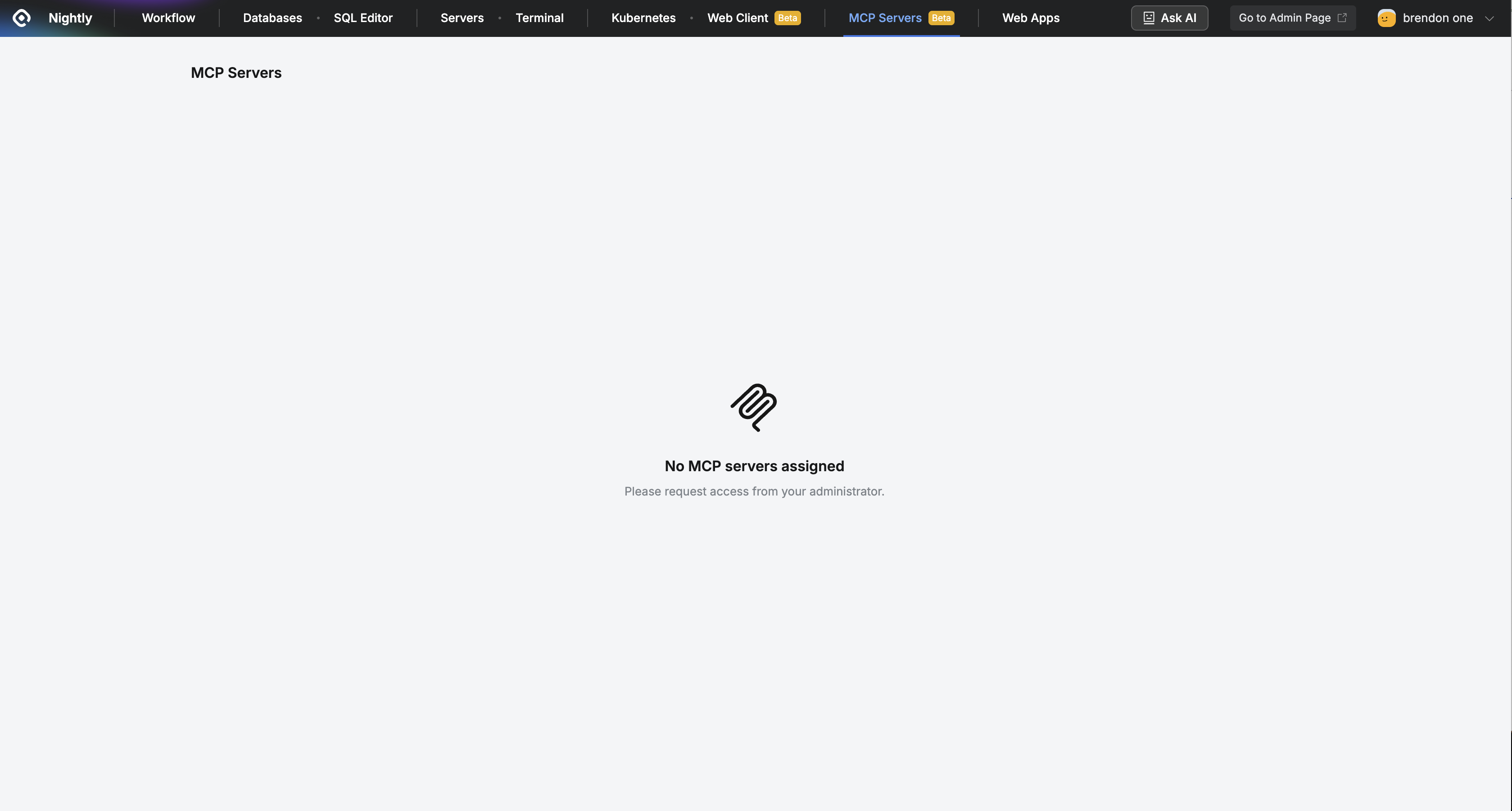
- In this case, ask an administrator to grant you a MAC Role.
When you have a Role but no server
- Even if you have a Role, no server appears if the Role’s Policy does not grant access to any server.
- Ask an administrator to check the Policy associated with the Role or its server access scope.